
Brand your program with a company logo
You have the option to upload a logo that will appear at the top of the participant screen.
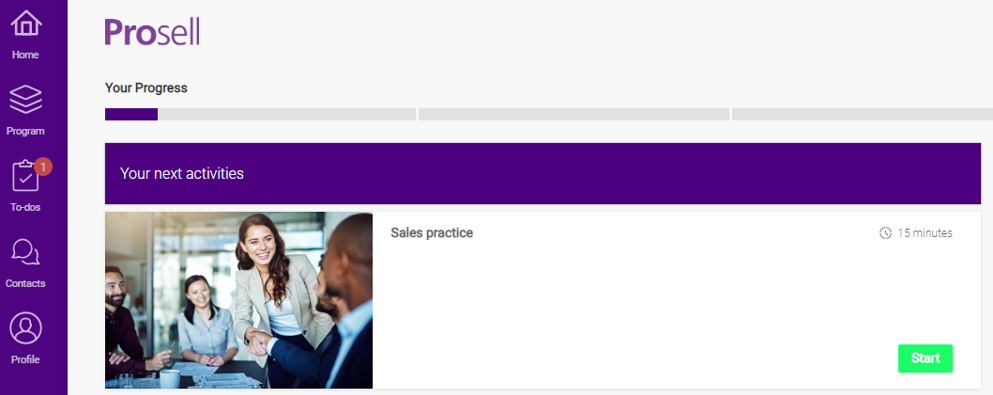
The screenshot below shows where the logo is positioned on a participant's home page ('Prosell' in the top-left). Note that when the platform is viewed on a larger window (desktop view) the logo is displayed on a light background.
When the window size is reduced (on a mobile device, for example), the logo will appear on the color you have set for the 'Navigation background', which is dark purple in the screenshot below.

It is for this reason that two logos can be uploaded (one for display on the light background and the other to display on the darker background).
Uploading your logo
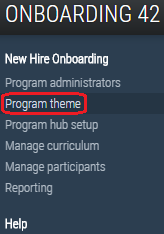
Upload your logo files through 'Program theme' on the left-hand navigation menu.
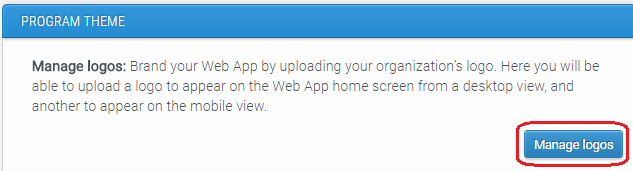
Then, select 'Manage logos'.
As explained above, there are two upload fields because the background they will display on differs depending on the size of the window/screen. Select the 'Choose file' button to locate the logo in your files.
The files you upload should be PNG format and have a transparent background. In addition to this, for optimum display the size dimensions of the images should be 500x282px. If they deviate too far from this, you may notice the logo appearing quite small.
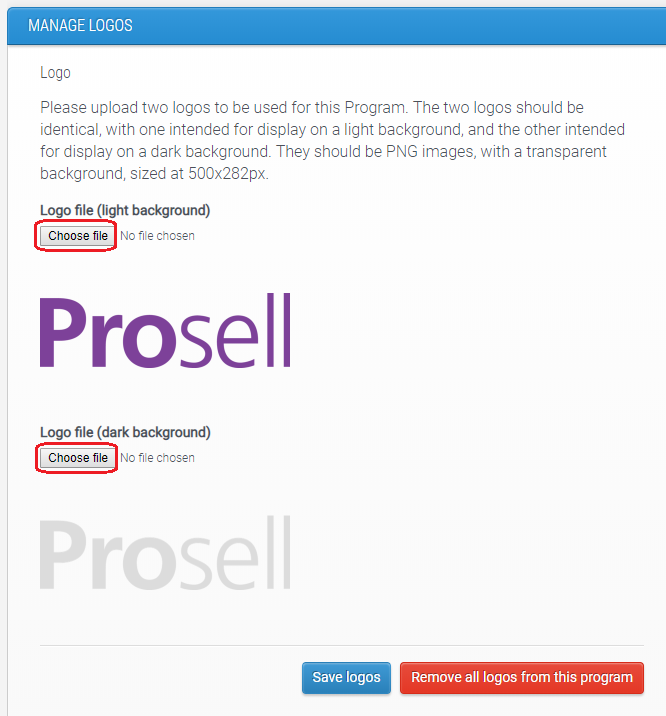
Click 'Save logos' to upload the logos.
Once uploaded (there will be a light yellow box at the top of the page confirming this), you can preview how it looks in the front-end by visiting the program URL, or if you already have this open then just refresh the page.
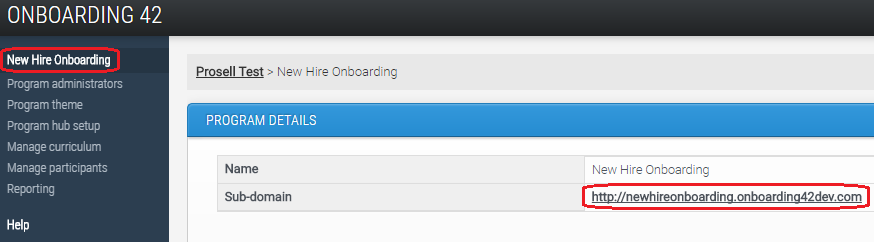
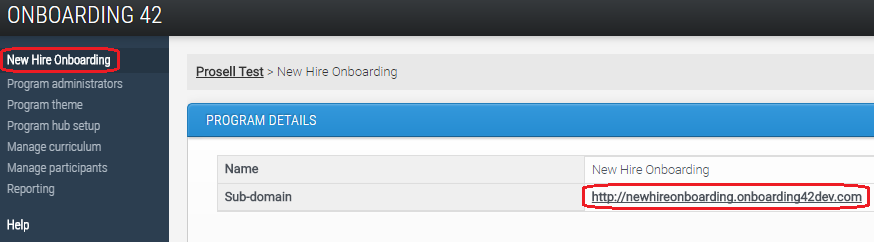
To find out the program URL, select the program name at the top of the left-hand navigation menu in the dashboard and then click on the URL where it says 'Sub-domain'.
The logo uploaded to the first upload field will display on the lighter background and should therefore be a darker color.
The second upload field is for the logo that displays on the navigation background color, which is usually darker and the logo should therefore be lighter in color.
Previewing changes to the theme
Changes to a program's theme can be viewed simply by opening the program (visiting its URL). If you are already on this page you will just need to refresh it.
If you are unsure what the program URL is, you can access it by clicking on the program name on the top-left corner of the admin dashboard.
Comments
0 comments
Please sign in to leave a comment.