
Re-label your program icons to assist during activity creation
For each activity that you create in your program's curriculum you will be required to select an icon that represents it, which will appear to participants within the program page beside each activity and also within the activity above its synopsis.
Program page
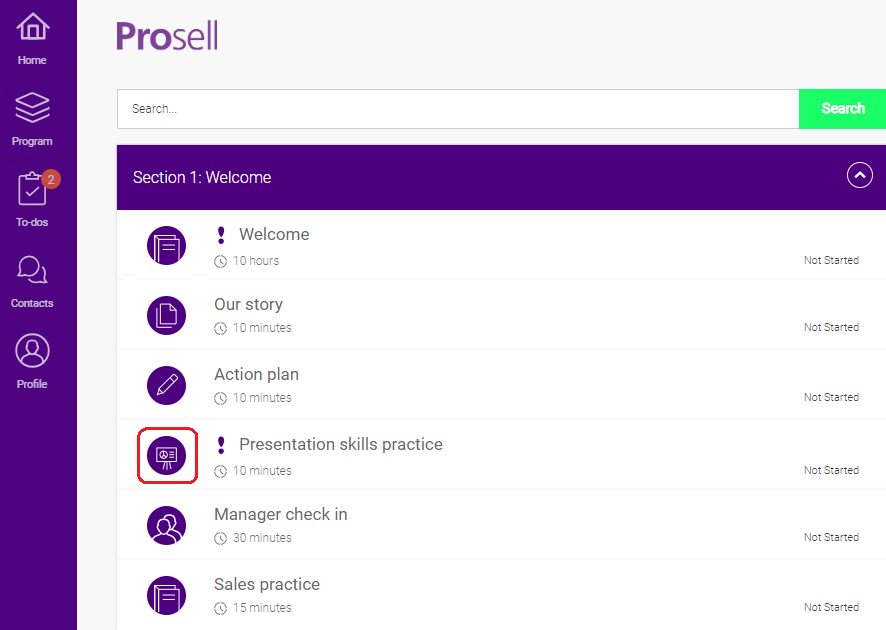
Activity page

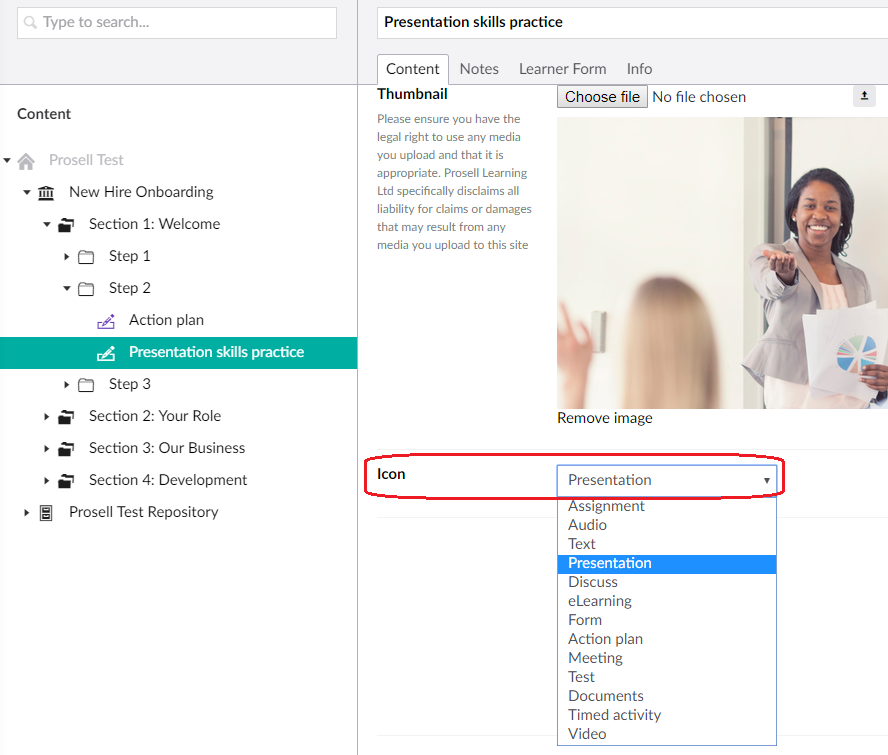
When selecting the icon for an activity there is a dropdown that only contains the labels for each of the icons. Therefore at this point you might not be aware of which label corresponds to which icon image.
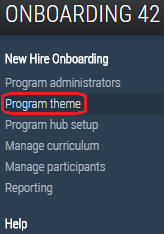
You are able to check this through 'Program theme' on the left-hand navigation menu and then 'Manage activity icons'.
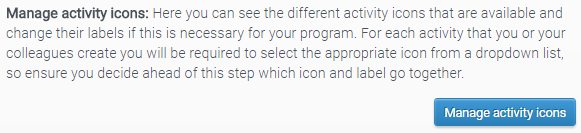
On this page there is a table of all the available icons and their corresponding labels. The label fields can be edited and so if there's a term for an icon that would be more suitable in your program you can change it (e.g. replace 'Assignment' with 'Checklist'). This should make it easier to remember the icons during activity creation when selecting from the dropdown.
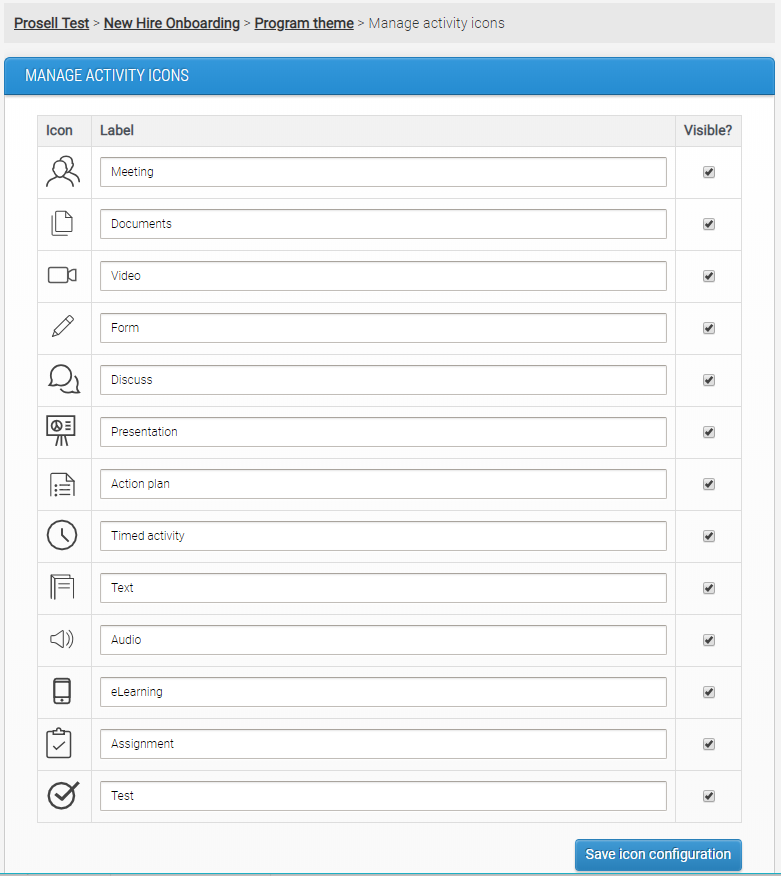
The purpose of the 'Visible?' column is in case of a scenario where you decide will only be using some of the icons, therefore you can deselect those you won't be needing and this will remove them from the dropdown list in the activity creation stage.
Comments
0 comments
Please sign in to leave a comment.