
Set the Color Scheme for your Program
There are three colors that can be customized for the user interface of your program.
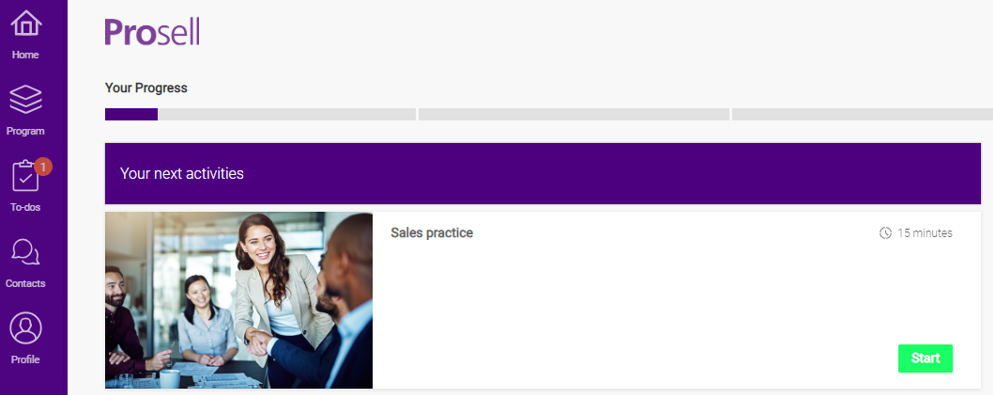
- Background Color - Block color for the navigation menu and headers (purple in the above screenshot)
- Foreground Color - Color of text that appears on the background color (white in the above screenshot)
- Button Color - Block color of the action buttons (green in the above screenshot)
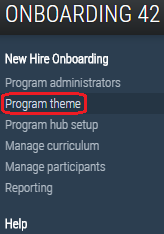
These colors can be set by going to 'Program theme' on the left-hand side navigation menu and then select the 'Manage colors' button.

These colors are set by entering the hex code of your chosen colors into the relevant fields.
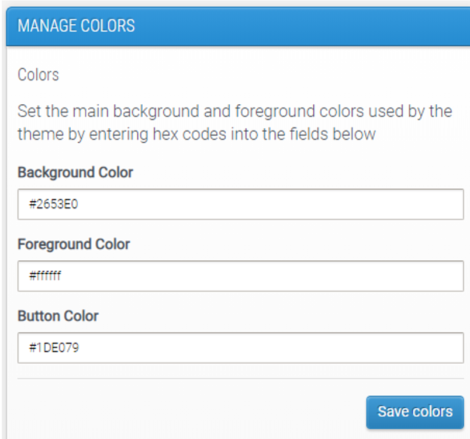
It's likely that your company will have branding guidelines that you can use to get these codes, however if not then there are a variety of websites (such as this) that allow you to select a color and it will give you the hex code for you to copy and paste.
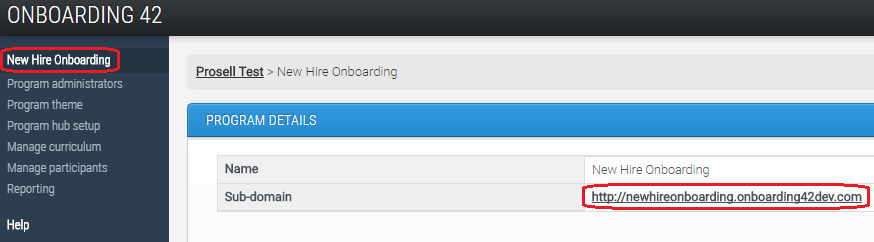
Once you have saved your colors, you can preview how it looks in the front-end by visiting the program URL, or if you already have this open then just refresh the page.
To find out the program URL, select the program name at the top of the left-hand navigation menu in the dashboard and then click on the URL where it says 'Sub-domain'.
Comments
0 comments
Please sign in to leave a comment.