
Saving and Publishing Content
When creating a section, step or activity you will use the green ‘Save and publish’ button in the bottom-right corner. Publishing, as well as saving, a piece of content means that when new participants are enrolled in the program they will see this in their curriculum, as will existing participants but only if you reset their timeline or add it to their timeline.
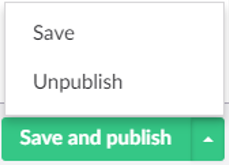
If you need to make changes to activities, but you still have participants to enroll that should see the original curriculum (without the changes), then you can click the arrow on the right of the button and then press ‘Save’. The new version of the content item will be then be unpublished and participants who are enrolled or refreshed will see the old version of the activity (as the recent changes haven't yet been published).
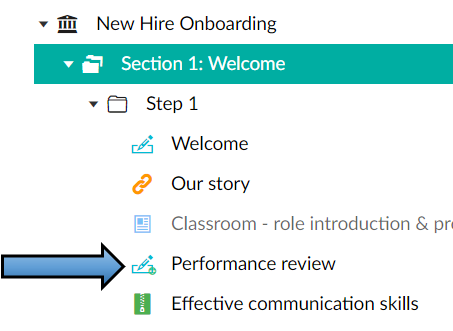
If changes are made to an activity that are saved but not published, as outlined in the paragraph above, this will be indicated by a small green circle appearing on the activity type icon (see screenshot below).
Unpublishing Content
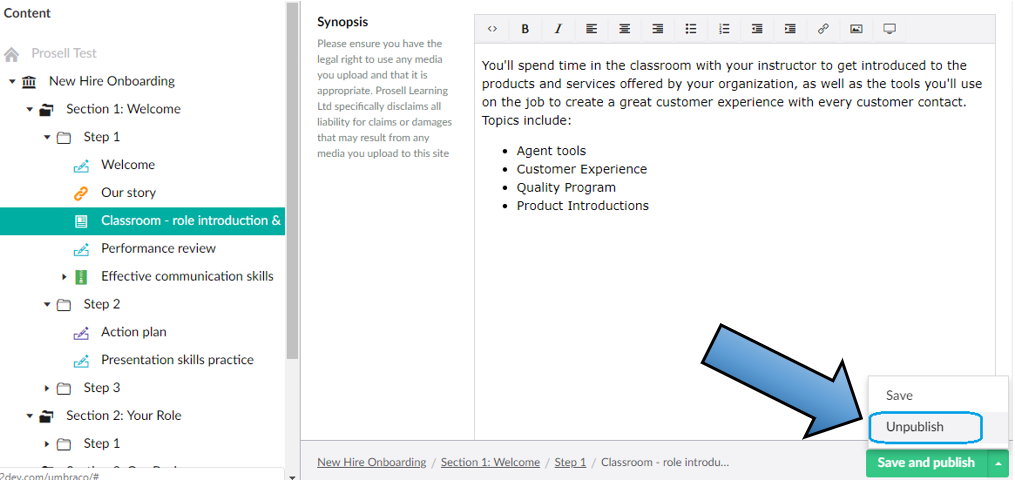
If you ever need to temporarily hide a section, step or activity after it has been published then you can unpublish it through the same method. An example of when this could be used is if you’re about to upload a new cohort who will not need one of the activities, you can unpublish that activity, enroll the group and then publish it again for the next cohort.
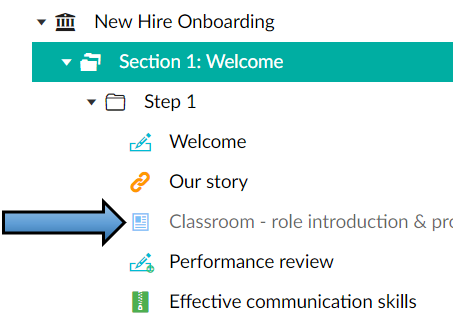
You can tell if a piece of content (could be an activity, step or section) has been unpublished because in the content structure in the left column it will appear faded (as in the screenshot below).
We recommend that you save regularly when building your content to prevent work being lost.
Comments
0 comments
Please sign in to leave a comment.