
When a user is enrolled onto the program, they are given their own timeline (the version of the curriculum at the time of enrolment).
If changes are made to the curriculum after this, they will not be automatically applied to existing users and only new participants will see the new version as they are enrolled after the changes are made. You can read more about this in our articles on timeline management.
It is for this reason that as an administrator you need to refresh your timeline each time you wish to preview the latest version of the curriculum in the front-end (participant view).
This refresh button can be located within ‘Manage curriculum’. Please note this will also wipe your progress, which shouldn't be an issue as you're not an active participant in the program but it's important you're aware of this.
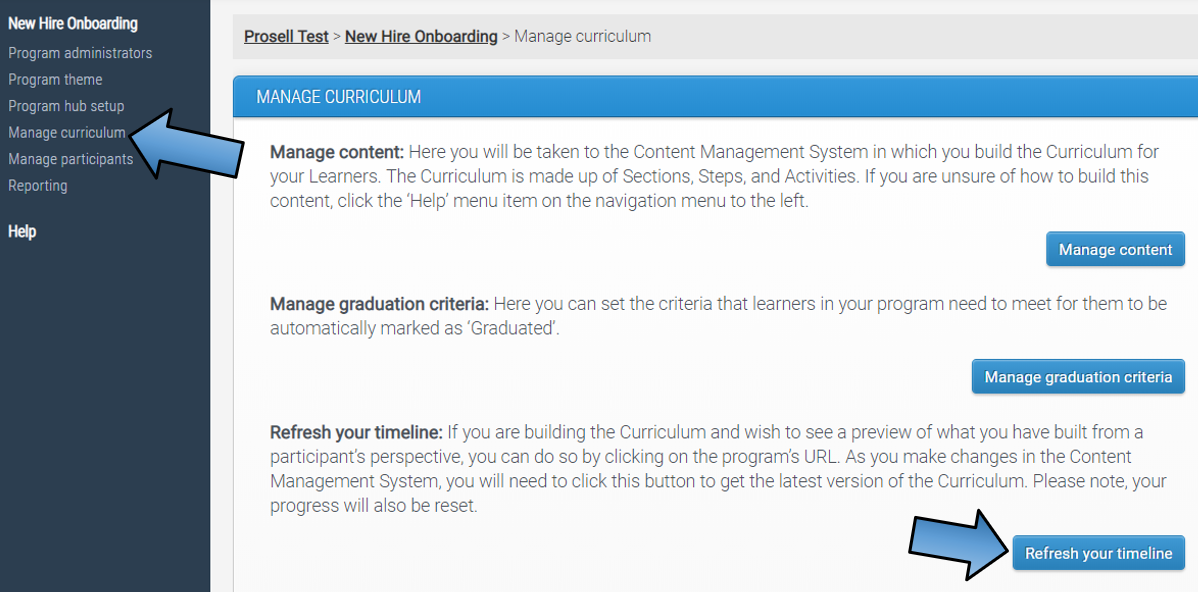
To make the previewing process easier when building your curriculum, we recommend that you have three tabs open:
- The admin dashboard – ‘Manage curriculum’ page where the ‘Refresh’ button
- dashboard.onboarding42.com > Manage curriculum
- dashboard.onboarding42.com > Manage curriculum
- The content management system – where you build your curriculum
- dashboard.onboarding42.com > Manage curriculum > Manage content
- dashboard.onboarding42.com > Manage curriculum > Manage content
- The program front-end – to preview how the content will appear to the participant
- program URL, e.g. newhireonboarding.onboarding42.com
Once these are open, you can make changes to the curriculum (from tab #2) and then whenever you wish to view what you have built to see how it looks from a participant's perspective then you go to tab #1 to access the refresh button and then finally the program front-end URL in tab #3 and refresh the page to view the changes.
If you cannot see the 'Refresh your timeline' button within the 'Manage curriculum' page, it's because the administrator type you have been added to doesn't have the 'curriculum' capability. To change this, go to the administrator types page and give yours the capability 'Has a curriculum'. You may need to ask the owner of the program if you do not have the permissions to access the pages mentioned above.
Previewing the web app on other devices
Our platform has been designed to be responsive, meaning that the page layout will change according to the screen size it's being displayed on.
If there's a chance your participants will use a variety of devices when accessing their program then you might wish to check how your content will look when being viewed on these.
You can of course do this directly by getting hold of other devices and accessing the platform through them.
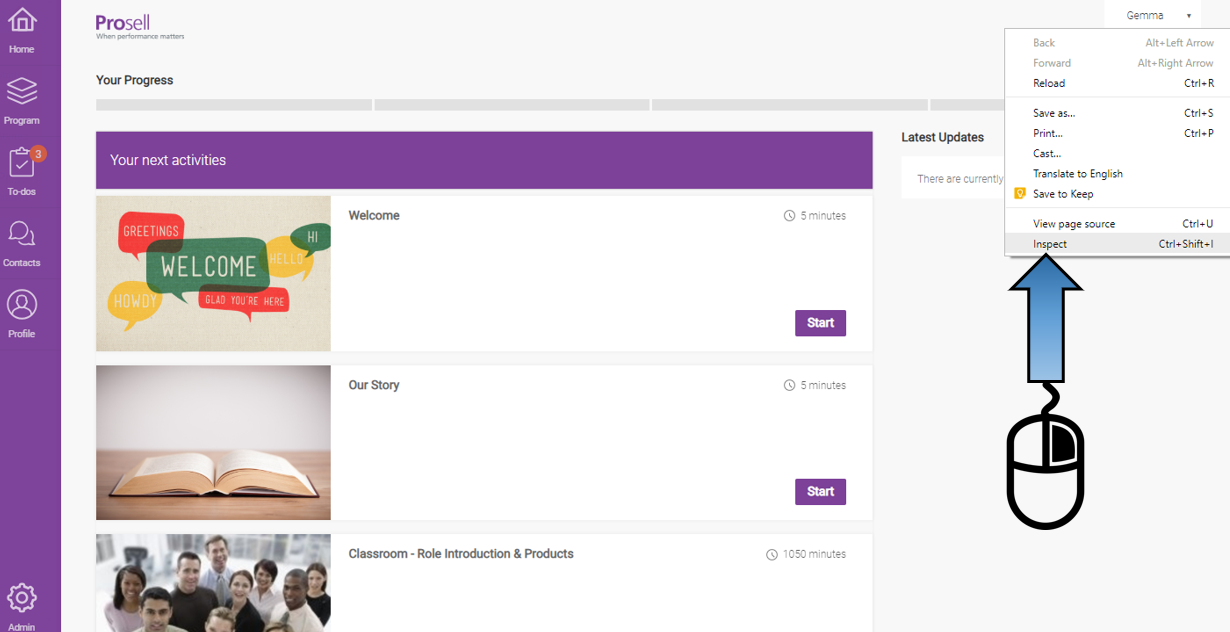
However, an alternative way is to right-click on the page and select 'Inspect'.
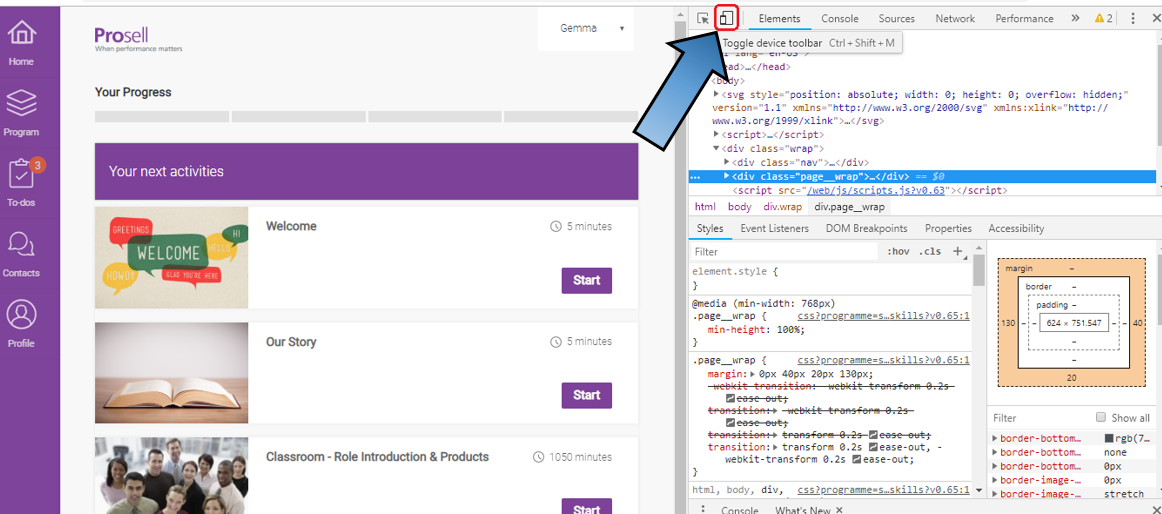
Then, 'Toggle device toolbar' at the top of the inspect options.
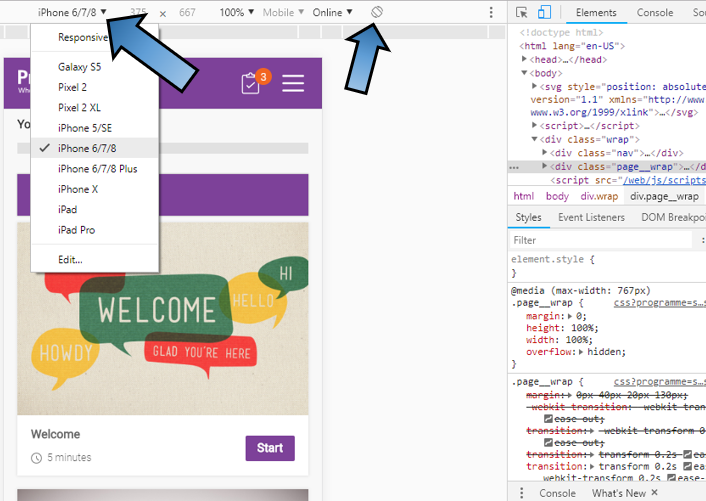
From here you can select the device that you wish to preview, and also how it looks when rotated.
Comments
0 comments
Please sign in to leave a comment.