
What is a Package activity?
The Package activity type enables you to embed SCORM-compliant content into an activity to be accessed by users within the On.Board platform.
SCORM stands for "Sharable Content Object Reference Model".
In theory, SCORM is quite simple: really, it's just a set of technical standards that allow systems and content to talk to one another. As you might imagine, some of the practical details can get quite complicated.
In the above, "systems" could be learning management systems, content management systems, talent management systems, ERP systems, and so on. On.Board itself is a "system" and SCORM allows it to talk - both ways - to SCORM-compliant 3rd party content. Think of "content" comprising learning and testing.
SCORM is pretty much the de facto standard in the e-learning industry and comes in a number of different releases, each building more functionality on top of the last.
On.Board can work with content that is SCORM 1.2- and/or SCORM 2004-compliant.
What tools can I use to generate SCORM-compliant content?
There are as many different e-learning authoring tools as there are Learning Management Systems, probably more!
Our favourites include Elucidat and Storyline, which feature in this comprehensive list of authoring tools available.
Please note that not all these products promise SCORM-compatibility and interoperability will vary across different tools.
Creating a package activity
Create an activity within a step and select 'Package' when you are presented with the list of types to choose from.
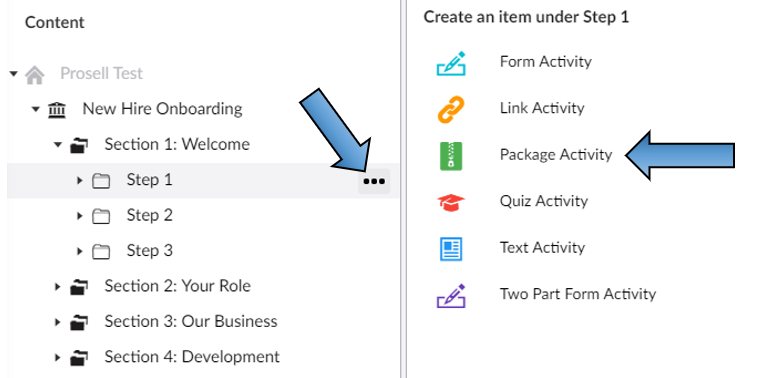
Within the 'Content' tab for the new activity, you will find the common fields that all activity types share (e.g. synopsis, thumbnail and icon). However, there will be a 'Package' field which is only included in this type.
The next stage involves uploading your package. Within your chosen SCORM-compliant tool, there should be an option to download a module as a zip file. This downloaded package will contain information on completion criteria - for example, whether the learner has to just open the module for the activity to be marked as complete, or that all pages in the module are visited and all videos watched. On.Board needs to receive this information in order to know when to change the activity status from 'Not started' to 'Incomplete' to 'Finished'.
If you are unsure of how to download this zip package or modify the completion criteria, contact the support team of the tool you are using.
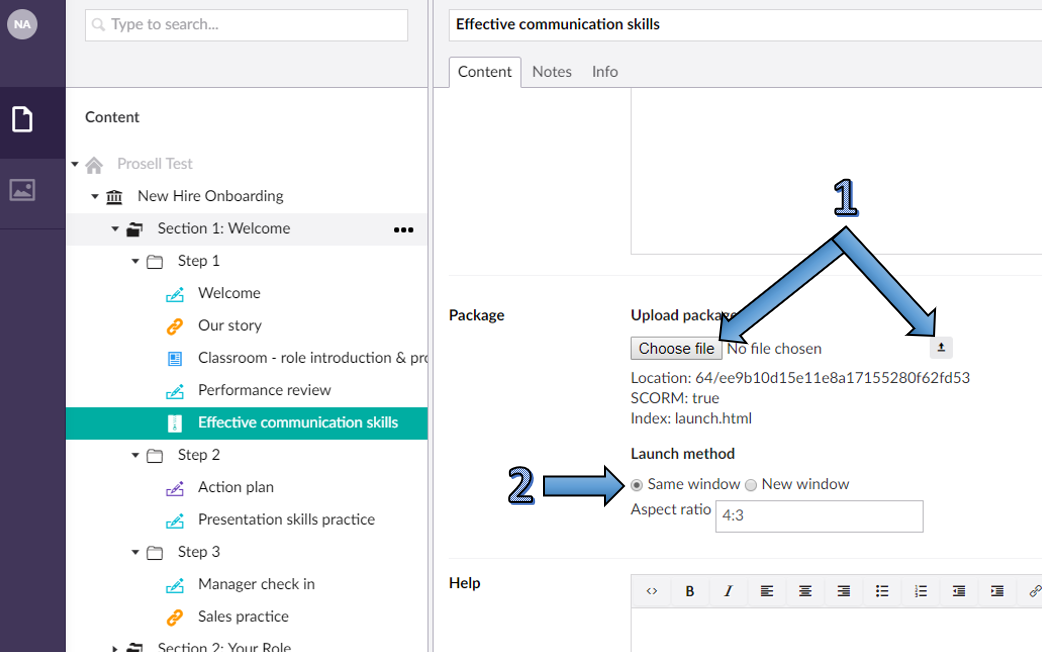
Once you have the packages available and ready for upload, select 'Choose file', locate the relevant package from your device and press the upward-facing arrow to the right (indicated 1 in the above screenshot).
If On.Board has found the package (SCORM manifest file), you should see a label saying "SCORM: true".
Then, for the launch method (indicated by the 2 in the screenshot above), you have a couple of options:
- you can launch your SCORM content in the same window as On.Board (in which case you can override the default aspect ratio), or
- you can launch it in a new window (in which case you can specify further options for window sizing and scrolling)
There's no straightforward answer as to whether you will need the same or a new window. This will depend on what your content looks and feels like and how comfortable your end-users are with technology in general and new devices in particular. The upside of a new window, for example, is that there is more screen space to play with; the downside is that users must find their way "back" to On.Board.
The other field within the content tab that you need to pay particular attention to when you're specifying SCORM packages is the "Scored" checkbox, which you should tick if you're expecting your SCORM content to return a score to On.Board. Scroll down the page to locate this and click the slider so that it displays a tick.
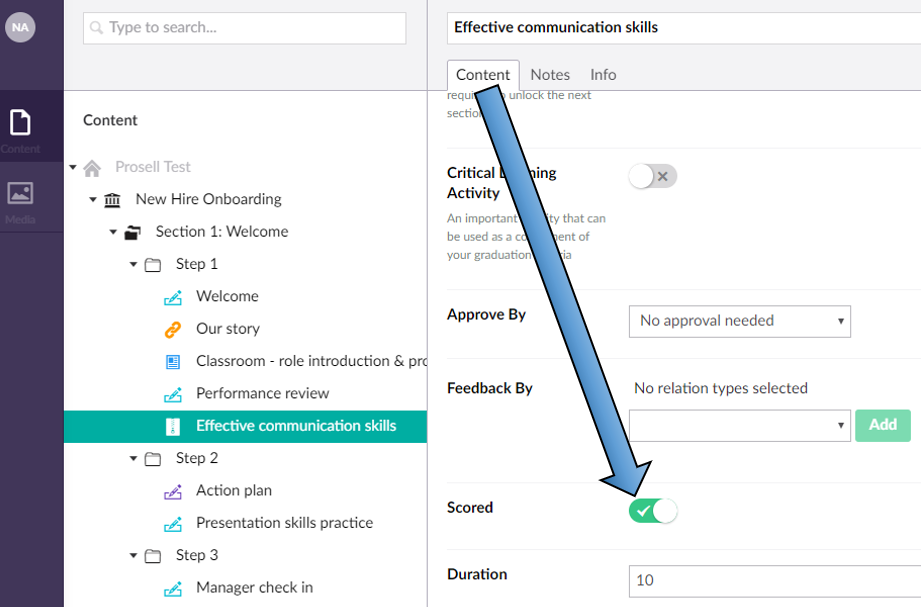
Remember to save the activity once changes have been made.
How does SCORM-compliant content appear to the front-end user?
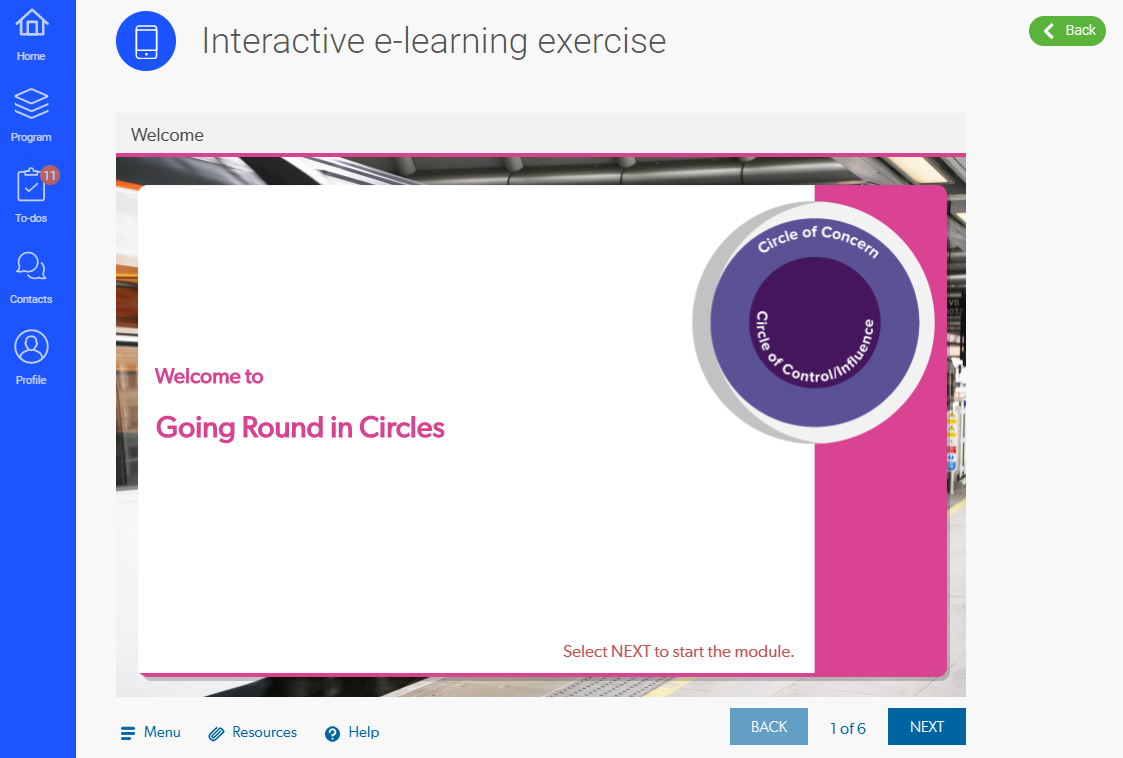
When a package activity is opened, it first lands on the overview screen (as is the same for all activity types). Beneath the synopsis, there is a button to access the module labelled 'Start activity'.
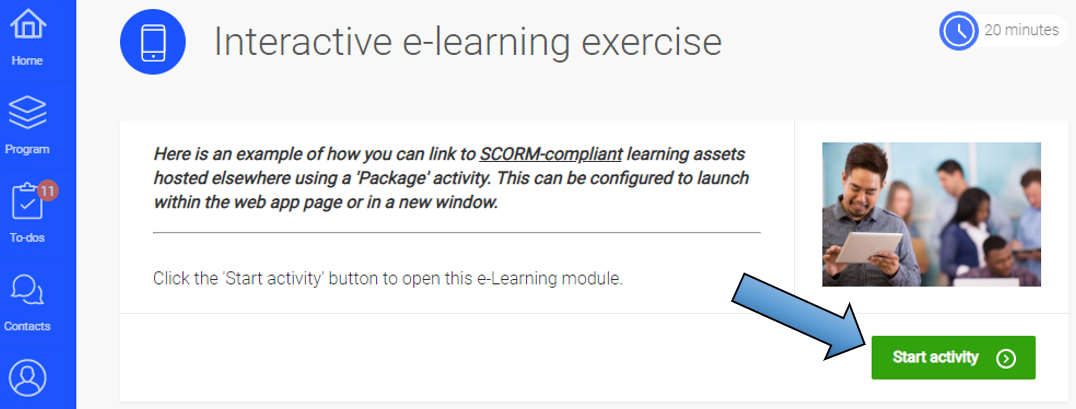
Once the button is clicked, the learner will either be taken to another page within On.Board with the content being positioned within an iframe, or a new window will be opened displaying the content. This will depend on the launch method you selected when creating the activity. It is worth testing both options to see which works best for the content you are using (note that when changing between launch methods you do not need to re-upload the package file).
What information can be passed between the web app and SCORM-compliant content?
People who develop 3rd party SCORM-compliant content will want to know that On.Board makes available two different pieces of information:
- The learner's name
- The learner's email address
Content can discover the learner's name using a call to one of the SCORM standard's API functions, which might look something like this:
learnername = LMSGetValue("cmi.core.student_name")
The exact code snippet may vary across content development platforms but the idea is that "cmi.core.student.name" is one of a large number of items defined by the standard, the function LMSGetValue retrieves it from On.Board and the result is put into a variable called "learnername". Learnername will appear in the following format: "Doe, Jane" i.e. last name - comma - space - first name.
The format of the learner's email address can, as you would expect, be retrieved in a similar way but this time using "cmi.core.student_id".
Please note that content may make use of either, both or neither of these two types of information.
Content can also "set" as well as "get" values.
The simplest example of this is that 3rd party content can tell On.Board a learner's last score using something like:
result = LMSSetValue("cmi.core.score.raw", score)
This overall score is shown in On.Board and is available to learners and other members of their performance hub. Progress and completions can also be sent back to On.Board.
This FAQ only skims the surface of what is possible and indeed quite a lot of information is stored in the On.Board database. Please contact us if you need to discuss more complex requirements.
Where does my SCORM content reside in the web app?
With SCORM-compliant content you have two options as to where the content can reside:
- When content sits on the same server as On.Board, we call this "embedding"
- When content sits on a different server, we call this "linking"
In either case, you will need your authoring tool to publish a .zip folder containing all the relevant e-learning module content (assuming embedding) or containing a URL (assuming linking).
Most e-learning authoring tools will present a number of exporting options and do everything for you.
Comments
0 comments
Please sign in to leave a comment.