
Copying Content from One Program to Another
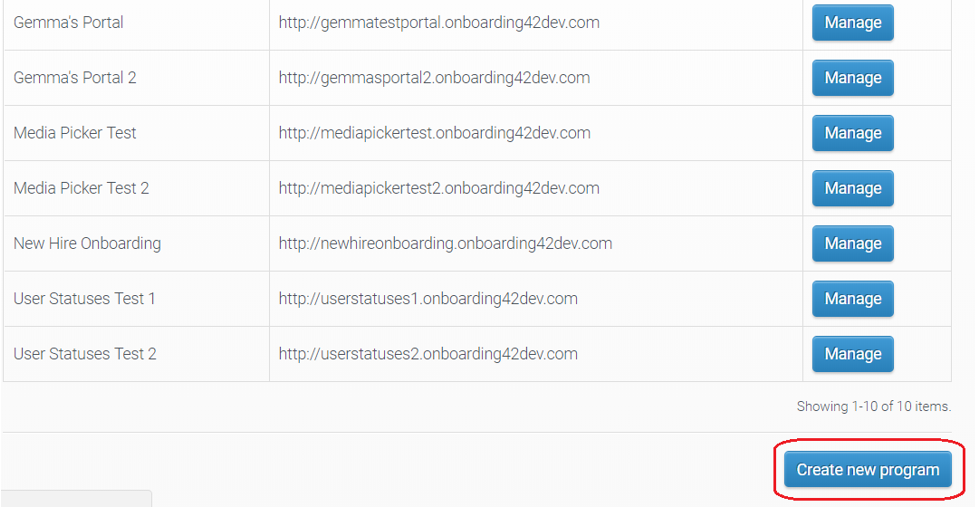
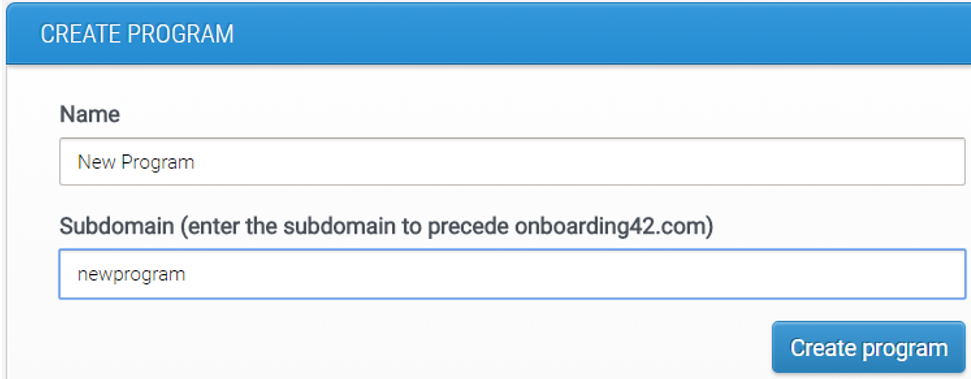
To copy a program, you must first create the program in the dashboard (giving it a name and sub-domain).
You will then be able to see this new program in your CMS view through ‘Manage Curricula’.
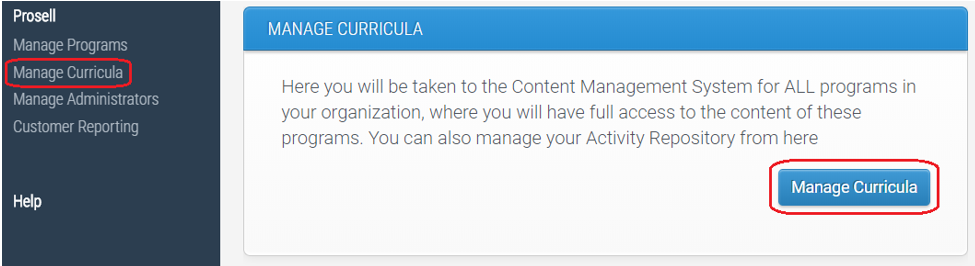
At this stage it will have no sections, steps or activities.
Then, locate the program that you are copying and expand it by clicking the arrow to its left so you can see the sections within it.
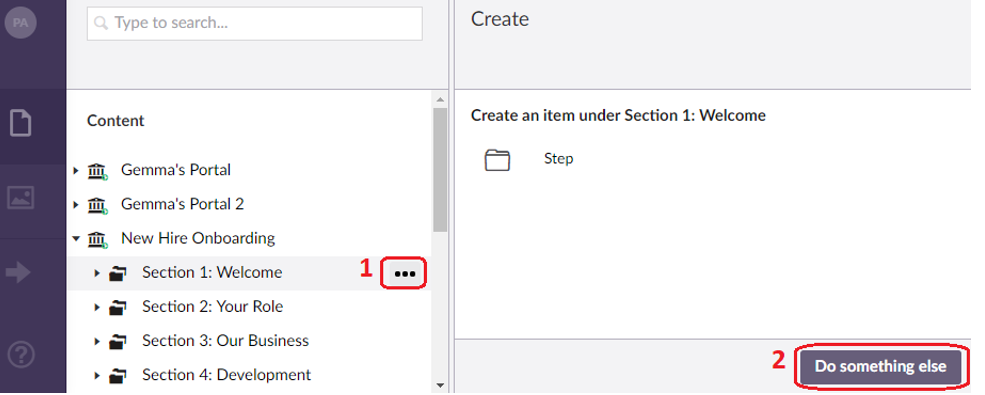
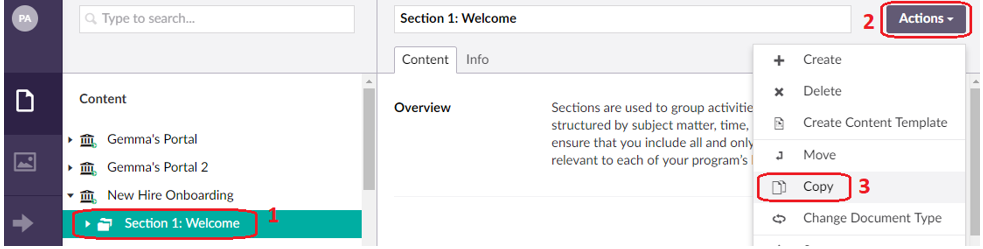
Select the first section and copy it – you can get to the ‘Copy’ function in two ways:
1. Select the 3 horizontal dots beside the relevant section (1) and then ‘Do something else’ (2).
Or, 2. Select the relevant section (1), then the ‘Actions’ dropdown in the top-right of the screen (2), before selecting 'Copy' (3).
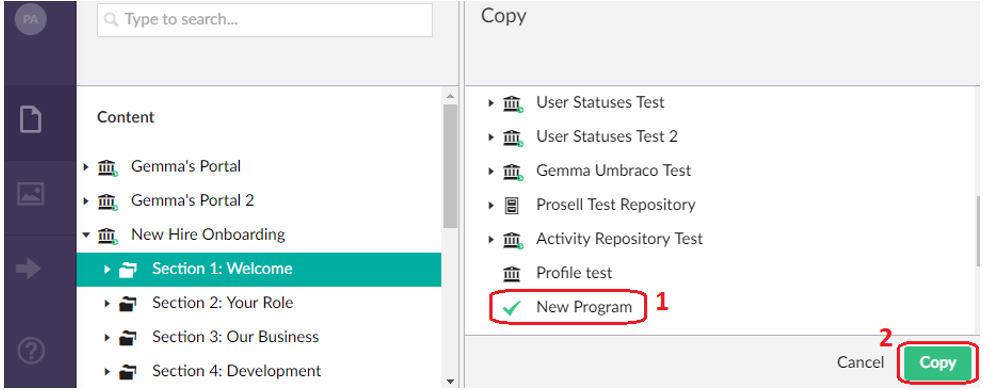
Next, you need to select which program to copy the section to. Click on the new program (the most recently created programs will appear at the bottom of the list), and the icon will be replaced by a green tick (1), then click ‘Copy’ (2).
Repeat these steps for each section in the program that you are copying. Take care in ensuring that you are copying the sections, as opposed to moving them, as these two actions are positioned beside each other.

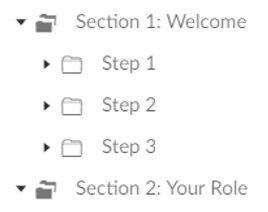
When you copy content, the new copies will initially be ‘Unpublished’ which is indicated by the text being faded (as in the screenshot below).
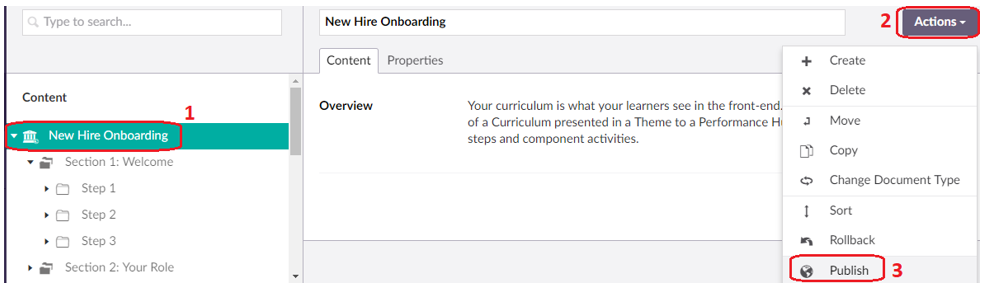
You can publish the content by clicking on the program name (1), then ‘Actions’ (2) and then ‘Publish’ (3).
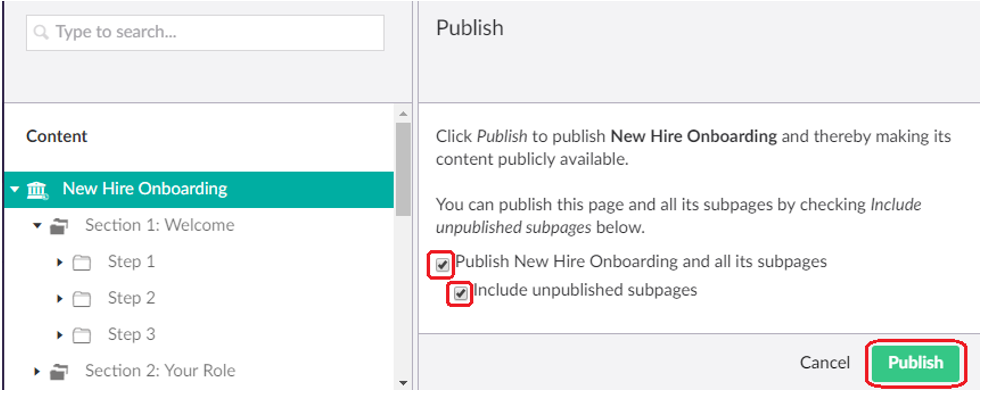
Then, tick the two checkboxes to publish all unpublished subpages.
Comments
0 comments
Please sign in to leave a comment.