
Email Templates Explained
Customizable email templates allow administrators to change email notification text within their program. This can be used to add program specific details or instructions, adjust the terminology or simply make notifications more personal.
Email templates allow you to customize email text that participants in your program receive. You can customize any of the 10 currently available email notifications:
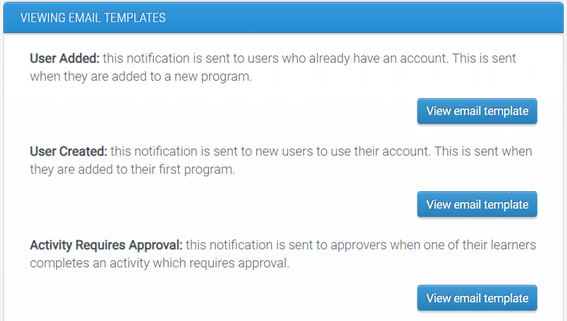
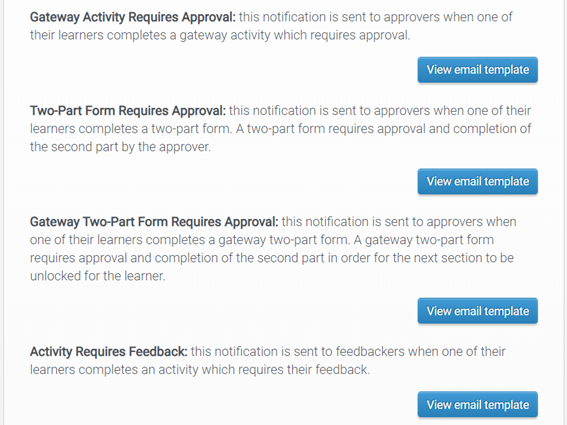
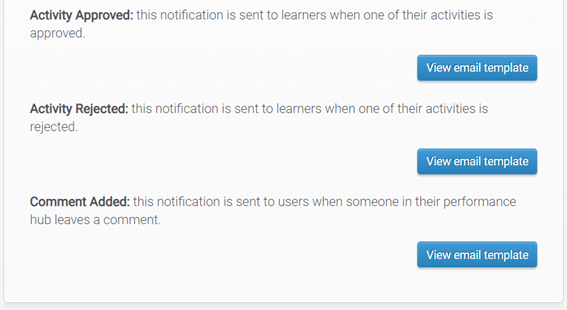
Changing email templates will affect all users within the program from the moment the change was made. However, please note that some of the notifications will only ever be sent to users with specific capabilities (e.g. ‘Activity Requires Approval’ will be sent to approvers).
Who Can Edit Email Templates?
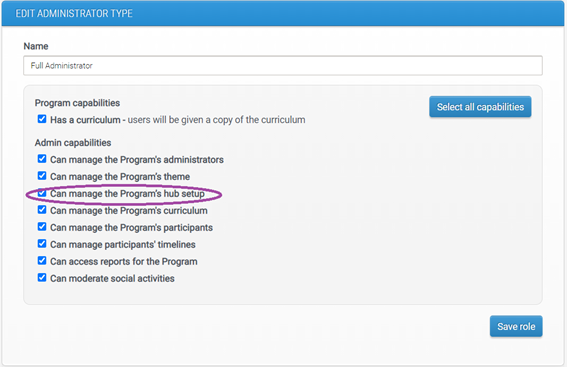
Template editing is restricted to administrators with the ‘Can manage the Program’s hub setup’ capability:
This minimizes the risk of templates being changed by accident.
How to Edit Email Templates
You can watch a short video showing how to set up email templates or follow the instructions in this guide:
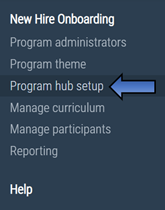
To edit an email template in your program, select 'Program hub setup' on the left-hand navigation menu on the administrator dashboard.
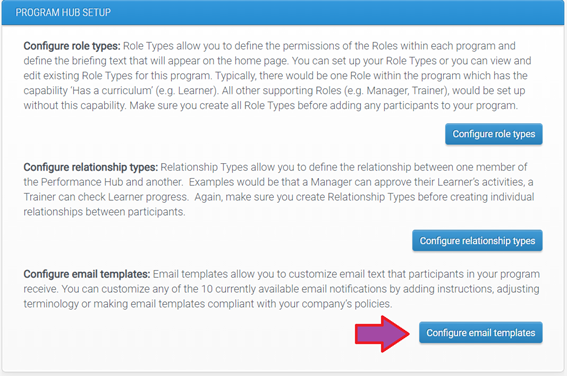
At the bottom of the page, click the ‘Configure email templates’ button:
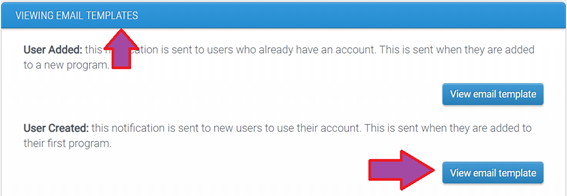
You will be taken to a page where you can view or edit the existing email templates. From there, select the template you want to edit and click on ‘View email template’:
Each template has a slightly different layout and fixed text, however, all templates will have five editable fields and a preview box:
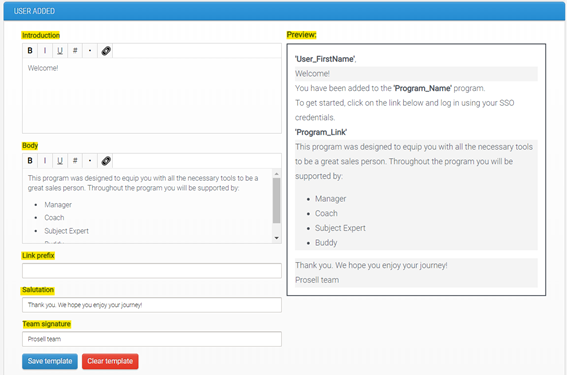
As you make changes to the fields on the left, you will see that notification text changes in the preview box. Please note that text displayed on white background in the preview box cannot be changed:
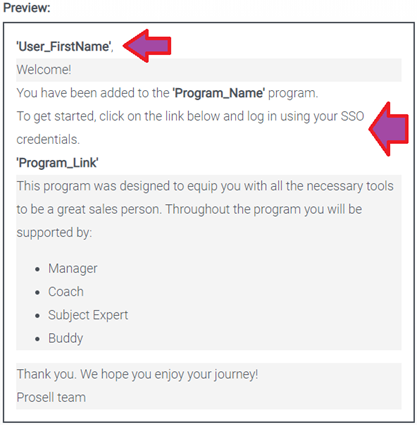
Text on grey background corresponds to editable fields on the left side of the page.
‘Introduction’ and ‘Body’ fields can include light formatting:

You can make your text bold, italics, underlined; add numbered lists, bullet points or links to external web pages.
When you are ready to save the changes you have made, simply click on the ‘Save template’ button at the bottom of the page. Your changes will be applied immediately, and all future email notifications of this type will contain the updated text.
If you want to remove all the changes that you or someone else has made to any template, you can do so by clicking the ‘Clear template’ button. This will erase all changes that were made manually and return the template to its default state.
Is setting up templates mandatory?
No. All templates are pre-populated with default text when a new program is created. You can leave them as they are or make changes to any of the templates.
Comments
0 comments
Please sign in to leave a comment.