
Administrator types
Before you can add other program administrators to assist you with the setup and maintenance of your program, you must create one or more administrator types.
Administrator types allow you to have multiple administrators within a program, each varying in their permissions. This is useful when you have administrators who are only responsible for building content, or enrolling participants and who should not have the ability to change the program theme, for example. Typically you would only have a couple of 'full' administrators per program who have access to all of the program settings, i.e. all capabilities ticked.
The available capabilities that you can give to an administrator are:
- Can manage the Program's administrators
- Can manage the Program's theme
- Can manage the Program's hub setup
- Can manage the Program's curriculum
- Can manage the Program's participants
- Can manage participants' timelines
- Can access reports for the program
- Can download data from the program
You also have the option to give the program capability 'Has a curriculum' to an administrator type, meaning that those added to this type can preview the program from a learner's perspective in the front-end. Essentially, this is the same as adding them as a learner through 'Manage participants'. Remember that timelines need to be refreshed / progress reset to preview any changes made to the curriculum since being added - click here for more information on timeline management.
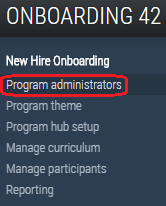
To create an administrator type, or edit an existing type, select 'Program administrators' from the left-hand navigation menu.

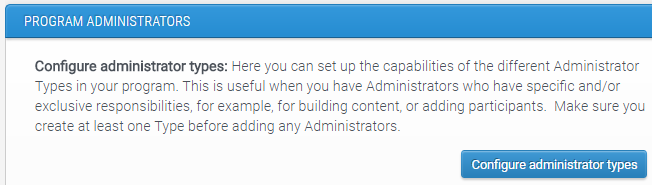
Then, select 'Configure administrator types'.
From this view you can see any existing administrator types and their capabilities and edit them if necessary. To create a new type, select the 'Create a new administrator type' button.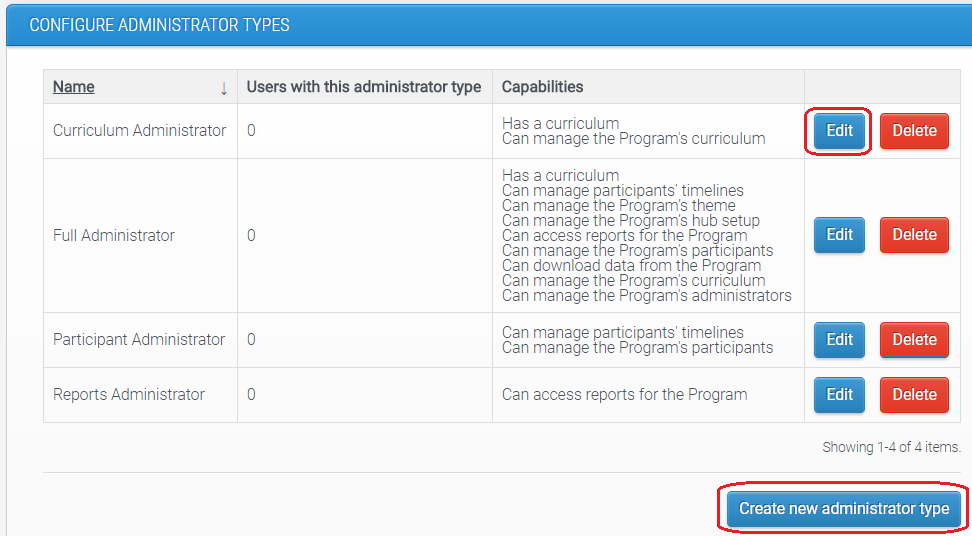

When creating a new type, you are required to enter the name of the administrator type and select its capabilities. If you're creating a 'Full program administrator' type for those who need access to the administration of the whole program, you can use the 'Select all capabilities' button.

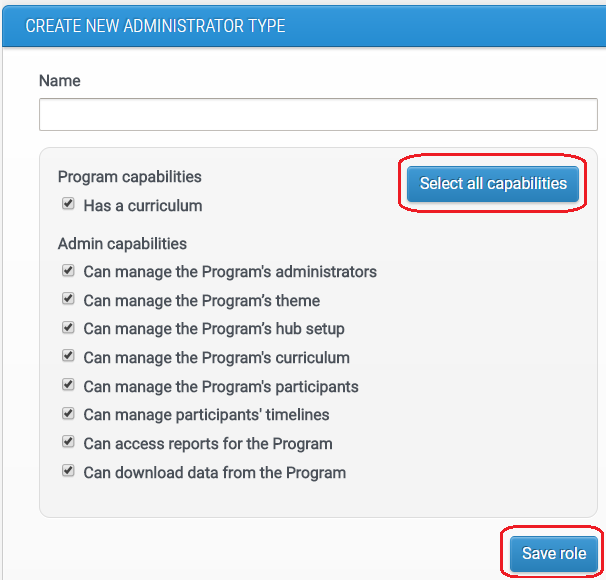
Click 'Save role' to confirm.
Once you have created one or more admin type, you can then add users into them. Find out how to do this here.
Comments
0 comments
Please sign in to leave a comment.