
Copying an Activity
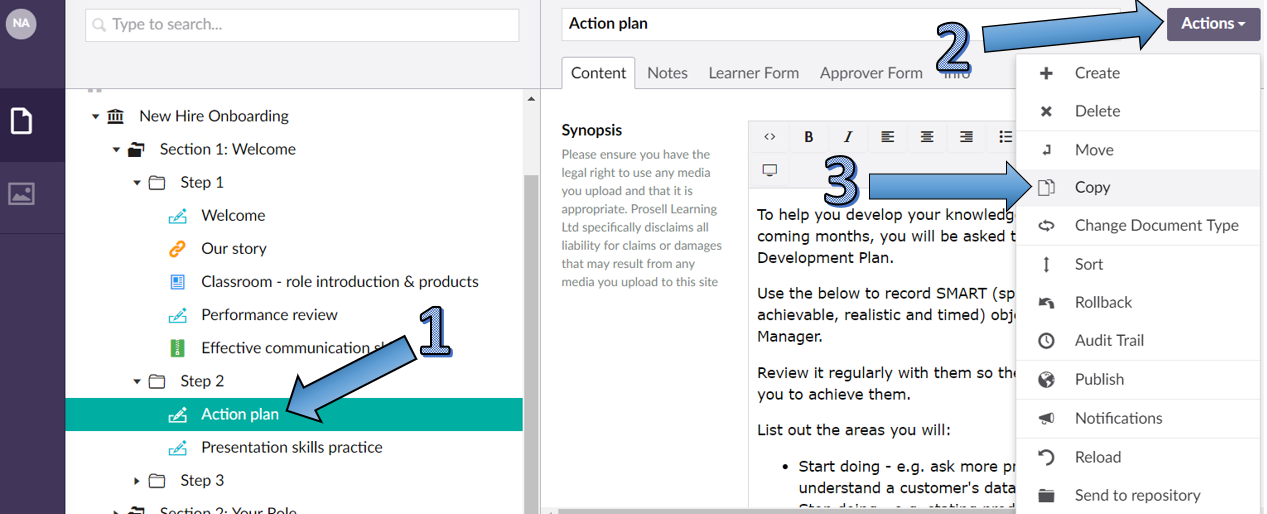
If you need to copy an activity, you first need to select the activity from the content structure on the left-hand side of the page (1).
Then, select the 'Actions' button in the top right-hand corner of the page (2) and choose the dropdown option 'Copy' (3). Alternatively, access the copy option from the three horizontal dots and the 'Do something else' button.
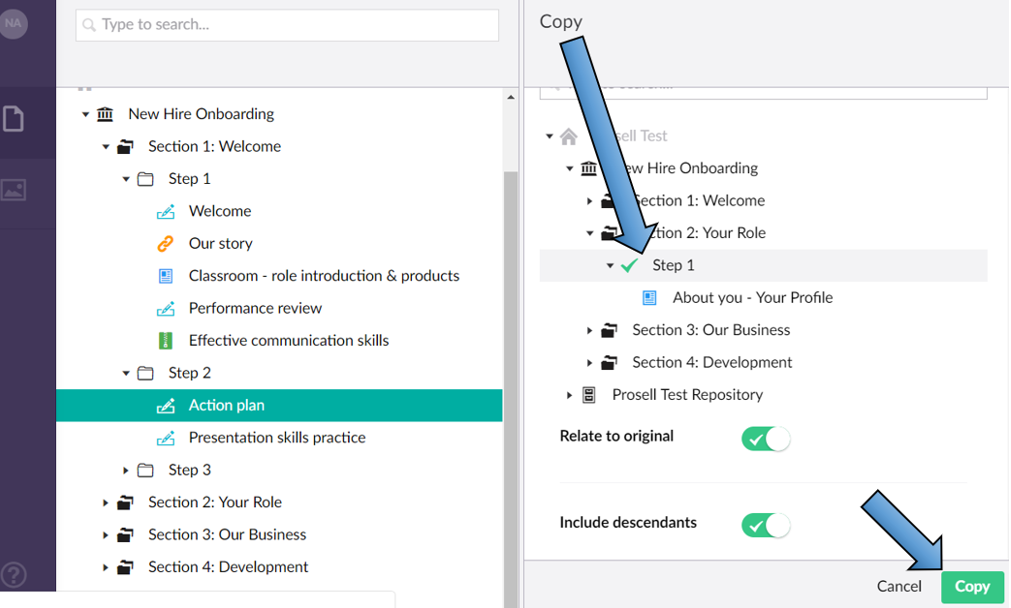
You will then need to choose the step that you would like the new copy of the activity to be positioned in. A green tick will appear beside the selected step. Click 'Copy' once the step has been selected.
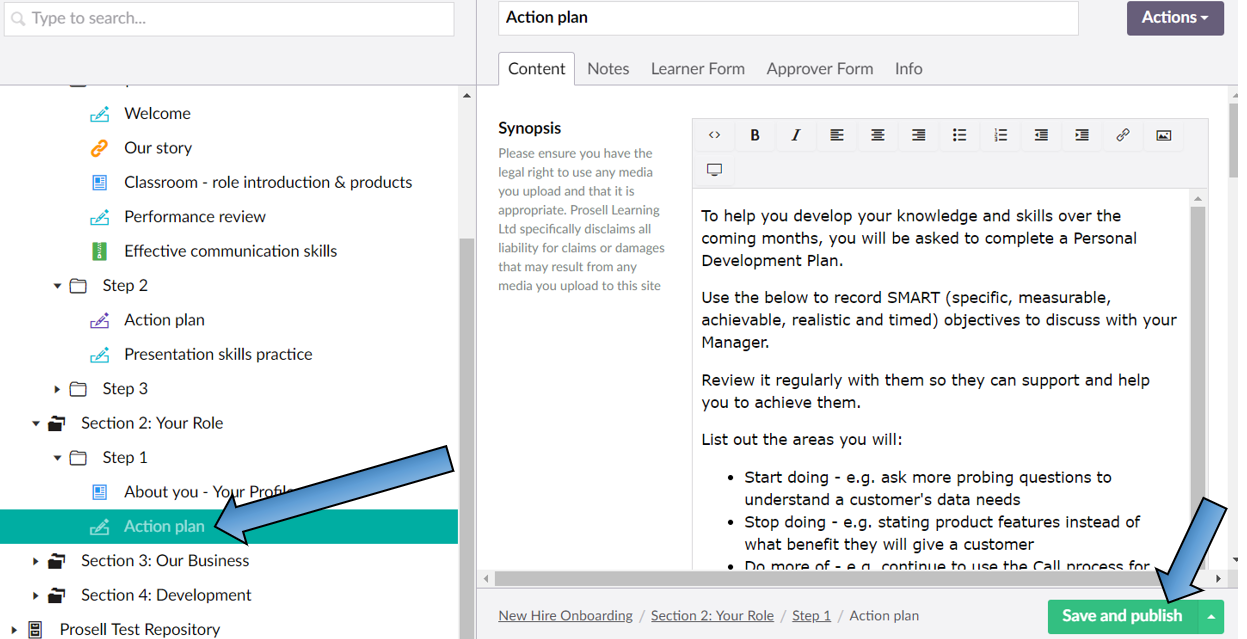
The new copy will at first be 'Unpublished' - indicated by appearing faded in colour. When an item is unpublished, any learners that are enrolled or refreshed will not be able to see it in their timeline. In order to publish the item, all you need to do is select the item and click on 'Save and publish' in the bottom-right corner.
Copying a Step
If you need to copy a step and all of its content (the activities within it), select the step from the content structure and then follow the process explained above through copy in 'Actions'.
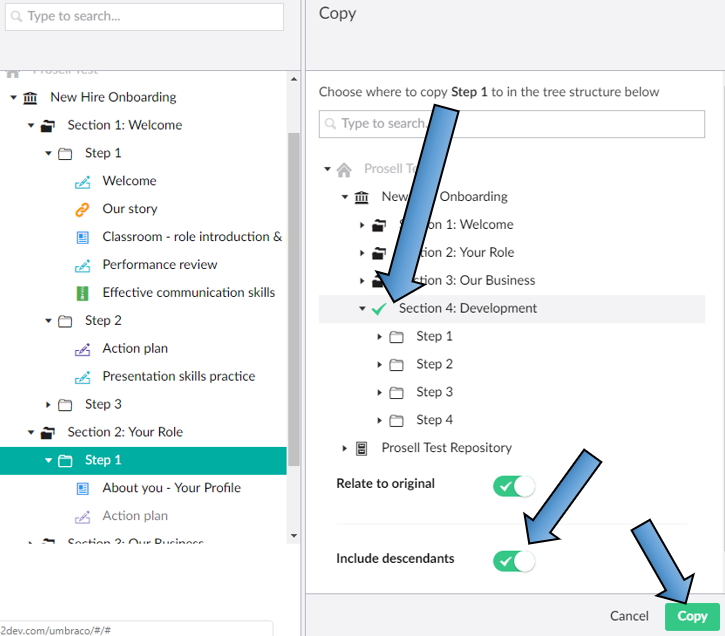
However, when selecting where to position the copy, it will need to be within a section as you are copying a step. A green tick will appear beside the selected section. Make sure the toggle for 'Include descendants' is switched on to include the activities within the step and click 'Copy'.
Once copied, you may wish to re-name the step based on its new position (see in the example below the change from 'Step 1' to 'Step 5'). You may also wish to re-order the step.
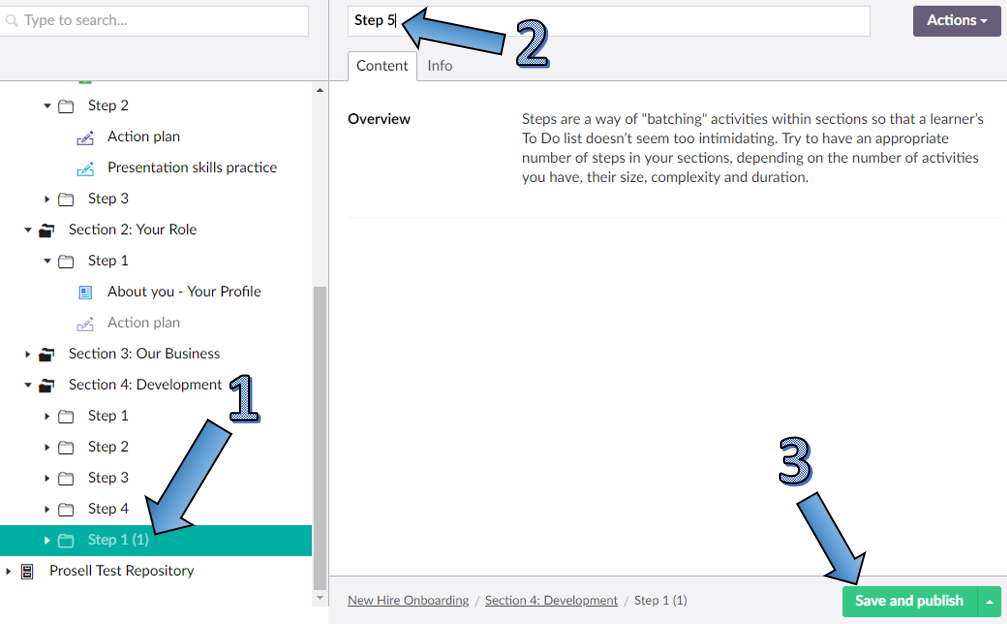
The new copy will at first appear unpublished, as explained with activities earlier in this article. When copying a step or a section, it's likely you are also copying its contents (activities/steps) and therefore these will also be unpublished.
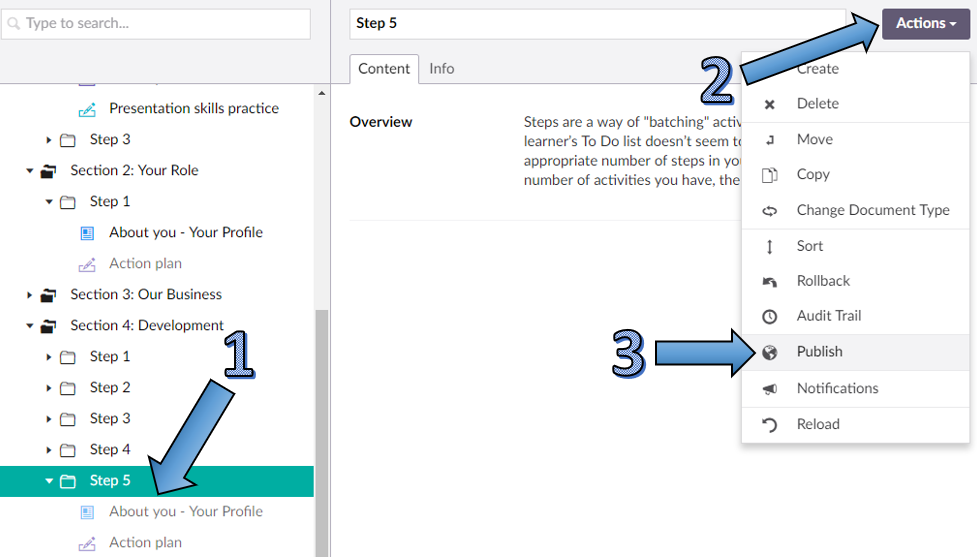
To publish all this content together, click on the copied item and then go 'Actions' and 'Publish'.
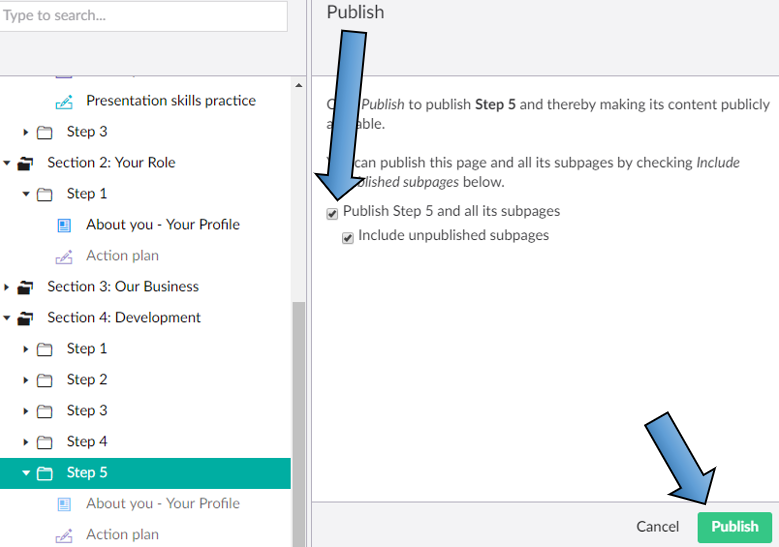
Within the publish box that appears, select the two checkboxes to publish all subpages.
Copying a Section
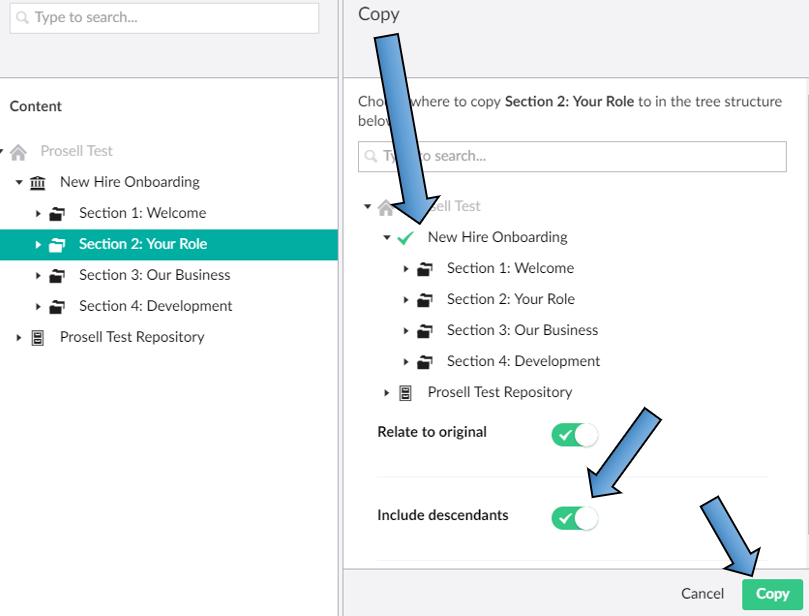
To copy an entire section and its contents, follow the same process as outlined above where you select the section to be copied and then copy through 'Actions'.
Except sections can only be positioned within the program due to the nature of the curriculum structure (Program - Sections - Steps - Activities).
Click here for more information on re-ordering your content.
Comments
0 comments
Please sign in to leave a comment.