
Moving an Activity
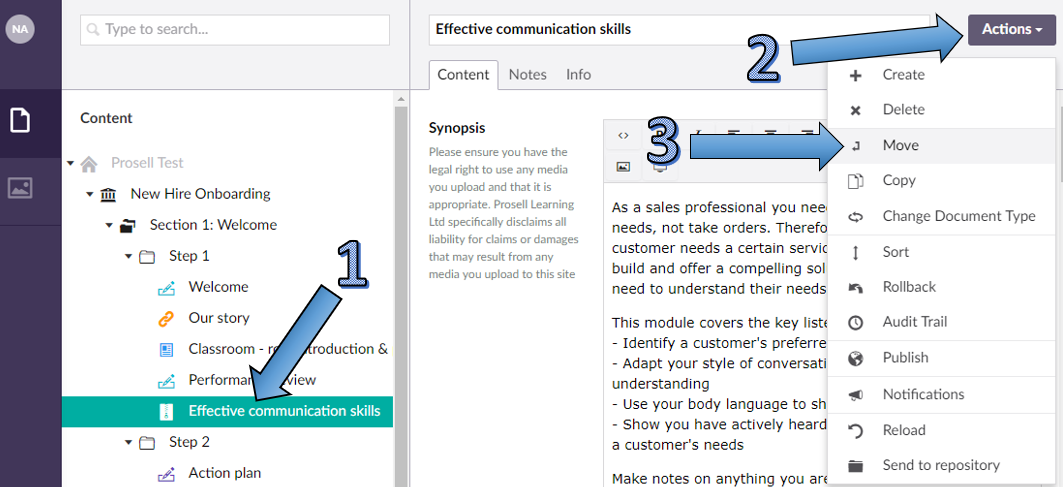
If you need to move an activity from one step into another (within the same section or a different section) you first need to select the appropriate activity from the content structure on the left-hand side of the page (1).
Then, select the 'Actions' button in the top right-hand corner of the page (2) and choose the dropdown option 'Move' (3). Alternatively, access the move option from the three horizontal dots and the 'Do something else' button.
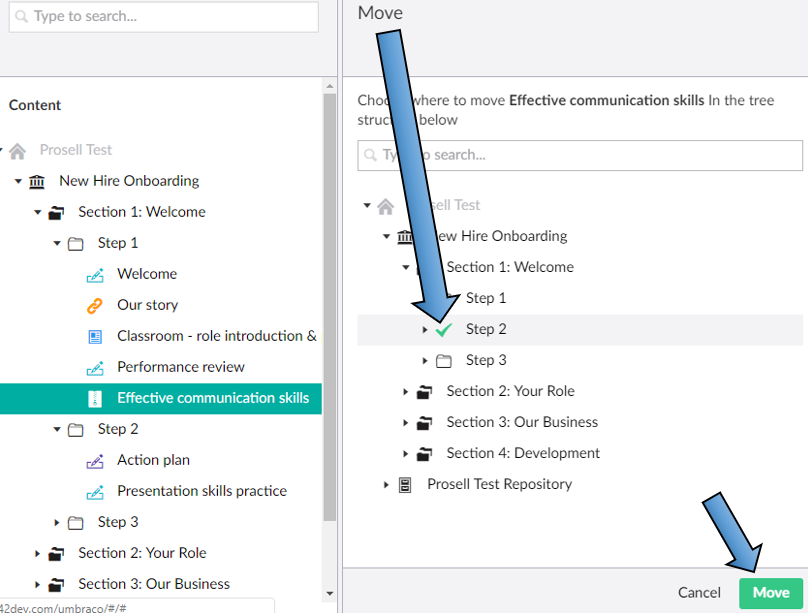
You will then need to choose the step that you would like to move the activity into. Click 'Move' once the step has been selected (a green tick will appear beside the selected step).
Moving a Step
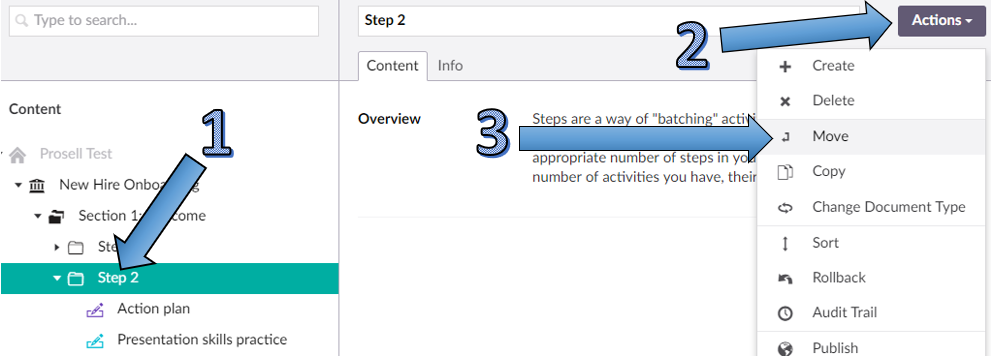
If you need to move a step and its contents (activities), then click on the relevant step and follow the same process as explained above through the actions button.
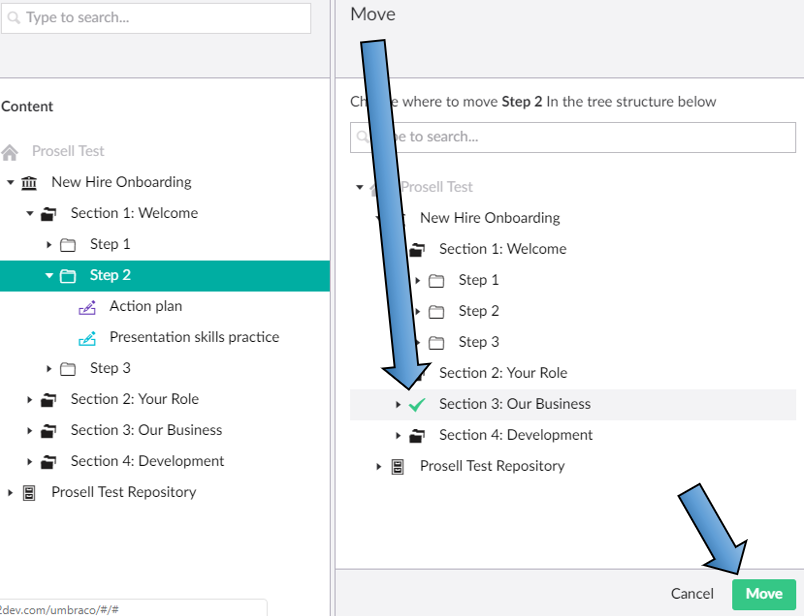
However, note that steps can only be positioned within sections, so one of these must be selected.
Sections cannot be moved if you are only accessing the curriculum of one program.
If you need to change the order of the sections then check out the article on re-ordering.
Comments
0 comments
Please sign in to leave a comment.