
What is a Two part form activity?
A two part form is one that has a second section for the approver to complete. Once a learner has completed their part of the form, the approver will receive a notification to review their responses and will then be asked to complete the second part, which will contain questions directed at the them. In it in this way that as an administrator you can encourage guided feedback.
An example of where this could be useful is with a presentation exercise. You might get the learner to reflect on how they thought their presentation went and what they could improve on, perhaps even upload a video. Then, once the learner submits their thoughts, the approver (e.g. manager/trainer) would review this and then write up their feedback.
Creating a Two Part form
A Two part form has its own activity type, so select this when creating a new activity in a step. 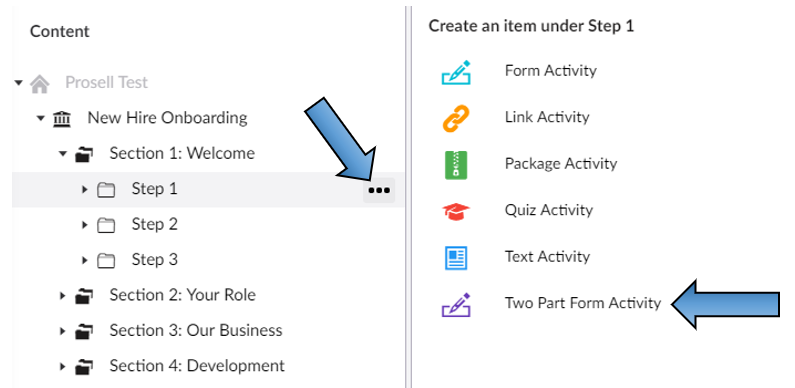
Regarding the build of a two part form, it is the same as that of a 'Form activity', except the only difference being that there is another tab along the top called 'Approver form'.
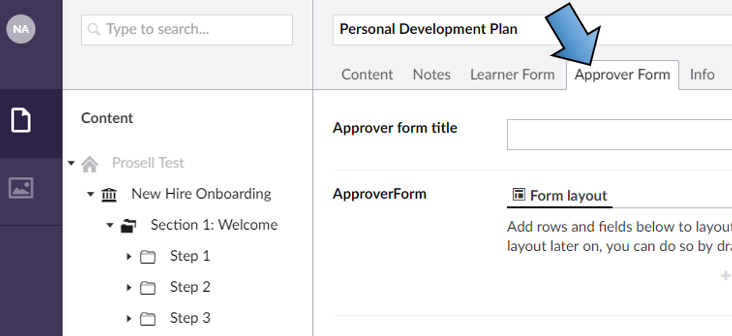
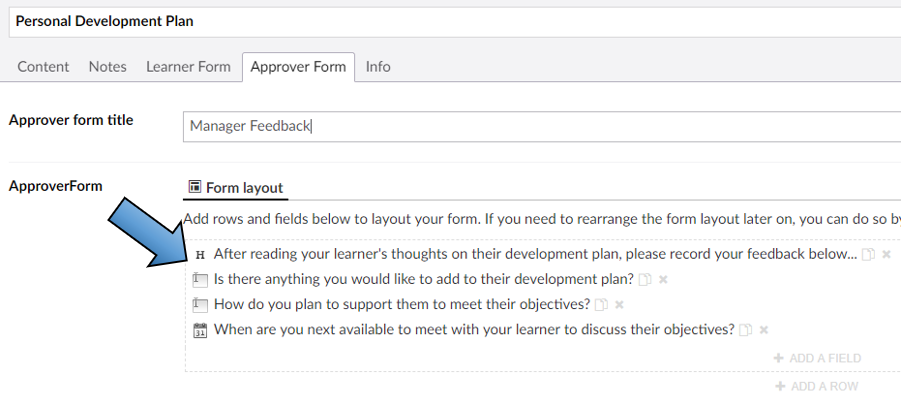
Create your Learner Form and Approver Form by adding fields - refer to the 'Form activities' article for information on how to do this.
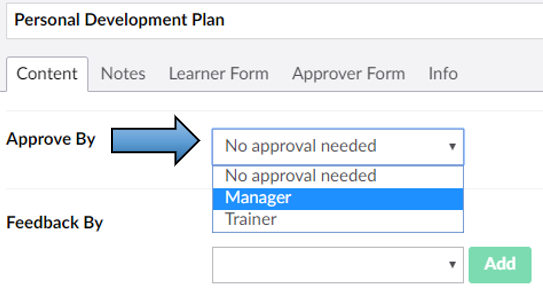
It's important to remember that a two-part form activity MUST be set to require approval (through the 'Content' tab). The reason for this is so that the platform knows who should be filling out the second part of the form, and therefore who should receive the update and email notification once the learner has submitted their responses. You will not be able to save a two part form activity unless an approver has been set - click here for more information on setting approvals.
If you try to save a two part form that does not have approval set, you will get a validation message. 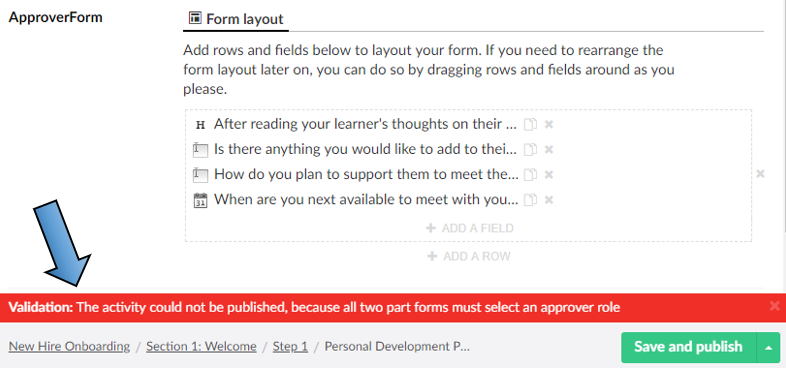
How do Two part forms look in the front-end?
When a two-part form activity is opened, it first lands on the overview screen (as is the same for all activity types). On this screen is the synopsis, of which the purpose is to give the learner an overview of the activity and what is required to complete it.
Beneath the synopsis there is the 'Start activity' button to open the form.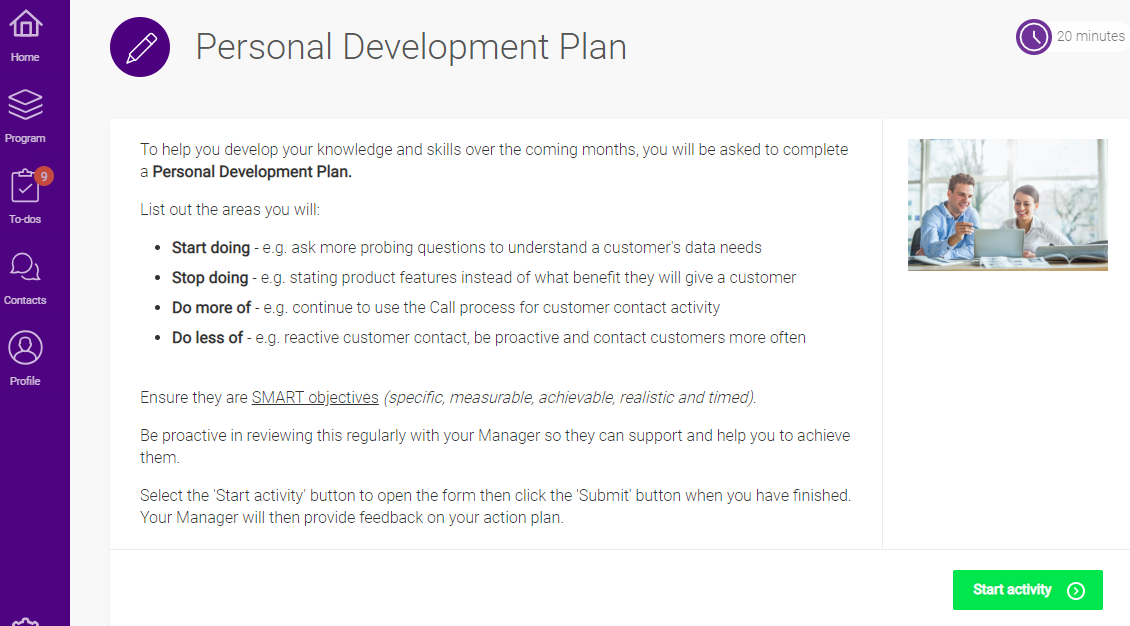
1. Learner fills out their part of the form and submits.
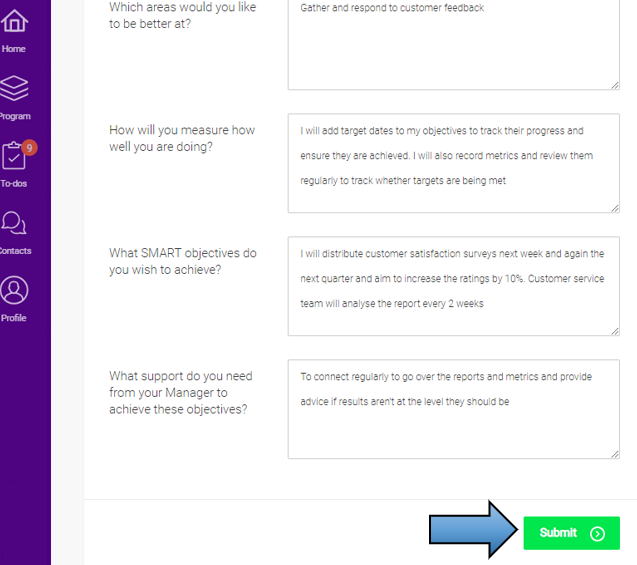
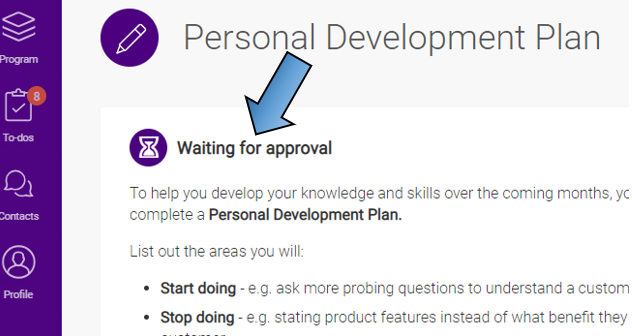
2. The status of the activity will then change to 'Waiting for approval'.
3. The 'approver' of the activity will then receive an email notification instructing them to review the learner's responses, fill out the second part of the form and then approve or reject.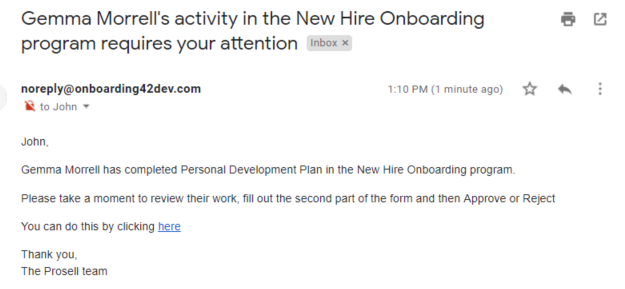
4. Clicking the link in the email will take the approver to the overview page of the activity that the learner had completed, where they would click 'Review activity' to open the form.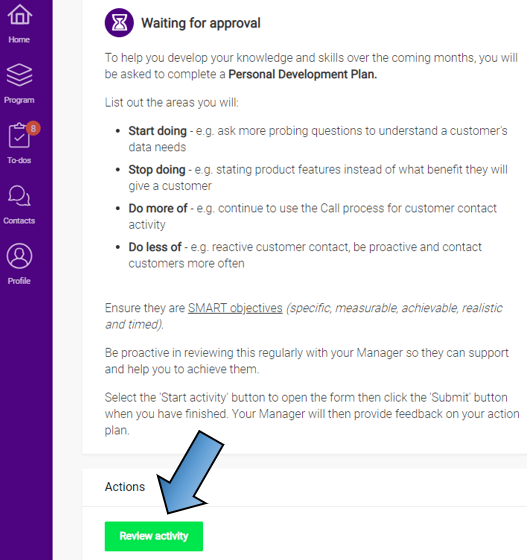
5. The learner's answers appear first for review, and then below this shows the approver's part of the form for them to complete. After filling in their answers, they can either approve or reject the activity.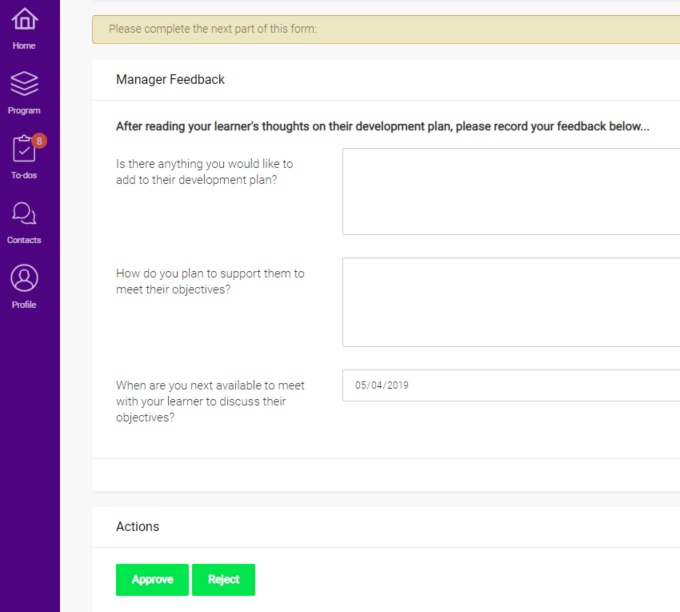
6. If approved, the learner gets an email notifying them of this and that they should review the feedback left.
7. Or, if the activity was rejected then the learner would receive an email notification asking them to re-take the activity. The new copy will contain their answers from the previous submission for them to add to / edit. They will also have visibility of the approver's form submission.
The activity status changes to 'Finished' once the activity is approved.
Comments
0 comments
Please sign in to leave a comment.