
What are Quiz activities?
Quizzes are a good way of assessing what your learners have taken on board.
They provide the learner with results instantly, which is good because it allows them to know what they did wrong, what they need to focus on, and how to improve should they have to retake the test. Quizzes can also keep learners engaged in that they motivate them to sharpen up, study harder, remember more, and so on.
When quizzes are used throughout the program, they are said to be "formative". The point of formative assessment is to gather feedback that can be used to guide improvements in the learning as it unfolds. Formative assessments are generally "low stakes" assessments.
Contrast "summative assessments" when the goal is to measure the level of success or proficiency that has been obtained at the end of a section or whole program, by comparing it against some standard or benchmark. These are generally "higher stakes".
How to build Quiz activities
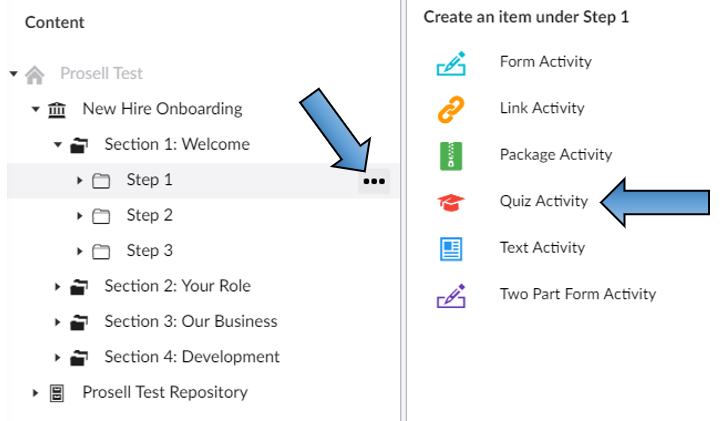
Create an activity within a step and select 'Quiz Activity' when you are presented with the list of types to choose from.
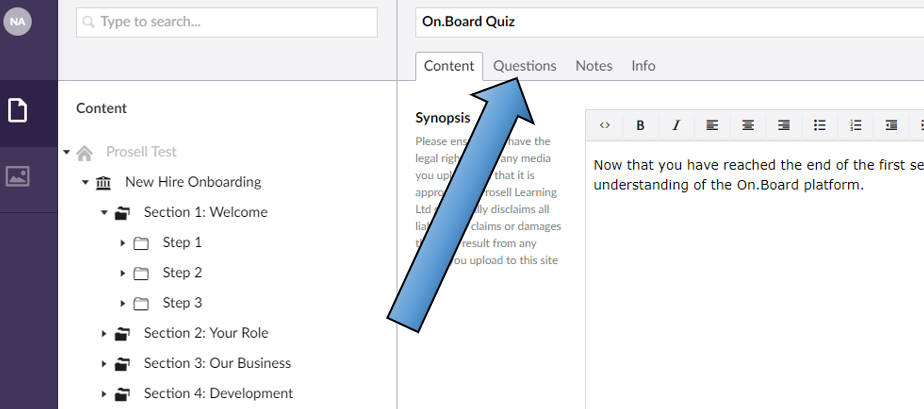
Within the 'Content' tab for the new activity, you will find the common fields that all activity types share (e.g. synopsis, thumbnail and icon). However, there will be another tab for 'Questions' that is only included in this type.
The 'Introductory text' is what learners will see when they open the quiz, and therefore should inform the learner of the Quiz topic and perhaps some indication of the structure of the quiz. For example, that it is a multiple choice quiz with each question having one correct answer and three incorrect answers.
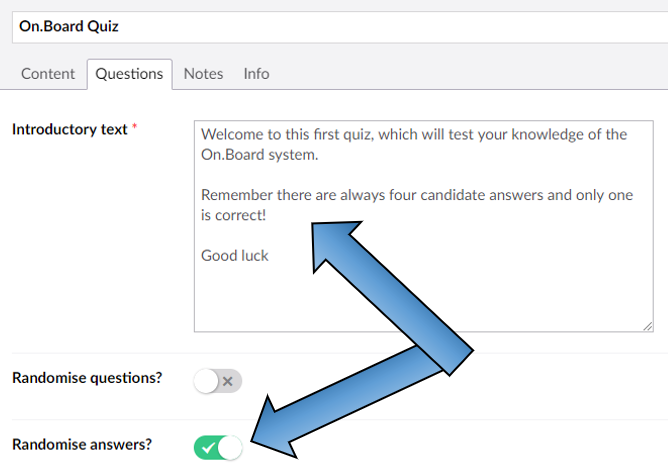
For anything other than testing purposes, you will probably want to toggle on 'Randomise answers' because otherwise the correct answer will always be positioned first and some learners may pick up on this and use it to their advantage. Whether or not you toggle on 'Randomise questions' is up to you. It may be important that questions appear in the order they were created.
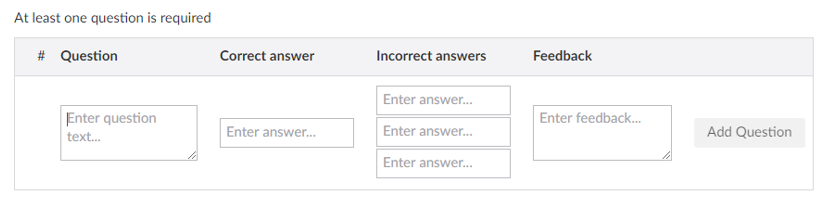
To write your first question:
- Enter text in each of the six text fields - Question, Correct answer, (Three) Incorrect answers and Feedback - and click the Add Question button
- You can move quickly between these fields using the Tab key on your keyboard
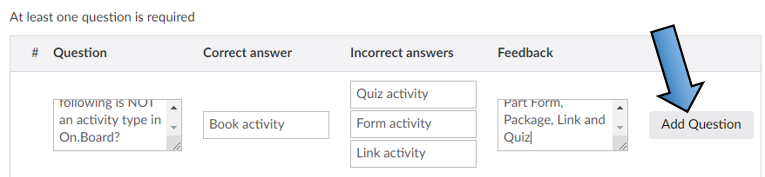
- Once submitted, your question can then be edited or deleted using the two adjoining buttons
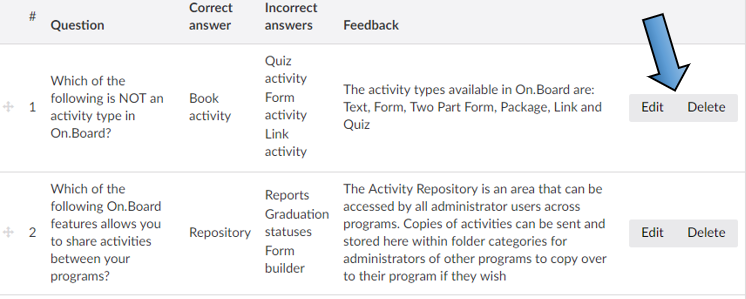
Please remember to save your work regularly.
You can (optionally) specify a pass mark for your quiz using either percentages or numbers, as shown here:
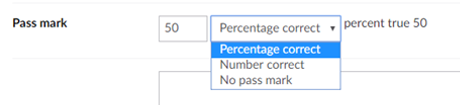
Whether you choose to have a pass mark or not depends on the purpose of the quiz. For example, is it just for the learner to check their understanding? Or, is it a requirement for them to meet a certain standard before continuing with the program?
If you do decide to set a pass mark, there are two options - percentage correct or number of questions correct.
If the pass mark is set and a learner does not achieve this, the activity will automatically be rejected and the learner will be prompted to re-take. There will be a record of each attempt.
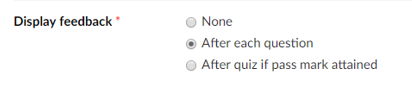
Different types of feedback
At the very bottom of the "Questions" tab, you will notice the "Display feedback" section.
There are three options for displaying feedback:
- Select "None" if you want to suppress all feedback
- Select "After each question" if you want your learner to receive feedback throughout the quiz
- Select "After quiz if pass mark attained" to present all the feedback at the end of the quiz. Notice that learners receive all feedback, whether they answered correctly or incorrectly but only if they have matched or exceeded the pass mark you specified. This option exists in case you're concerned that your learners might be tempted to guess or submit random text in the hope of seeing the right answers too early.
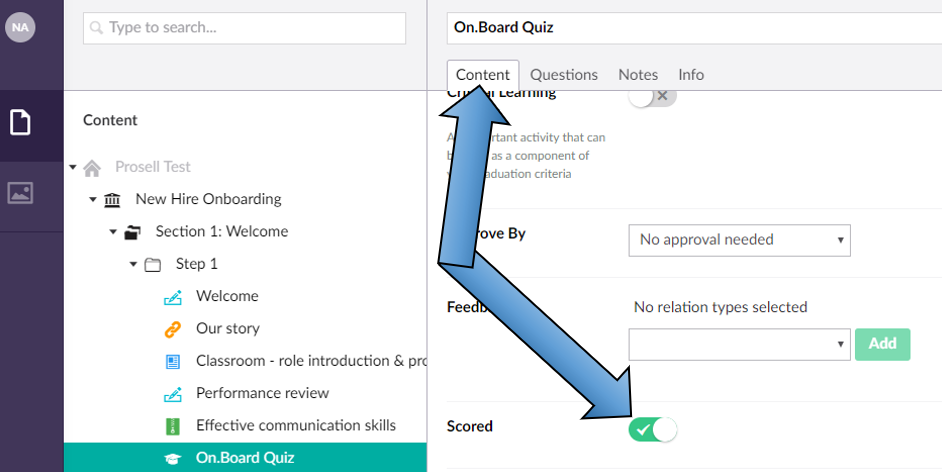
Please ensure that the "Scored" checkbox in the 'Content' tab is always ticked for Quiz activities, to produce a score.
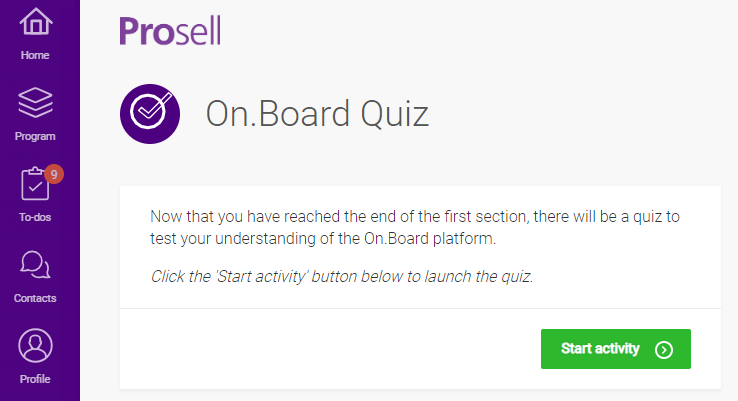
How Quiz activities appear to a front-end user
When a quiz activity is opened, it first lands on the overview screen (as is the same for all activity types). On this screen is the synopsis, of which the purpose is to give the learner an overview of the activity and what is required to complete it. In the case of a quiz activity, it could give some background of the purpose of the quiz and where they may have acquired the knowledge of the subject they are being quizzed on (e.g. classroom training, a video, a book).
Quiz activities are launched through a 'Start activity' button beneath the synopsis.
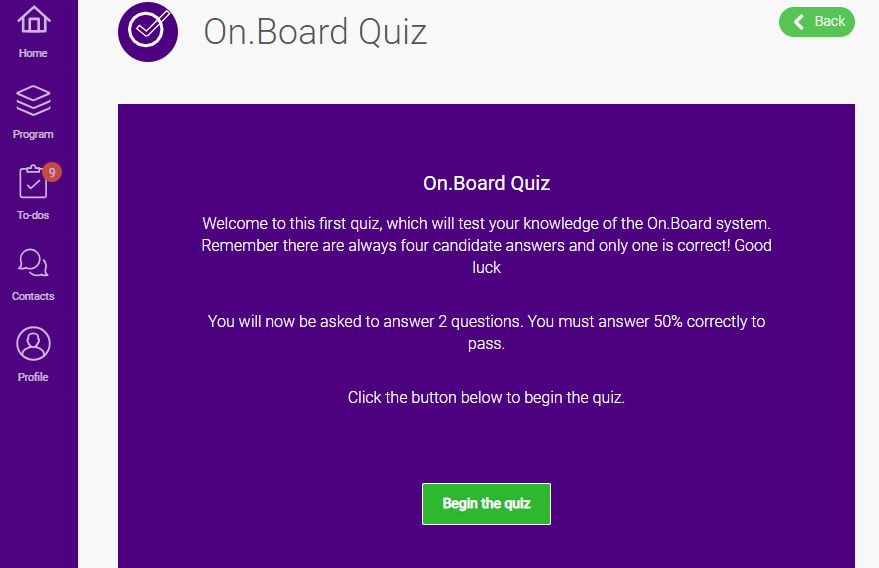
The learner is then presented with some introductory text, which you configure in the back-end, followed by "You will now be asked x questions" and, if you have set a pass mark, "You must answer y% correctly to pass". There is then a "Begin the quiz" button.
The colors of the quiz interface are determined by the program theme.
Questions are presented one at a time and questions and candidate answers will be randomized (or not) depending on how you configured the quiz in the back-end (scroll up in this article to remind yourself if needed).
When the learner selects an answer, it becomes highlighted. Learners can change their mind until they press the 'Next button.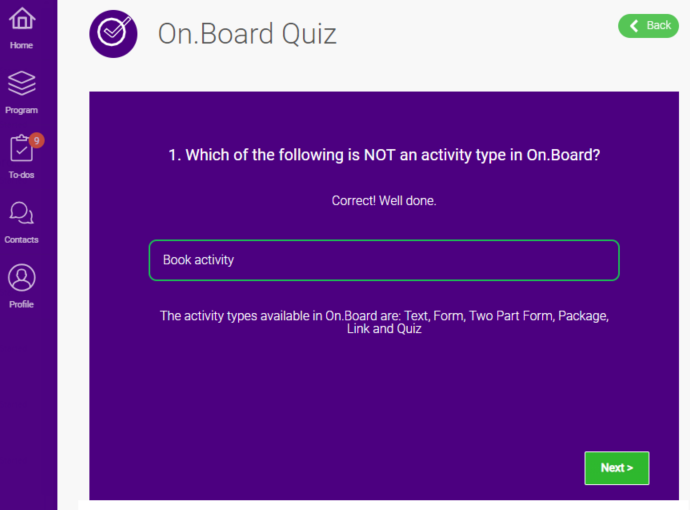
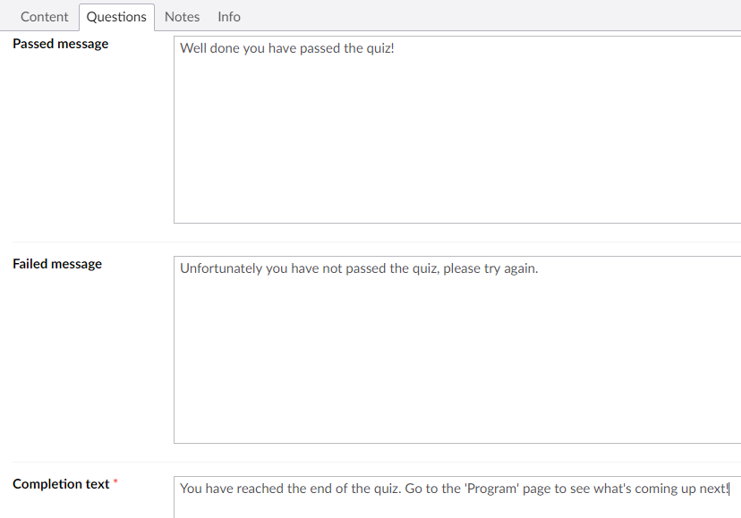
Scores are presented at the end, as well as the Passed/Failed message depending on the outcome. The 'Completion text' is also displayed beneath this, which would typically inform the learner of their next steps.
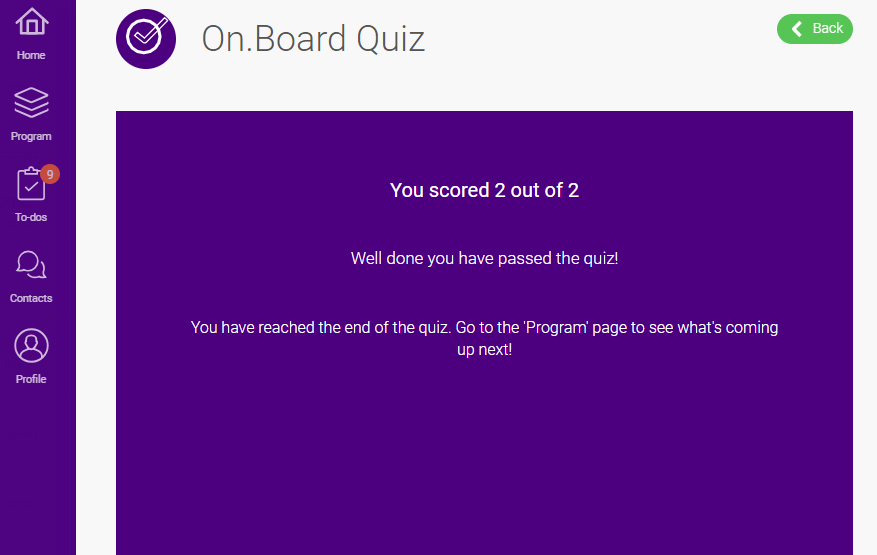
Learners can exit the quiz activity by pressing the 'Back' button at the top right of the screen.
Please note that if a pass mark is set and not attained, the activity will automatically be rejected and a duplicate created for the learner to re-take the quiz. This duplicate will appear in the learner's 'To-dos', whilst their 'Program' page will list both the first "Rejected" quiz and the new copy that's "Not started".
What makes a good quiz question
It sounds obvious but you should try to ask questions with answers that are worth knowing!
We can’t really help you with this but we can offer some advice on how to ask your questions in the right way, or, rather, how to avoid making them too guessable.
To write a good “stem”, i.e. the question itself:
• Make sure you get the level right, not too easy, not too difficult
• Write your stem in such a way as to minimize duplicated words in the candidate answers
• Use clear and concise language, avoiding negatives wherever possible
Writing good distractors is the hardest bit. All your distractors should be plausible; and the more similar your distractors are to the correct response and to each other, the less guessable the item will be. Aside from plausibility, other things to watch out for include:
• The correct response contains a word repeated from the stem but the distractors don't
• The use of words such as "all", "never" and "always" in distractors and “some”, “sometimes” "usually", "often" etc. in correct answers – another giveaway
• Correct answers are often longer than distractors
• Watch out that you don’t inadvertently plant any grammatical clues; if your stem expects a simple noun (i.e. it ends in “… because of:”), for example, then don’t start a distractor with anything else (“B. the sky is blue”)
When you write your feedback, don’t just say right or wrong. Try to add some value even if it’s just some extra piece of information to keep your users interested. To finish off, here’s a little example to show how you can include numbered options in your stem to make your learners have to think that little bit harder:
| Question | Which of the following are towns or cities in Romania?: 1) Odessa; 2) Oradea; 3) Arad; 4) Nesebâr; and 5) Timişoara |
| Correct answer: | 2, 3 and 5 |
| Distractor1: | 2, 3 and 4 |
| Distractor2: | all but 1 |
| Distractor3: | 1, 2, 3 and 4 |
| Feedback: | All but Odessa, which is in the Ukraine and Nesebâr, which is in Bulgaria. |
Functionally, this fails the worth knowing criterion for a pharma salesperson, for example, but, formally at least, its construction is OK:
- it’s not easily guessable (notice we didn’t include Bucharest, Sofia or Kiev)
• all options contain more than one candidate city (which … are, not is)
• and it provides a little bit of extra interest in the feedback
Lastly, if you are in any doubt, you should ask others for advice on the “guessability” of your MCQs before you publish.
Limits on quiz questions
Currently you can have an unlimited number of questions per quiz but:
- all quiz questions have to be text-only
- you will need to provide one correct answer and three distractors
- quiz questions are single-select, not multi-select
However, on this last point, more complex questions are possible. Please see answer to "What makes a good quiz question". This shows how you can effectively create a multi-select quiz question but still with only one correct answer.
How quiz questions get scored and tracked
In On.Board, quizzes can have a pass mark and typically the learner's last score is the one that gets fed back to learners and other participants in their performance hub (as long as you set the activity to be scored when it's created).
However, it may be useful to know that On.Board actually captures the learner's responses to *all* the individual questions and stores these in its database. You can check these out in the 'Quiz detail' report.
Comments
0 comments
Please sign in to leave a comment.