
Relationship Types Explained
Before you can assign relationships between participants and therefore determine who will have visibility of who, the relationship types of the program must be defined.
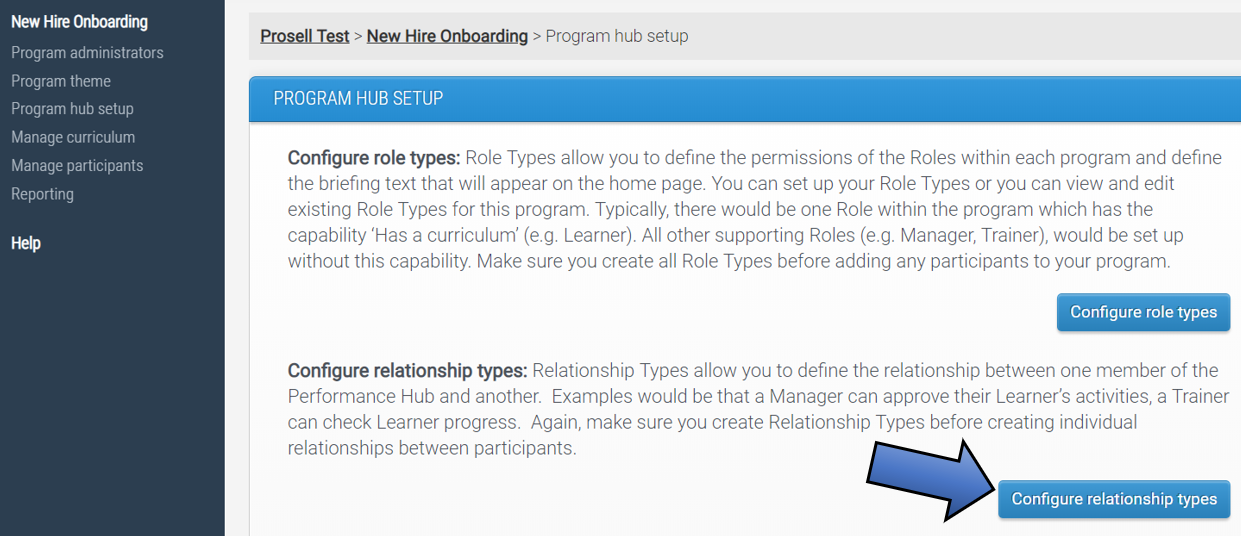
Relationship types allow you to define the capabilities that a participant has with another participant.
When setting up a relationship type there are a few settings to be configured.
First, the Name, which is what administrators will see when assigning relationships between users and also appears to participants on their contacts page. For example, if in your program you had a relationship type named 'Manager' and you assign Karen Clarke the Manager of Peter Shields, then on Karen's contacts page under Peter it will say "You are Peter's Manager" and on Peter's contacts page under Karen's name it will say "Karen is your Manager".
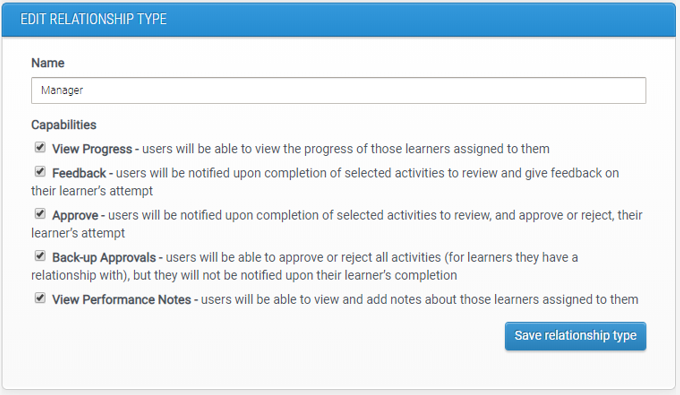
Then, the next part of a relationship's settings is the capabilities it has (i.e. a participant's permissions with another).
Essentially, if a participant is assigned a relationship with another (regardless of the capabilities) then they will appear in each other's contacts page and will see actions related to them on their home page's latest updates column.
A relationship type may have one or more of the capabilities on offer:
View Progress:
Having a relationship with this capability will give the participant the permission to view the learner's progress through their contacts page. This is the simplest capability and is automatically given when any of the other capabilities are selected.
Approve and Feedback:
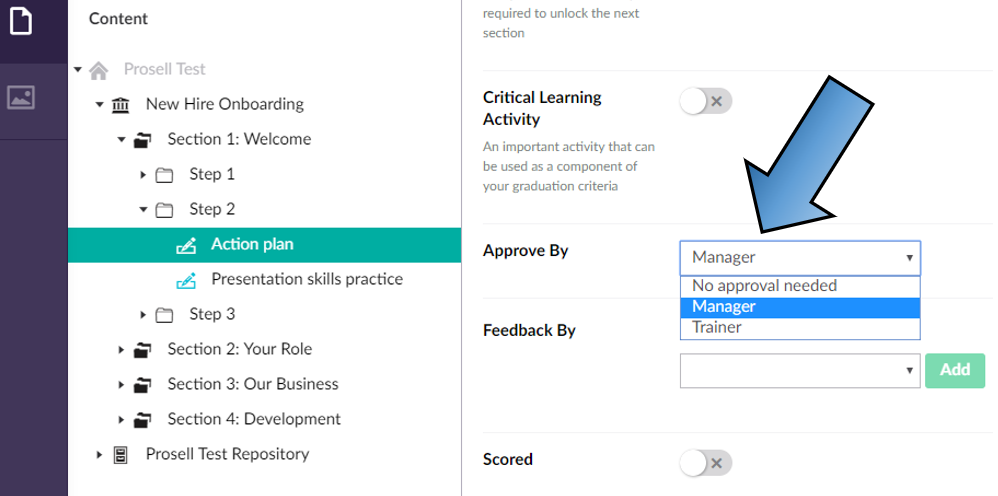
The 'Approve' capability determines whether the type appears in the 'Approve By' dropdown field when creating an activity, and the 'Feedback' capability for the 'Feedback By' field.
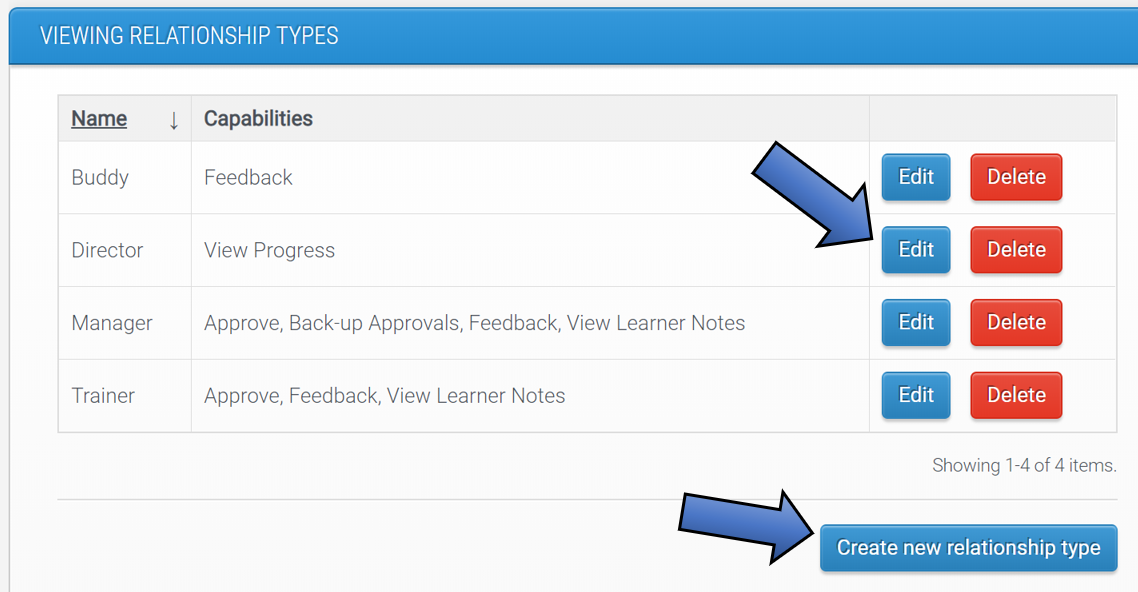
Here's an example of the relationship types that have been configured for a program. You can see that both the Manager and Trainer have the capability to ‘Approve’ and ‘Feedback’, the Buddy has ‘Feedback’ and then the Director only has ‘View Progress’.
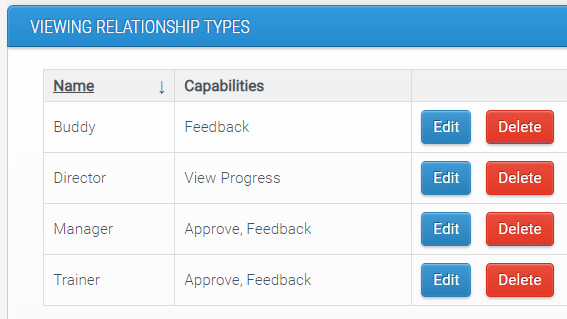
So, when creating activities in this program the only relationship types that will be available to select for the approver are Manager and Trainer.
Then, in the ‘Feedback By’ dropdown these types are listed but the ‘Buddy’ is also available to select.
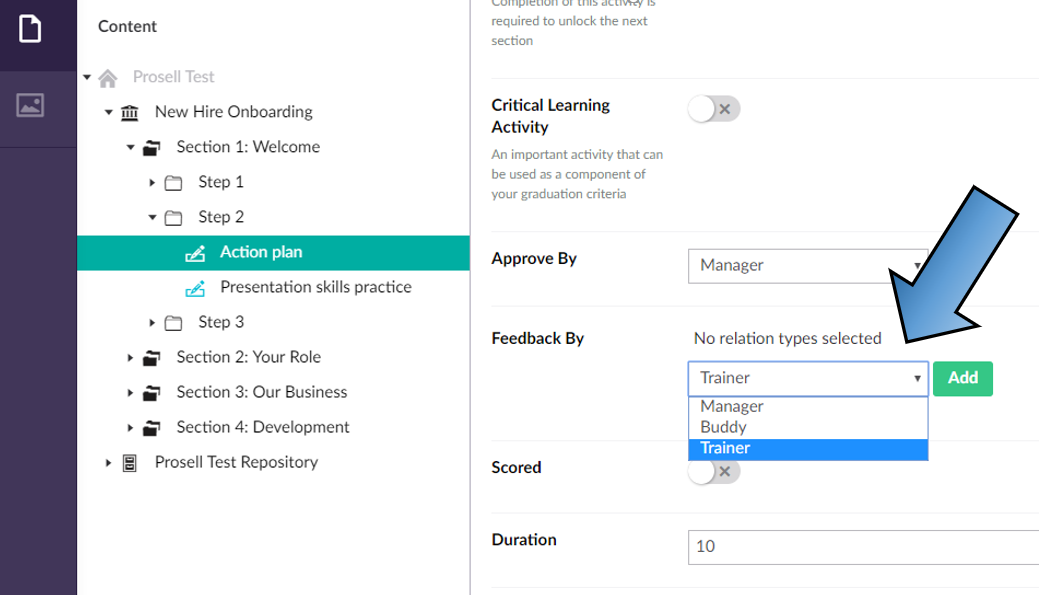
The Director relationship appears in neither dropdown as an option because those with this relationship assigned can only view the progress of their learners.
If a participant is assigned a relationship type with the 'Back-up Approvals' capability, then they will be able to intervene and approve/reject their learners' activities on behalf of the designated approver. This is useful in situations where the learner is prevented from progressing to the next section due to their approver being unavailable.
For the 'View Performance Notes' capability, users will be able to view the 'Notes' section for those learners they have a relationship with. For example, if you give the Manager and Trainer relationship type this capability, then they will be able to share notes and files with each other (without the learner, or other members of their hub, having visibility).
How to Create, View and Edit Relationship Types
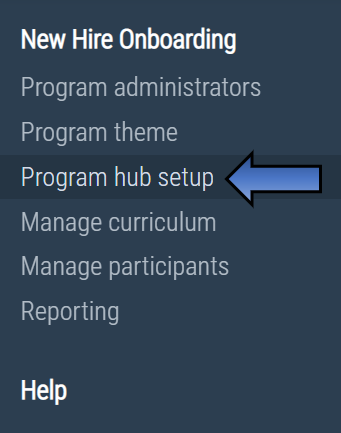
To access the relationship types for your program, select 'Program hub setup' on the left-hand navigation menu on the administrator dashboard.
Then click the button 'Configure relationship types'.
From this page you will be able to view any relationship types that have already been configured and edit them. If you haven't set these up yet or need to add another, click the button 'create new relationship type'.
You will then be taken to the screen for the relationship type settings where the name and capabilities are set (outlined at the beginning of this article).
Is a relationship type needed for the learner role?
Typically you would create a relationship type for each role except for the learner. So, if you had the three roles learner, manager, trainer, you would then only need to create the relationship types 'manager' and 'trainer'.
The reason for this is because participants are first added into roles (distinguishing learners going through the program from their supporting hub members) and then relationships are set between learners and these supporting hub members. So, each learner would have a relationship with their manager and their trainer, which is why in this example you'd only need these two relationship types.
Comments
0 comments
Please sign in to leave a comment.