
Performance Notes
What are Performance Notes and why are they important?
This feature was suggested by a client who wanted a more flexible and proactive way to communicate about performance without the learner having visibility of it.
Performance Notes does this by enabling nominated members of the hub to share, communicate and review a learner’s performance within a trusted space.
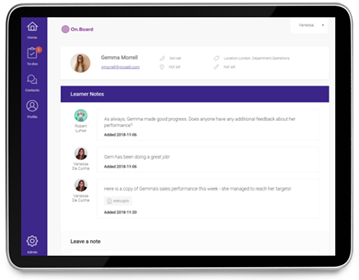
People with access to this space can:
- Add comments. For example, to mention how punctual a learner has been or to share any feedback from clients
- Upload files. For example, any performance reporting data such as sales targets achieved, NPS scores.
Managers or Trainers can then use this information to recognise efforts and address challenges in the moment during one to one coaching conversations. The evidence can also be used to build score cards and annual summary reports, to increase visibility of how far employees have progressed.
How to enable Performance Notes in your programs
The performance notes for each learner can be accessed through a user’s contacts page and is only available to those who have been given the relationship type capability.
The reason for this being a relationship type capability is so that you have control over who can see these notes in your program, for example the manager and trainer role but not the mentor.
You can add this capability to one of your existing relationship types through ‘Program hub setup’ and then ‘Configure relationship types’.
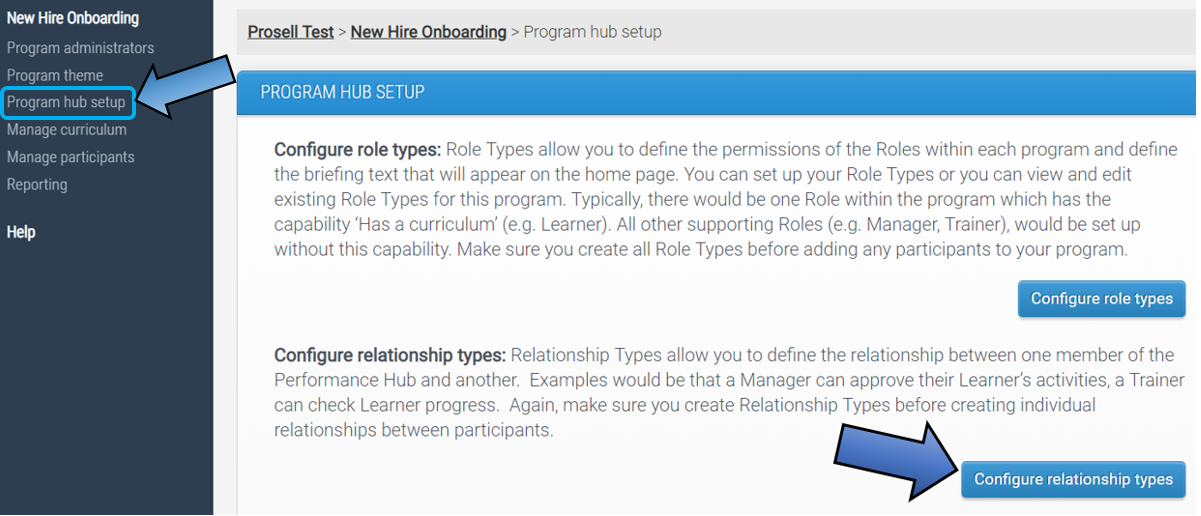
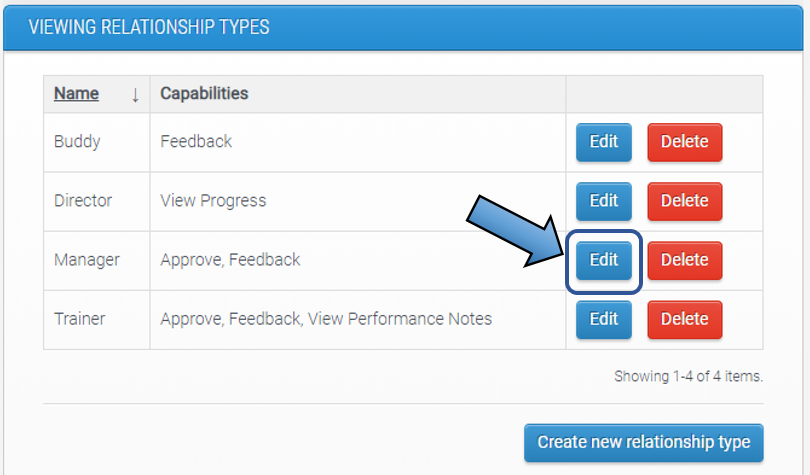
Then click 'Edit' beside the type you want to add this capability to.
Select the capability 'View Performance Notes' and then 'Save relationship type'.
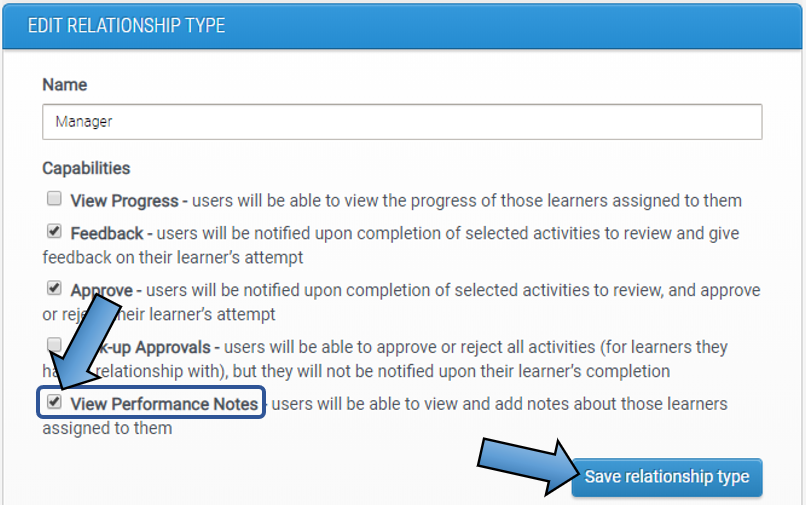
Repeat these steps for all types that should be able to view and add to their learners' performance notes.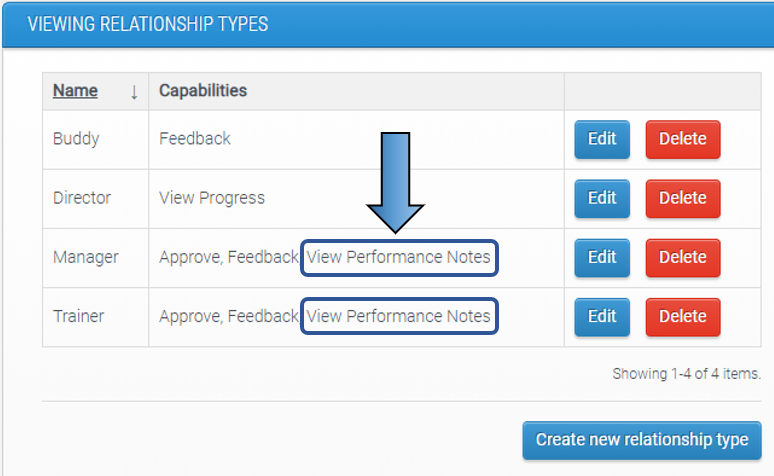
How this looks to participants who can view the 'Performance Notes'
Now, all hub members that have a relationship assigned with this capability, a Manager or Trainer in the example above, will have a ‘Performance notes’ button next to their learners' names on the ‘Contacts’ page.
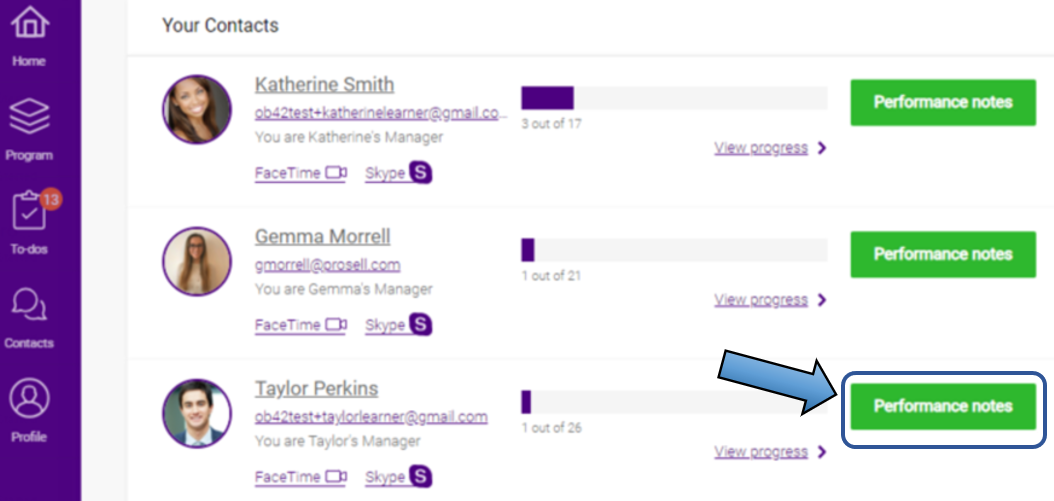
Clicking on this button will take them to the performance notes area for that learner, where they can share comments and files with those who also have access.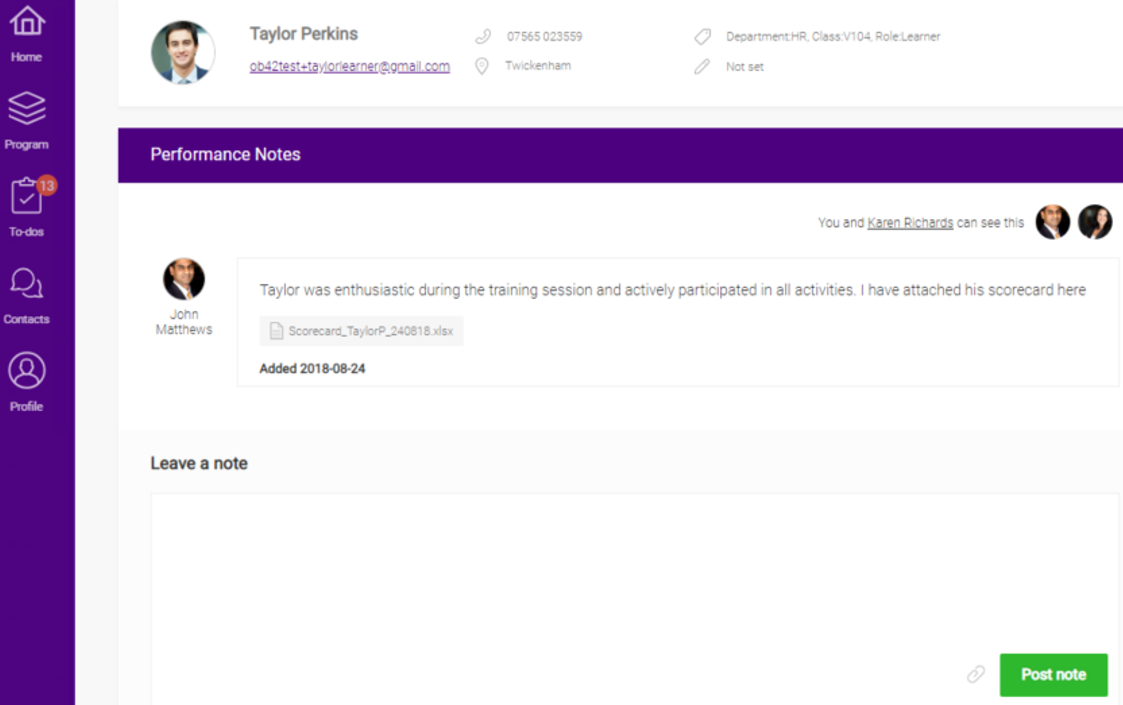
In the example above: Taylor’s Manager, John, has left a comment in the performance notes. Only one other person can see this area, and that is Taylor’s Trainer, Karen Richards.
Karen is made aware of the note left by John as it will appear in her latest updates on her home page.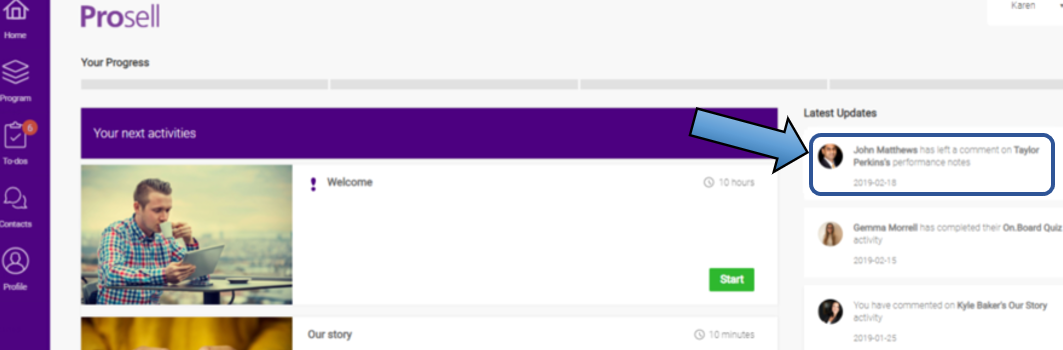
Remember that only those with the ‘View Performance Notes’ capability will have this button beside learners on their contacts page. This differs from the ‘Comments’ section on activities, which can be viewed by everyone in the performance hub, including the learner, regardless of their capabilities.
The Learner cannot see their own performance notes. Its primary purpose is for non-learners (members of a learner’s hub) to interact and share feedback on their performance.
Comments
0 comments
Please sign in to leave a comment.