
Purpose
There is now an option for users to save their completed forms as a PDF document, without going into device’s printing panel. This feature was added to make the process of collecting On.Board evidence more efficient. Several layout changes were made to ensure that generated PDF documents reflect the actual formatting and layout of the page within On.Board.
Process
All completed forms will now have a ‘Save As’ button at the top of the page:
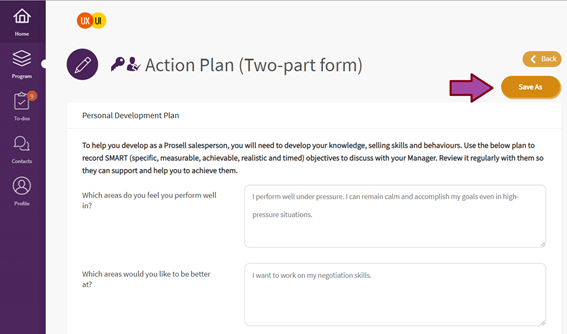
Clicking on this button brings up a dialogue box with a pre-set configuration allowing users to save the page as a well-formatted PDF document.
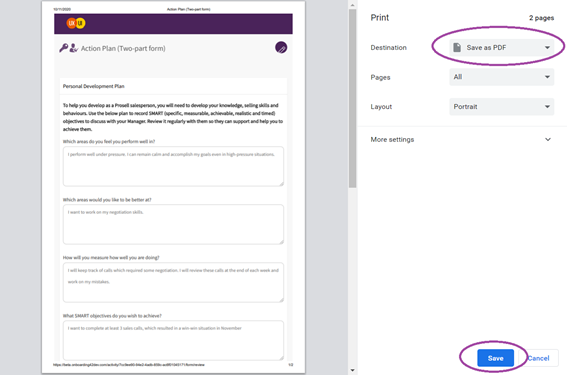
Users can select where they want to save the PDF document.
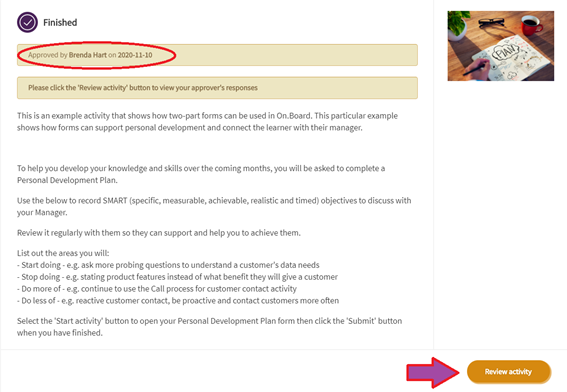
In addition, in two-part forms, users are also able to save the approver’s responses. In order to do this, they need to click the ‘Review activity’ button on any of the activities that contain a completed two-part form:
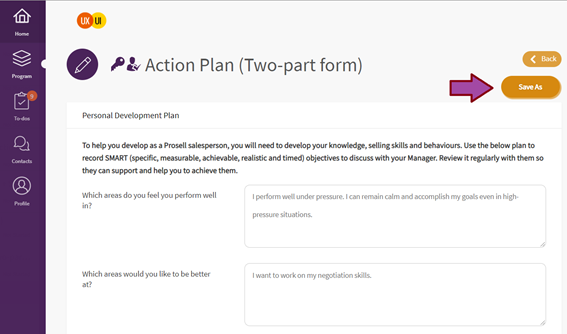
Once on the form page, users will see learner’s responses along with their approver’s feedback. ‘Save As’ button at the top of the page will open up a dialogue box with pre-set configuration allowing to save the page containing responses from both the learner and their approver in a PDF format:
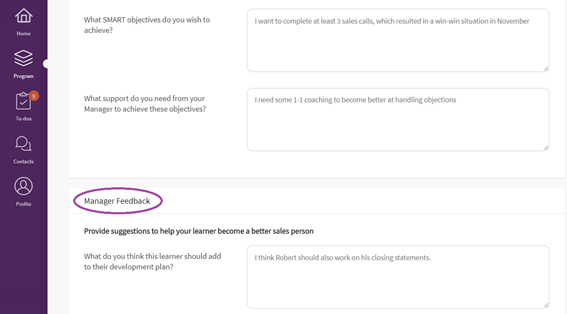
Approvers and other members of the performance hub are also able to save their learner’s forms. This is particularly helpful for collecting evidence and importing On.Board-based evidence into other tools and libraries.
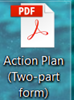
The PDF file will be automatically named, according to the name of the activity:
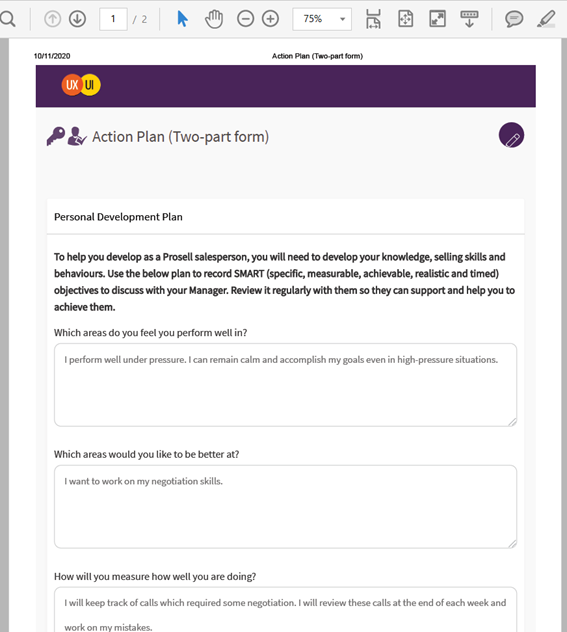
The exact layout and formatting of the document will vary slightly, depending on the browser and PDF reader being used, however, all completed fields should always be present:
Please note that this feature will work on all modern browsers, such as Google Chrome, Microsoft Edge, Safari, Mozilla Firefox. Internet Explorer is no longer supported, therefore, users are advised to switch to one of the browsers listed above.
Comments
0 comments
Please sign in to leave a comment.