
Accessing the Curriculum Builder
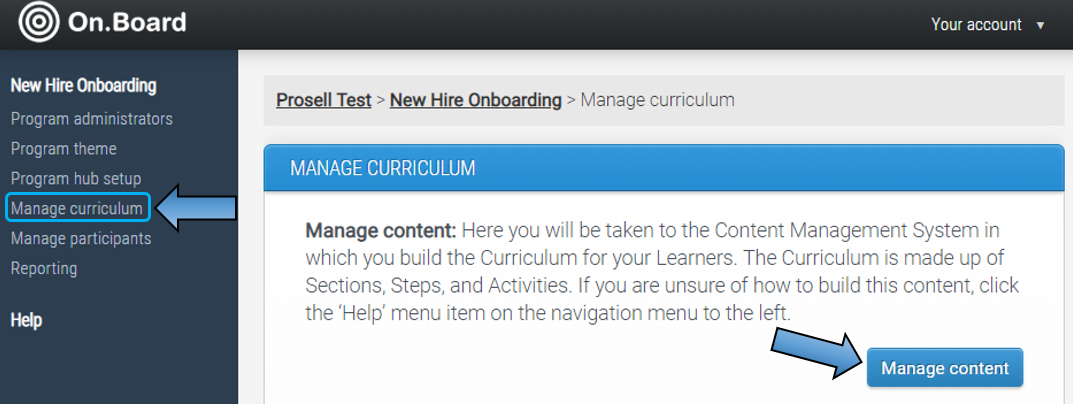
The curriculum for your program can be created and edited through 'Manage curriculum' on the left-side navigation menu and then the 'Manage content' button will open the curriculum builder.
What are Sections and Steps?
The structure of the curriculum is determined through sections and steps. This is done within the content management system (through Manage curriculum > Manage content).
Sections are built first within the program curriculum and their purpose is to provide structure to the activities. Sections are usually based on a common theme, e.g. week or subject area.
Steps are built within sections and they determine the activities that will appear together within the participant’s to-do list.
Activities are built within steps.
The screenshot below is an example of a curriculum structure within the building interface.
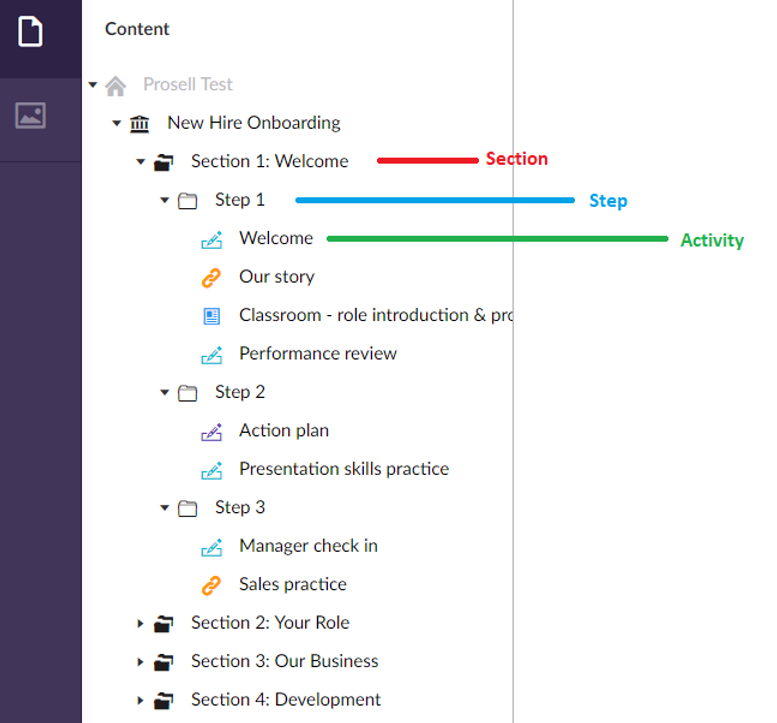
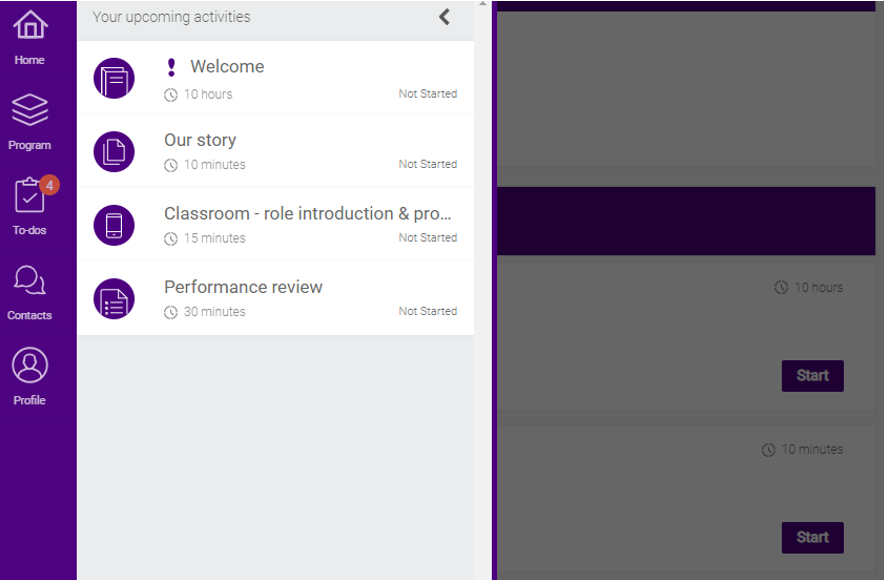
In the front-end program page, participants will see sections (the purple header reading "Section 1: Welcome" in the screenshot below) and then activities within them (Welcome, Our story, Classroom, Performance review, etc). Notice how the names of steps (Step 1, Step 2, Step 3) are not visible in the front-end (participant view).
Compare the screenshot above with the one below.

The label of the step is not visible, but because the first four activities were placed in the same step, they have appeared in the to-do list together. Once all activities in the step have been completed, the activities in the next step will appear.
You might decide to build all activities within one step or even build a separate step for each activity. It just depends on how you want them to appear in the participants' to-do list. The use of multiple steps within a section is recommended if you have a large number of activities, to prevent learners from feeling overwhelmed at the amount they have "to-do".
How to build your curriculum with sections and steps
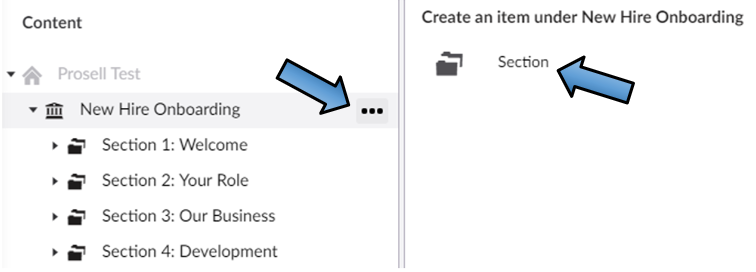
Sections are created by selecting the three dots beside the program name and then clicking the 'Section' folder within the column that appears on the right.
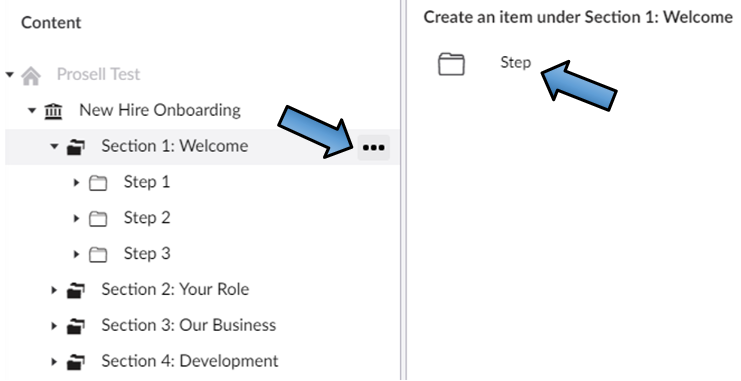
Steps are created by selecting the three dots beside the section name, and then clicking the 'Step' folder within the column that appears on the right.
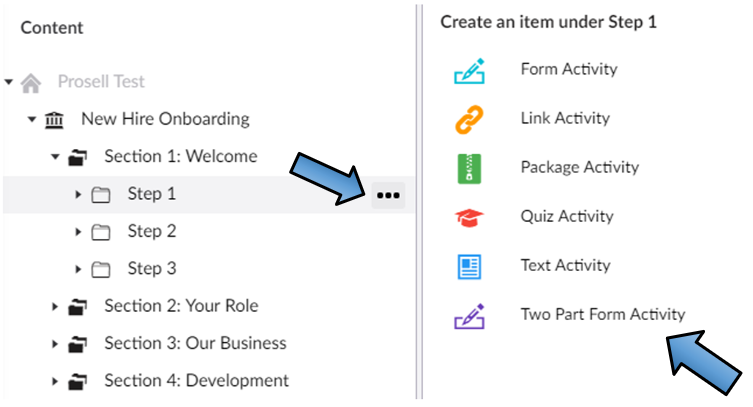
Activities are created by selecting the three dots beside the step name. Then, select one of the six activity types in the column that appears to the right. If you haven't yet decided on the activity type, choose the 'Text Activity', which is the simplest of the types, and then you can change this at a later date.
Once you have selected an activity type, there will be a collection of fields to be filled in. See the next article for more information on this.
Comments
0 comments
Please sign in to leave a comment.