
Allocating Roles Using Tags
If you are importing a group of participants who will have different roles (for example, both learners and managers) then you can speed up the role allocation process using tags.
You would do this by adding a 'Role' tag to your spreadsheet (this would be an additional column after 'Email'). The title of the column would be 'Role' and then the role name in the fields below for each participant.
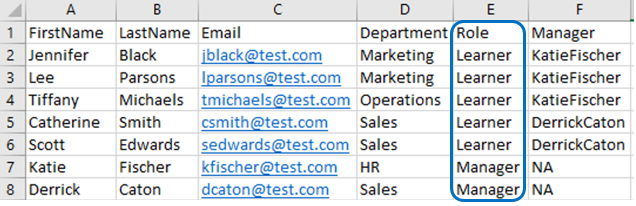
Once this has been uploaded, each participant would get a 'Role' tag. For example, Jennifer Black would have the tag 'Role:Learner' whilst Katie Fischer would have the tag 'Role:Manager'. PLEASE NOTE: adding these role tags does not actually give the participants these roles, they will just assist when searching for participants in the multi-action tool to add the roles.
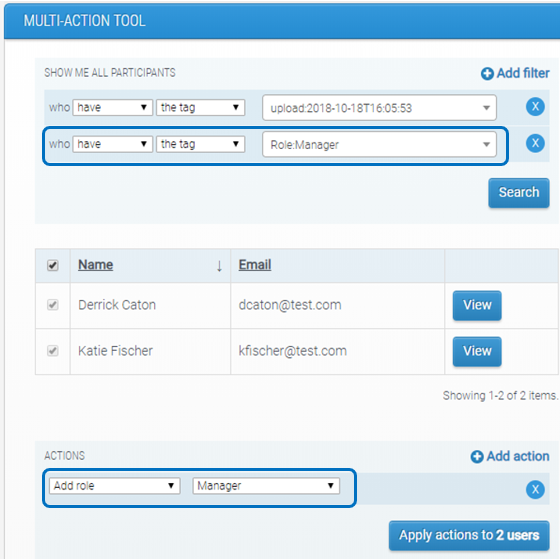
So, in the multi-action tool you can then search for participants with the tag 'Role:Learner' and allocate them the learner role. You can then remove this filter and search for participants with the tag 'Role:Manager' and allocate them the manager role.
Assigning Relationships Using Tags
Once participants have been given a role in the program, their relationships then need to be configured to determine their performance hub.
In the same way as with allocating roles, tags can be used to assist with the process of assigning relationships between participants.
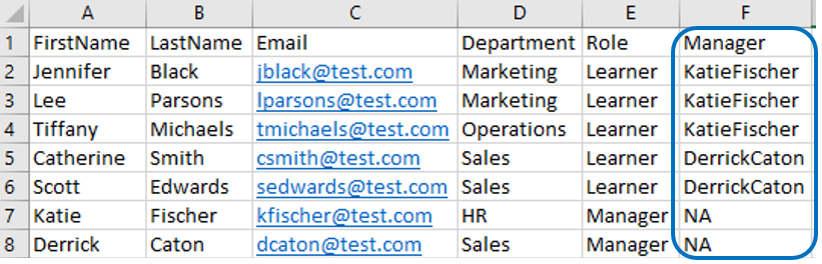
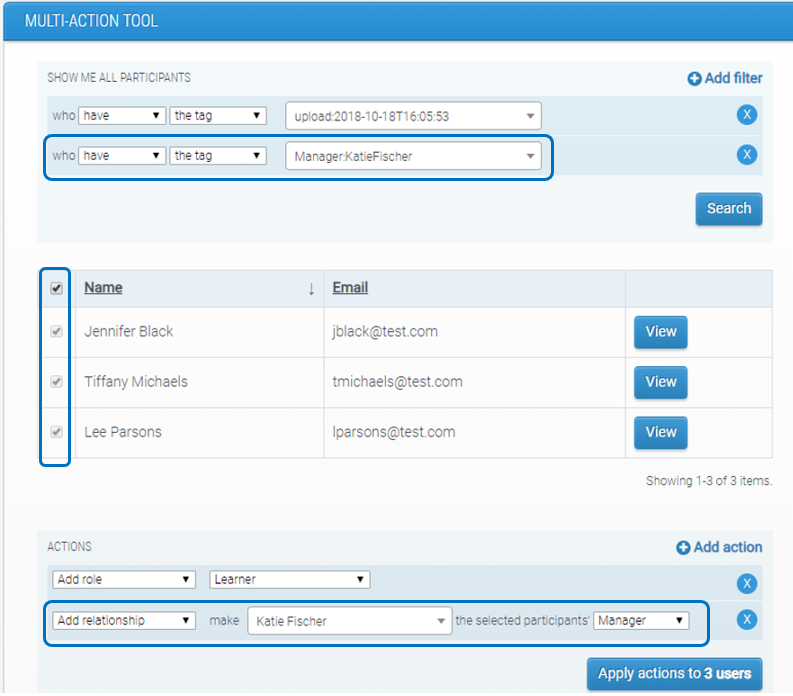
By adding a 'Manager' tag, you can use the multi-action tool to search for participants with the tag 'Manager:KatieFischer' and then assign them all a relationship with Katie Fischer as their Manager.
Remember that roles must be allocated before relationships can be assigned, anyone without a role will not appear in the action drop-downs.
Comments
0 comments
Please sign in to leave a comment.