
Prerequisites
Before you can assign relationships, you need to have created your relationship types and enrolled your participants.
How to Assign Relationships
There are a couple of ways of assigning relationships between participants (e.g. setting up a learner with their manager and trainer) and as with adding participants and allocating their roles, the best method depends on how many you are assigning.
Method 1: Assigning a Single Relationship
If you have just enrolled a new learner in your program and need to assign their manager (who must also be enrolled), you can do this quickly through 'Manage participants' > 'View relationships' and then 'Create new relationship'.
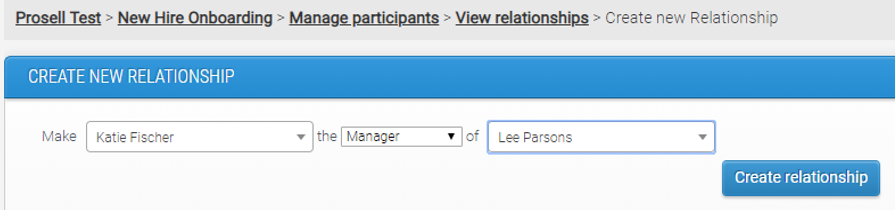
Use the drop-down boxes to search for the relevant participants and the relationship type.
Once a relationship is set between two participants, they will appear in each other's contacts page.
This method might be preferred if only assigning one or two relationships. If, however you need to assign in bulk then read ahead...
Method 2: Assigning a Single Relationship
The alternative method to assign relationships is using the multi-action tool - by searching for participants and applying one or more actions to them. This would be the most efficient method if you wanted to apply multiple actions to multiple participants.
You can access this through 'Manage participants' and then select the 'Multi-action tool' button.
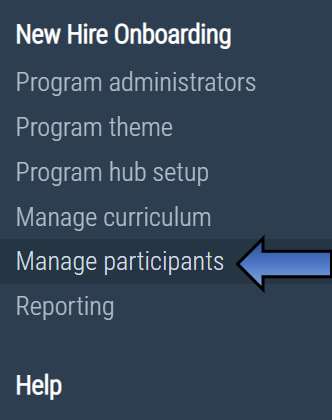
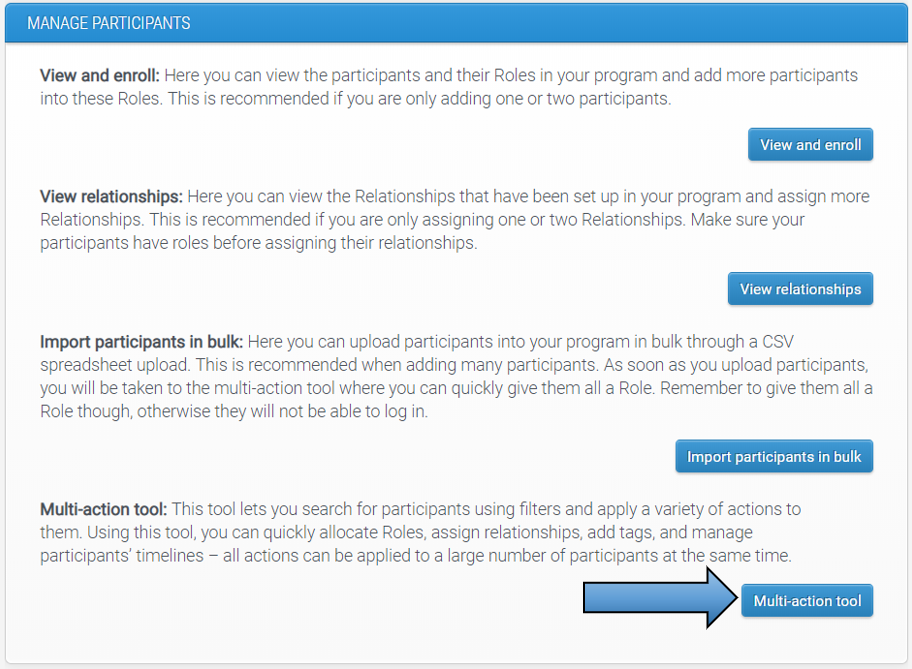
Or, you may already be on the relevant page if you have just imported participants in bulk and allocated their roles.
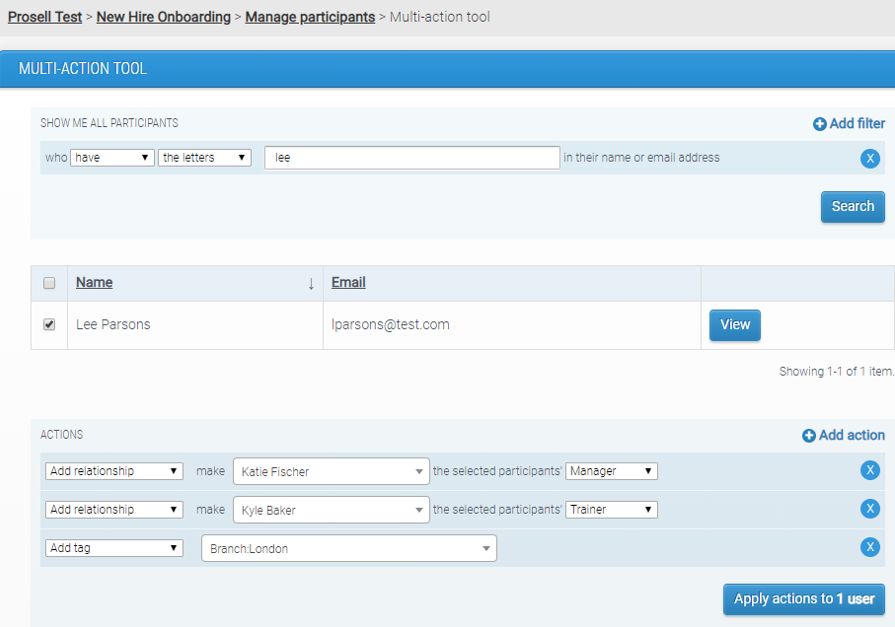
Once in the multi-action tool, you can apply various filters to search for an individual or a group of learners and assign one or more relationships to them.
For example, in looking for a particular participant you could just search by letters in their name or email address and then assign their relationships (and other actions)...
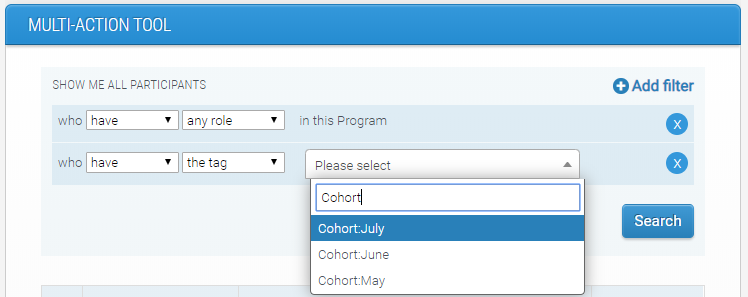
Or to locate a whole group you could search by tags...
Please note that when assigning relationships through this method, at one time you should only select learners who should be assigned a relationship with the same person. For example, if a cohort of 13 participants are all being trained by the same person, you can select all and allocate them the 'Trainer' relationship with this person (see screenshot below).
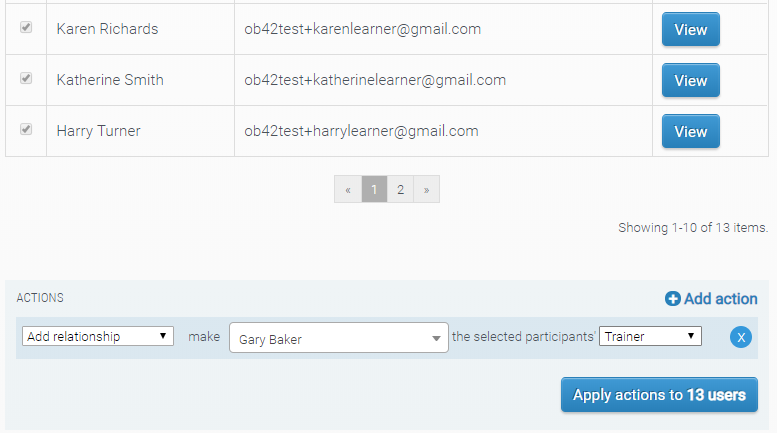
If the group also share another contact, this can be applied too at the same time through 'Add action'.
If, however, these participants all came from different branches and had different managers, then the 'Manager' relationship would need to be assigned one at a time (either through the multi-action, selecting and applying the action one at a time, or by using 'Method 1' as explained earlier in this article).
Comments
0 comments
Please sign in to leave a comment.