
What does it mean to Refresh a Timeline?
The action of refreshing a timeline means to gives them the latest version of the curriculum and also resets their progress. This function would typically be used by administrators who are building their curriculum and need to preview how it looks in the front-end.
How do I Refresh a Timeline?
If you want to refresh the timeline of just one learner or administrator, resetting their progress and giving them the latest version of the curriculum, you must first locate them. This can be done through the multi-action tool, which we'll cover later, or...
You can locate them through 'Manage participants' and then 'View and enroll'.
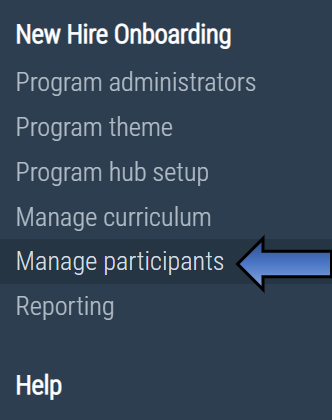
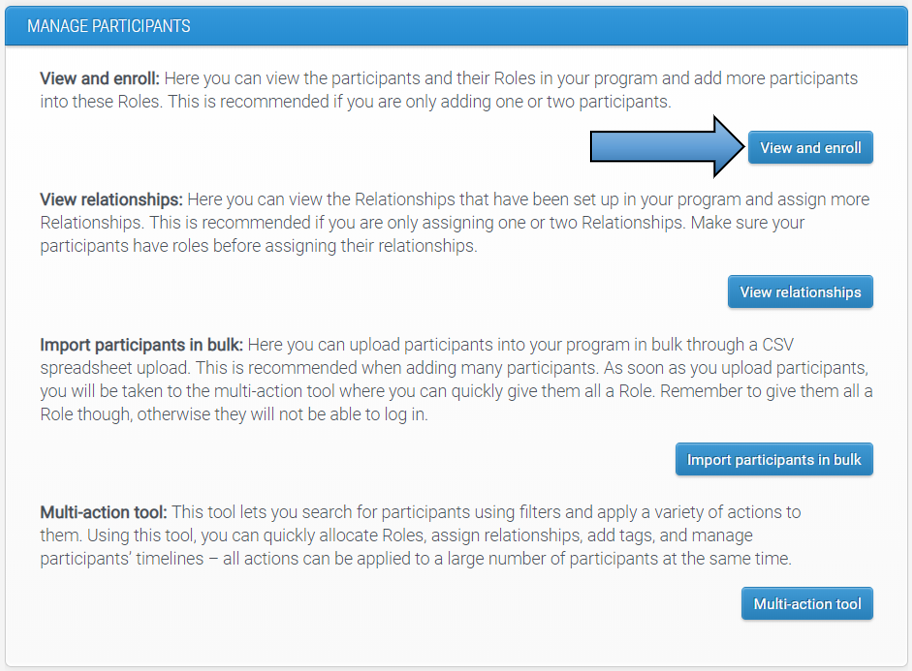
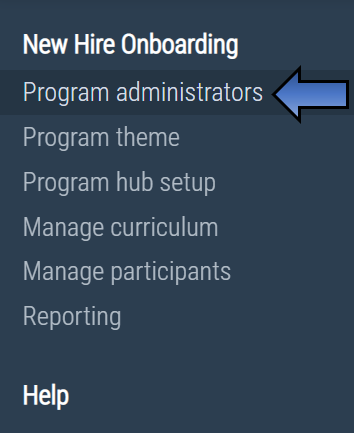
If you are resetting an administrator, you can locate them through 'Program administrators' and then 'Manage administrators'.
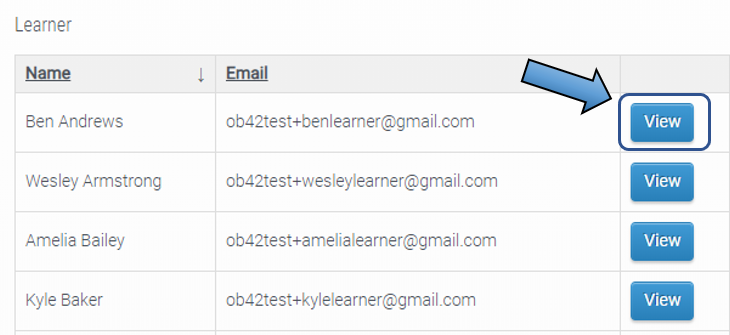
Locate the learner or administrator you need to refresh and select ‘View’ next to their name.
Select the ‘View activities’ button beneath the user’s details.
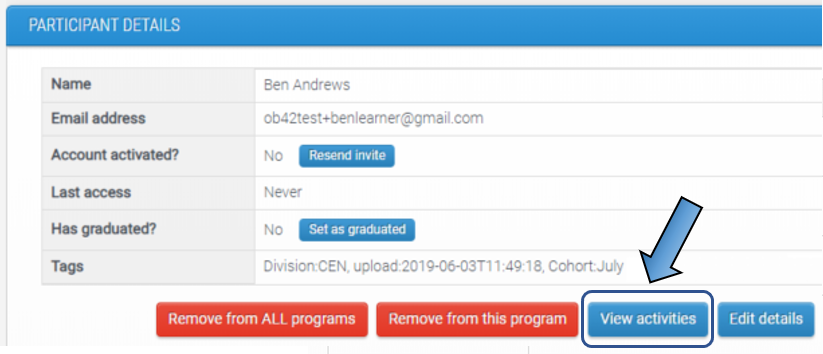
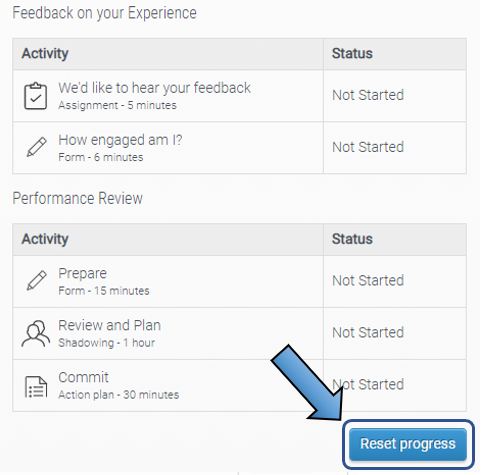
You will then get a view of their current timeline (sections and activities), and if you scroll down to the bottom there will be a button for 'Reset progress', where clicking it will refresh their timeline which will give them the latest version of the curriculum and their progress will be reset. This isn't an issue if the learner hasn't yet signed in or started their program yet, but do be cautious if you notice the 'Status' of one of the activities as 'Finished' as it will be wiped if you perform this action.
Refreshing users in bulk
If you're needing to refresh timelines of multiple users (whether they be learners or admins), this action would be applied in bulk using the multi-action tool.
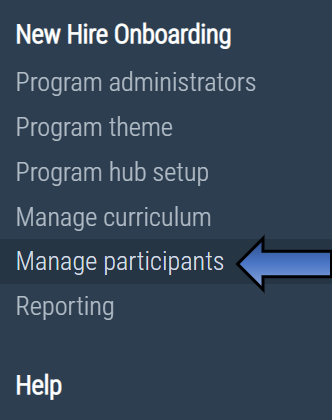
Access the multi-action tool through 'Manage participants' on the left-hand navigation menu.
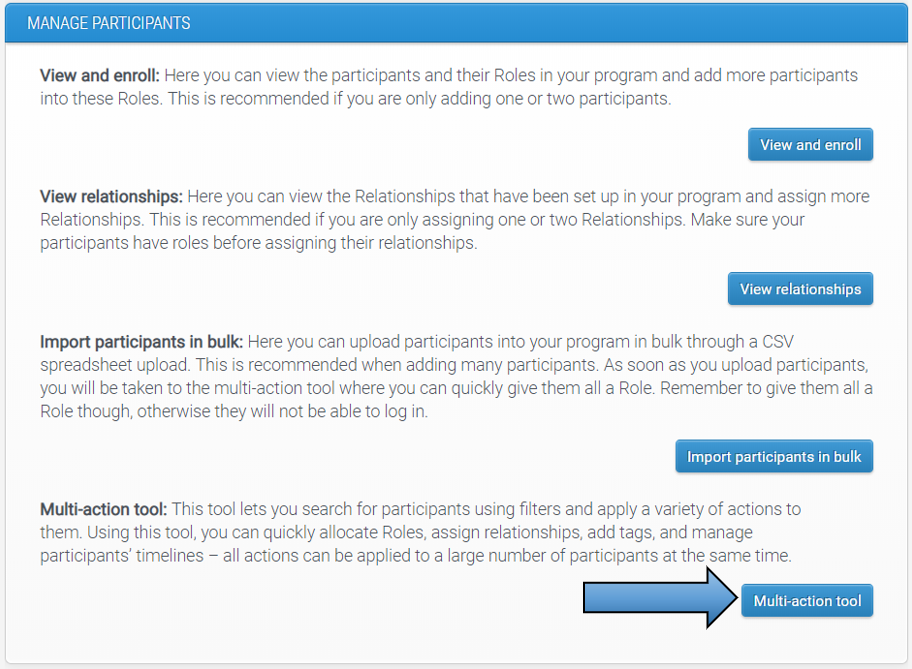
Use the filters to search for the participants that you need to reset. A useful filter for this action would be 'show me all participants who have the role Learner', because timeline-related actions can only be applied to those with a curriculum. Remember, you can click 'Add filter' to narrow down the search even further.

Click 'Search' and then select all that apply from the list.
Go down to the 'Actions' drop-down box and select 'Reset progress'.
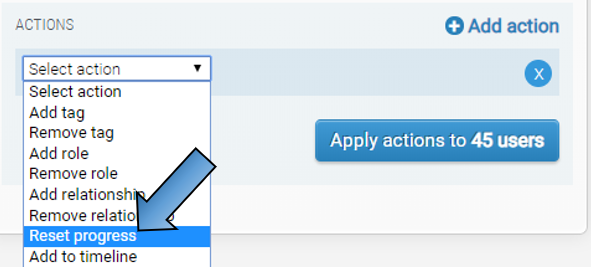
Click the button to apply the actions to the users selected.
Is there a way of updating a learner's timeline without affecting their progress?
Yes - you can ADD activities to a learner's timeline without affecting their progress and also amend SOME activity details. Both actions can be applied using the multi-action tool.
Comments
0 comments
Please sign in to leave a comment.