
What are Tags?
Think of a tag as a label attached to a participant, which might be used to describe a person, give more information about them or categorise them to help differentiate them from others.
So, for example, to help work out which Jane Doe is which, we might want to attach a location tag or a tag to describe which part of the business she works in. For example, one might have the tag "Department:Sales" whilst the other "Department:Finance". All tags must contain a tag family (the category, e.g. Department), which makes up the first half, and then the tag detail (e.g. Sales or Finance), which makes up the second half.
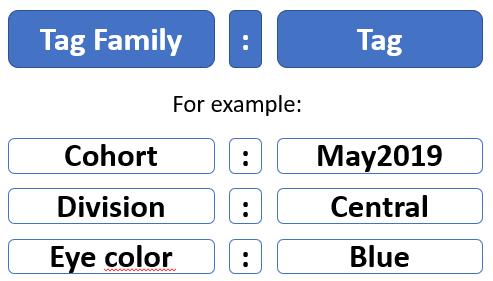
Tags can also be useful to group together similar people. If you were running a classroom event, for example, you might want to include that event information as a tag and attach that tag to each delegate attending the classroom event (e.g. Cohort:May, Cohort:June, Cohort:July). In this example, the tag family is 'Cohort'.
It's important that you understand this tag structure if you plan to use social activities in your programs, as this is the mechanism used for grouping participants.
Where do participant tags appear and how can they be used?
Participant tags appear, and can be used, in a few places on both the front-end (participant view) and the back-end (admin view).
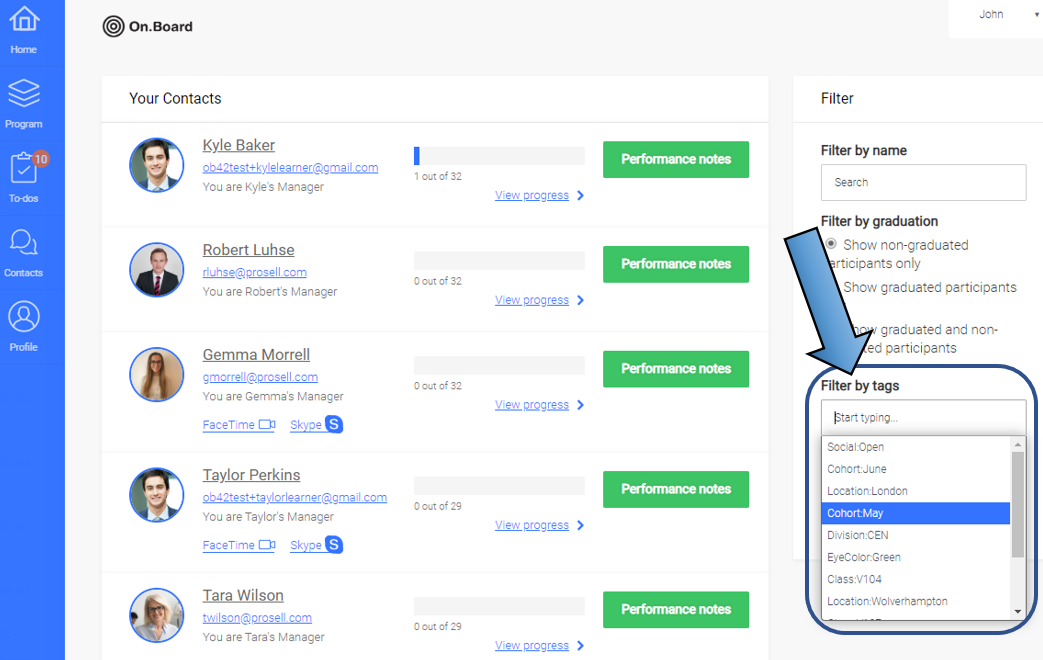
1. On a participant's 'Contacts' page, there is the option to 'Filter by tags', to display only those participants with the tag selected.
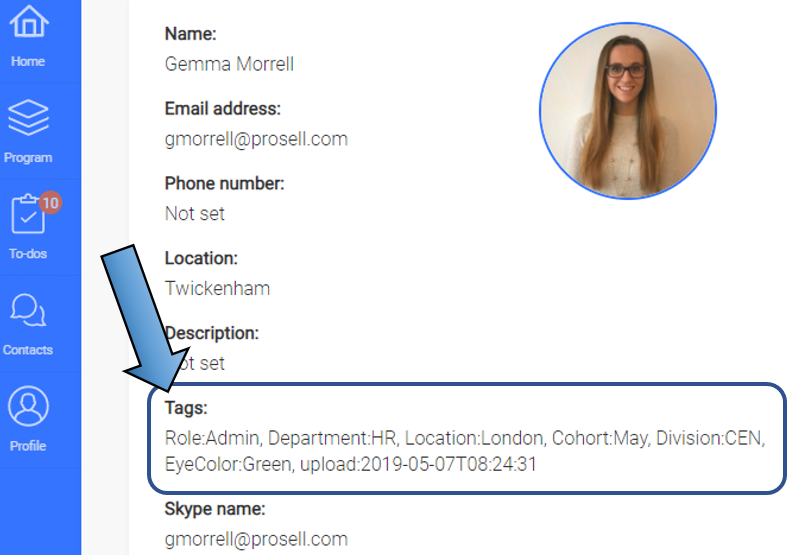
2. Clicking on a contact will bring up the participant's profile, where tags can be viewed (but not edited).
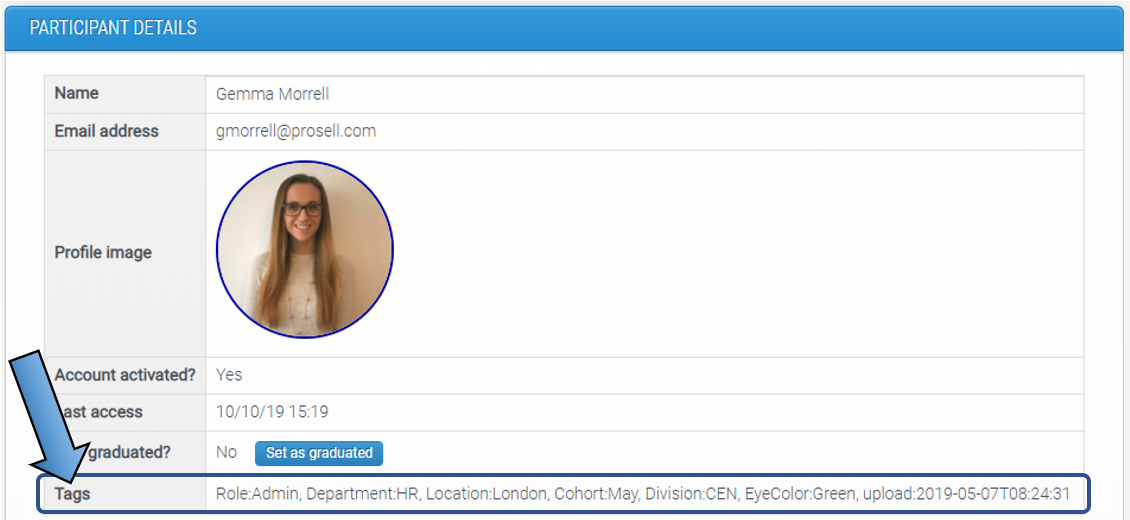
3. On the 'Participant details' page in the admin dashboard, tags can be viewed (but not edited).
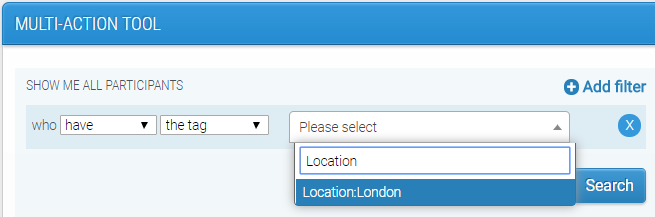
4. Tags can be used in the multi-action tool through 'Manage participants' to search for participants who have that tag and then apply actions to them in bulk.
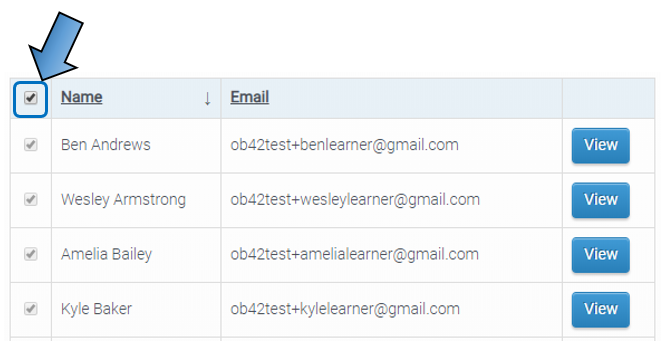
To select ALL of the participants searched for, click the checkbox in the top-left.
You can then apply one or more actions to these participants who share the same tag, including adding additional tags.
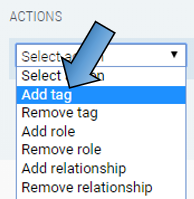
It is in this way, through filtering and applying bulk actions, that tags can be used to assist you with allocating roles and relationships to your imported participants - read more about this here.
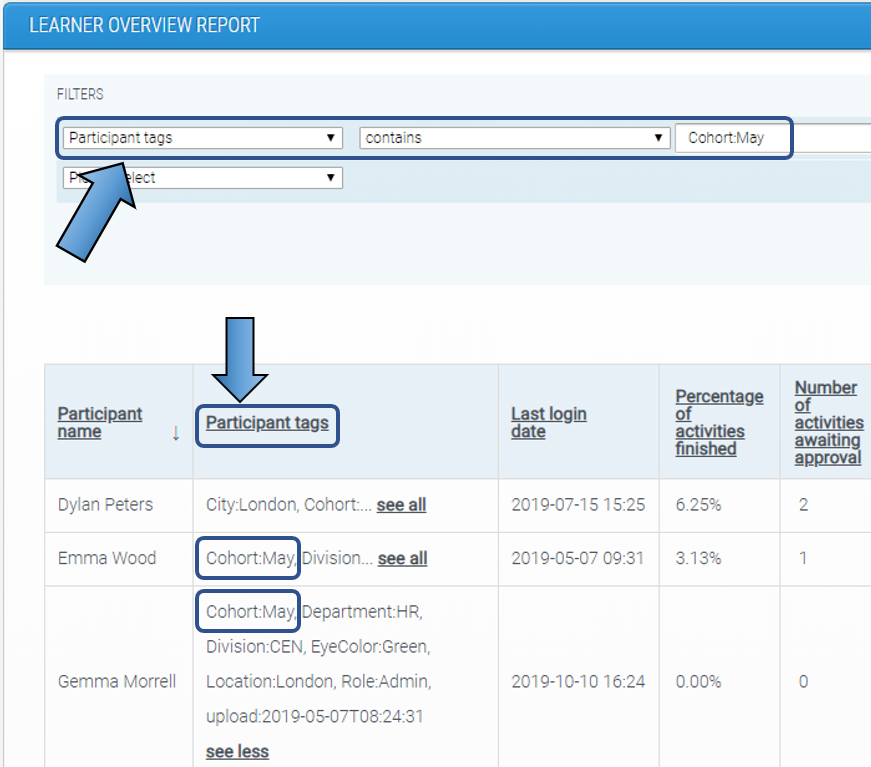
5. In the admin reporting, tags can be used as a filter to only display the data of participants with the relevant tag.
How many tags can a participant have?
In theory, as many as you like. In practice, try not to have too many.
The On.Board system can easily cope with huge volumes of tags but your fellow administrators might struggle to make sense of too many.
Comments
0 comments
Please sign in to leave a comment.