
Administrators now have the option to make activities ‘social’, encouraging learners to collaborate and share their experiences with one another through a discussion thread and a gallery.
Questions answered in this article:
- What is the Activity Discussion?
- What is the Social Gallery?
- How do I set up a social activity and define the groups?
- How can other hub members get involved in the social discussions?
What is the Activity Discussion?
A discussion thread can be added to an activity of any type (text, form, package, link and quiz).
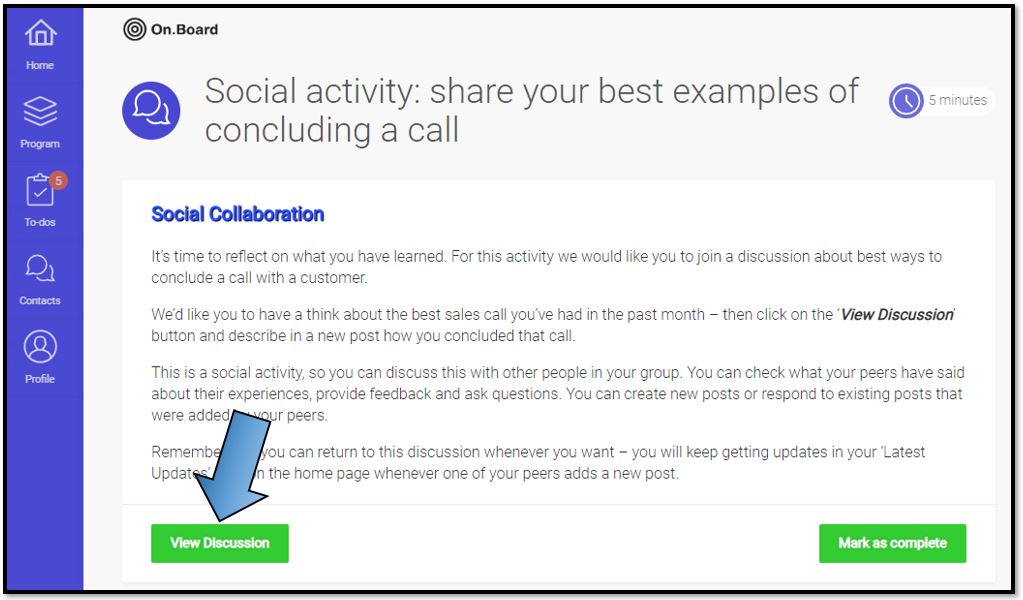
For activities with the discussion enabled, there will be an additional button on the synopsis page in the bottom-left corner for ‘View Discussion’. This appears on the same line as the regular completion button to the right, which varies depending on the activity type (e.g. ‘Mark as complete’ for a text activity and ‘Start activity’ for a form).
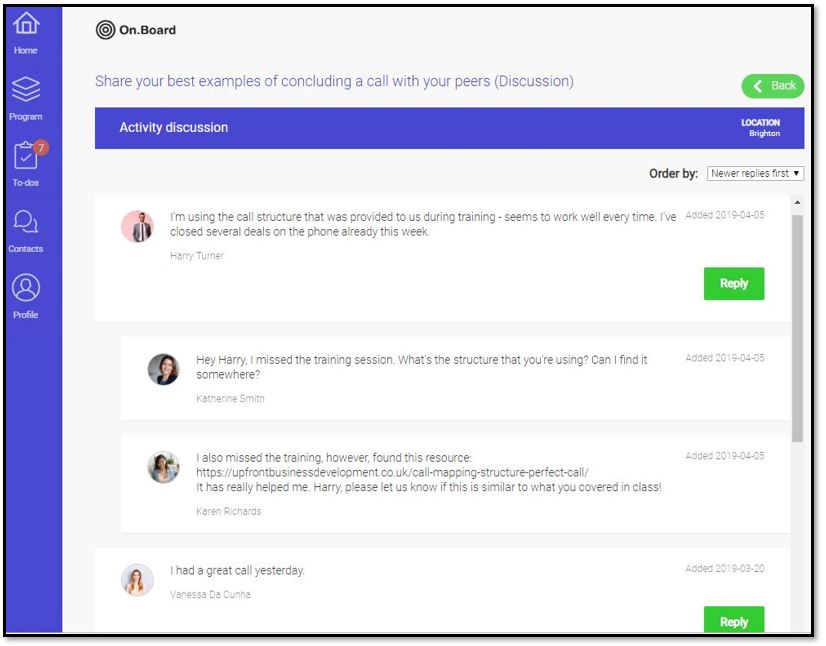
Clicking on the discussion button will take the learner to the discussion thread where they can leave posts and reply to others in their group.
What is the Social Gallery?
The social gallery is an additional option for ‘Form’ activities.
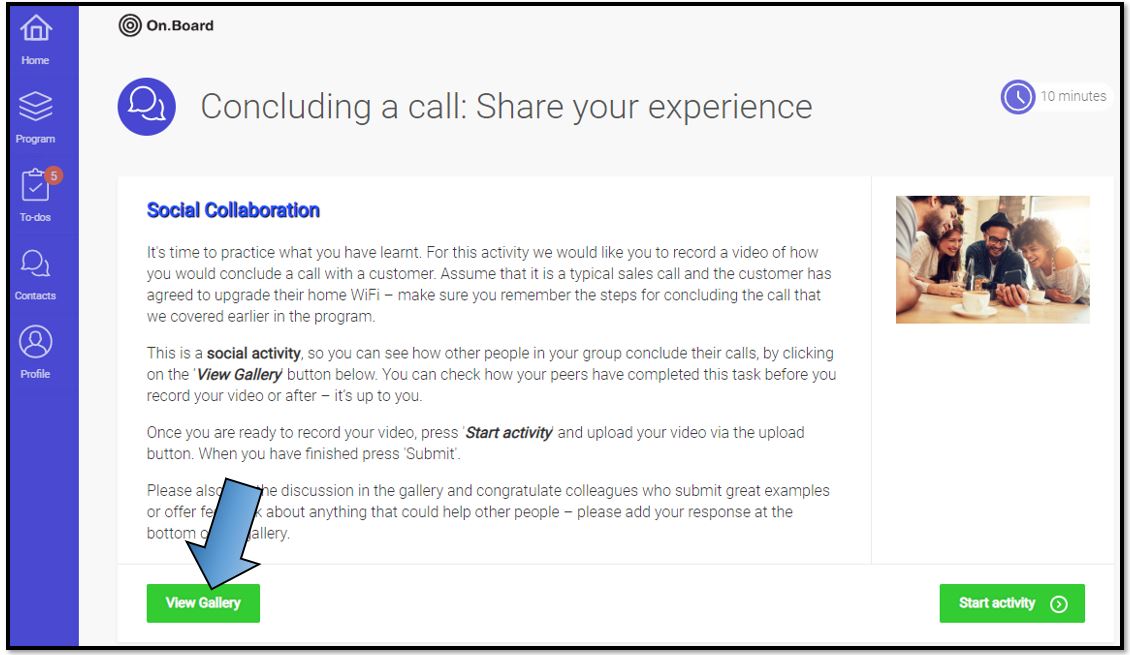
When a form activity has this enabled, the button in the bottom-left corner of the synopsis page will be labelled ‘View Gallery’, regardless of whether the discussion is also switched on or off. If an activity has only the discussion enabled, then the button’s label will read ‘View Discussion’.
Once a learner has read the synopsis overview for the activity, they can choose whether to complete their form (through ‘Start activity’) or to first view submissions of others (through ‘View gallery’).
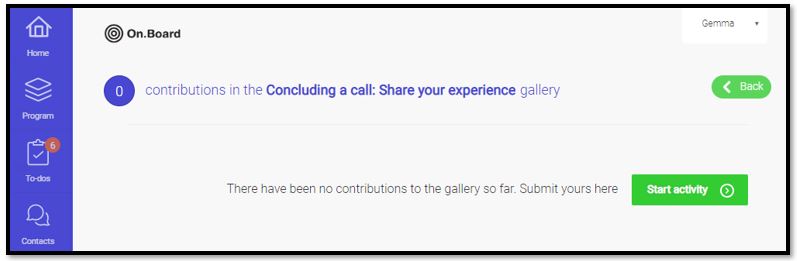
If they open the gallery and there are no entries yet, the ‘Start activity’ button will display at the top of the page prompting them to complete theirs.
It is up to you as the administrator to decide the questions and the question types that are within the form. It might be the case that you want learners to upload a video of themselves completing a task or it could be a simple text box for them to write how they overcame a problem.
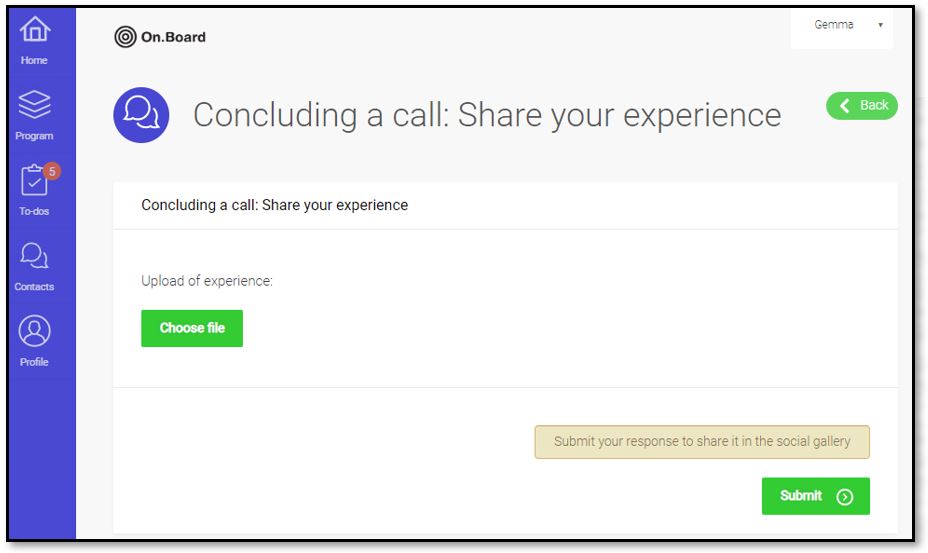
Although there is technically no limit to the number of questions you can add to your form, we recommend keeping them to a minimum when the gallery switched on to optimize the experience for learners viewing the gallery. Also, consider asking questions that are likely to produce valuable ideas, generate discussion, and maximize the potential for social learning.
Once a learner has submitted their form, it is shared into a browsable gallery for the viewing of those in the same group (unless it requires approval from a hub member in which it would only be shared once approved).
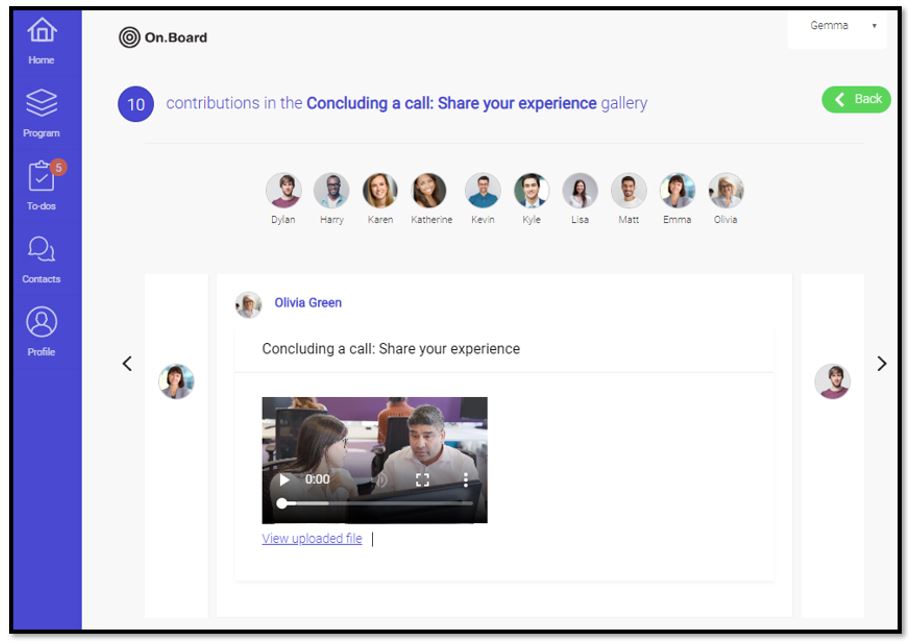
The name and profile image of each learner will appear in a row across the top of the screen and when clicked on, their form submission will display beneath (in the example above this is a video upload). The arrows on either side can also be used to view submissions.
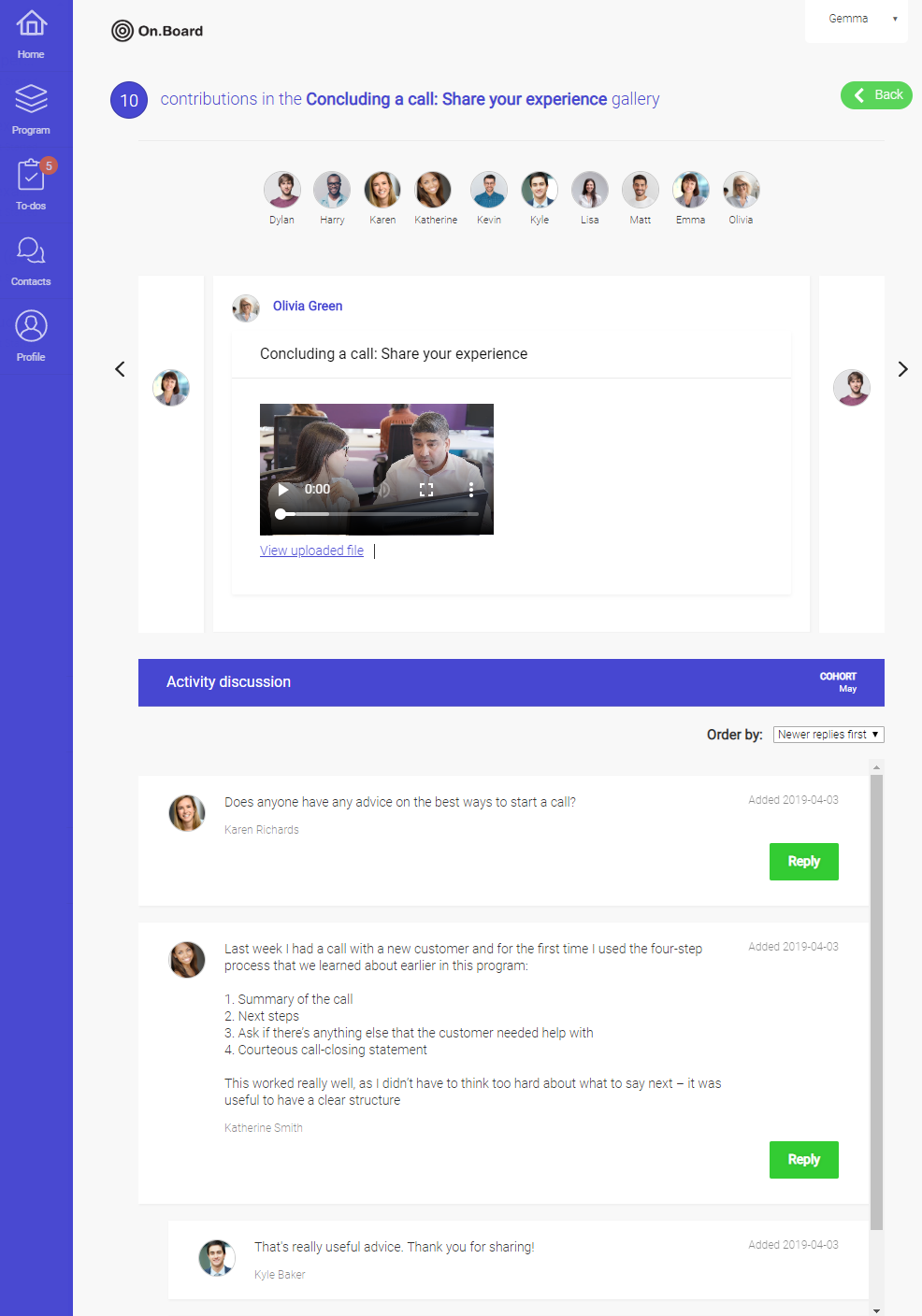
The discussion will be positioned beneath the gallery if it is also enabled. This will allow users from within the same group to share feedback, additional ideas and generate activity-related discussions.
How do I set up a social activity and define the groups?
When creating or editing an activity as an administrator, you will often work in the ‘Content’ tab to define the core activity settings, with forms and quizzes having additional tabs to input their questions.
There is now an additional tab for ‘Social’ settings.
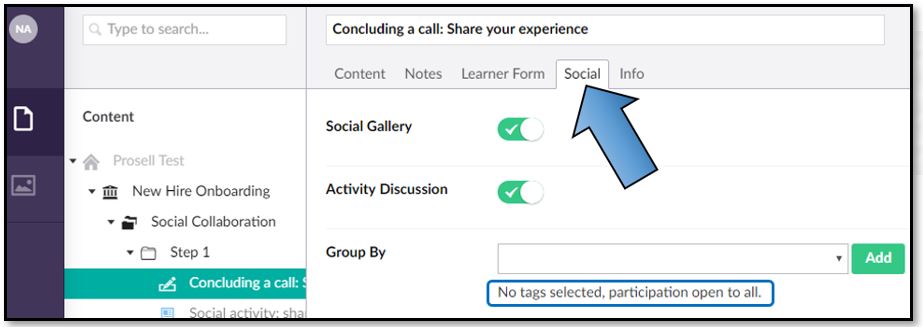
All activity types will have the option to enable the ‘Activity Discussion’, with form activities having an additional option of the ‘Social Gallery’.
The ‘Group By’ field is for determining the groups; i.e. which learners can see one another’s gallery entries and discussion posts. Leave this blank if you want the activity to be open to all learners in the program.
The group by dropdown box will be populated with the tag families that you have attached to participants in your program. Select the tag family and then click the ‘Add’ button to the right to confirm.
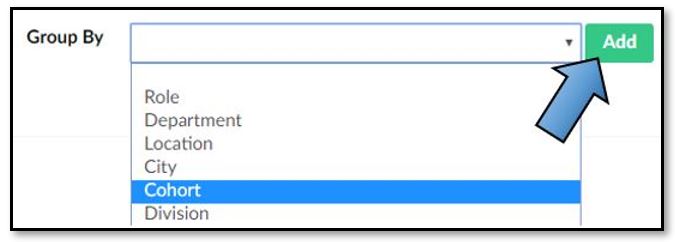
As an example, if you only select the tag family ‘Cohort’ then all learners with the tag ‘Cohort:May’ will be in the same group, whilst those with the tag ‘Cohort:June’ will be in a different group.
However, you can add multiple tag families to the criteria to narrow it down further.

In this example where the tag families ‘Cohort’ and ‘Division’ are selected, those with the tags ‘Cohort:May’ AND ‘Division:West’ will be in a different group to those with the tags ‘Cohort:May’ AND ‘Division:Central’, because even though their Cohort tags match their Division tags do not.
To explain this further, the screenshot below shows an example of a csv spreadsheet used to load participants into a program.
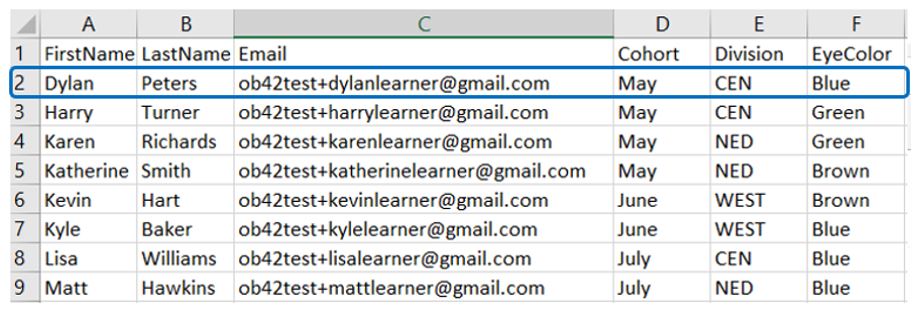
You may already be familiar with these, but the first three columns (FirstName, LastName and Email) are the minimum details needed by the platform to enrol a user. The following columns are tags, with the headings being the “tag family” that all users share, and then the tags themselves in the fields beneath them that can differ across participants.
Looking at the spreadsheet above, once this has been uploaded into the platform, the first participant, Dylan Peters, would be given the following three tags:
- Cohort:May
- Division:CEN
- EyeColor:Blue
So, using the example outlined previously where the tag family ‘Cohort’ is selected as the group identifier for a social activity, the groups would be:

However, if two tag families were selected for the grouping, such as ‘Cohort’ AND ‘Division’, then the social groups would be:

How can Hub Members (those supporting the learner) get involved in Social Discussions?
Hub members (e.g. Manager, Supervisor, Trainer) can view their learners through the contacts page and from here can also access their activities. They also have visibility of their learners’ activities through the ‘Latest updates’ column on the home page.
It is through these methods that they can access the social activities that their learners have in their curriculum and partake in the discussions - whether this be responding to existing learners’ posts or posing questions in a new post for learners to respond.
If a member of a learner’s hub posts a question/comment in the discussion of an activity, this will appear in their latest updates. It’s in this way that learners get notified of activity happening in a social activity even after they have completed it and are therefore more likely to go back in and contribute further.
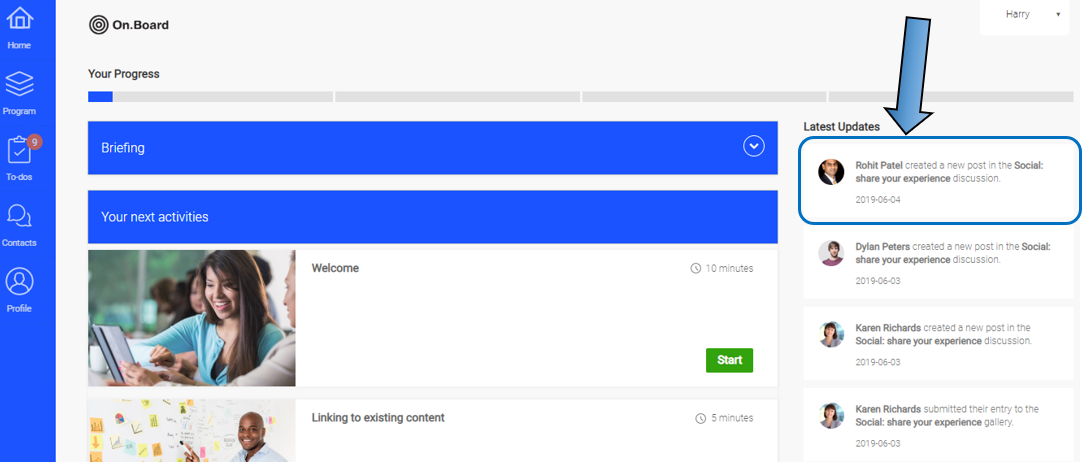
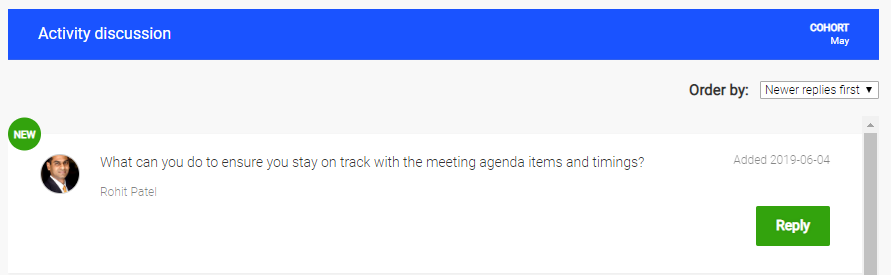
Learners can view and reply to the comments/questions posted by hub members.
Comments
0 comments
Please sign in to leave a comment.