
A few months ago in May the social feature was added to the On.Board platform, which has enabled administrators to make activities ‘social’ through a discussion thread and a gallery where learners can collaborate and share their experiences with one another.
The second phase of the social functionality is the ability for participants to report these discussion posts or gallery submissions as inappropriate and notify a designated moderator for them to review and hide if necessary.
Questions answered in this document:
- How can participants within a social activity report a post as inappropriate?
- How are moderators notified that a post has been reported?
- How can moderators review and hide reported posts?
- How do I select the moderators for my program?
How can Participants within a Social Activity Report a Post?
If an activity has the social gallery or the activity discussion enabled, then any submission or post within these sections can be reported by participants if they believe something written or uploaded to be inappropriate.
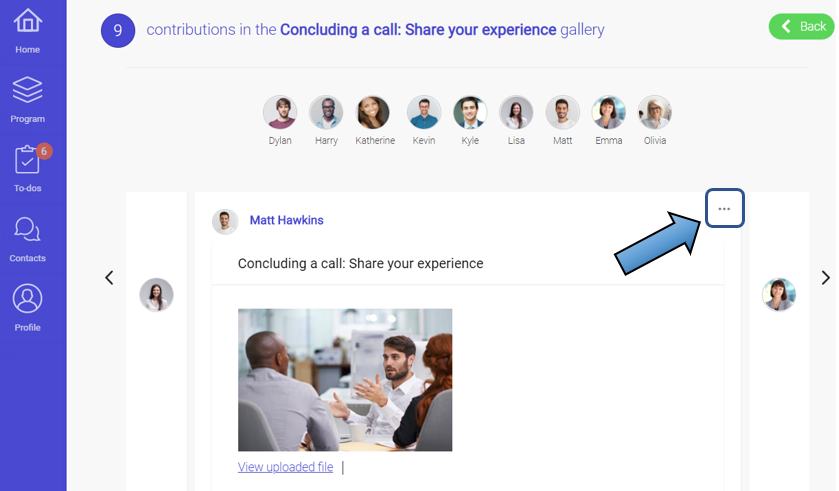
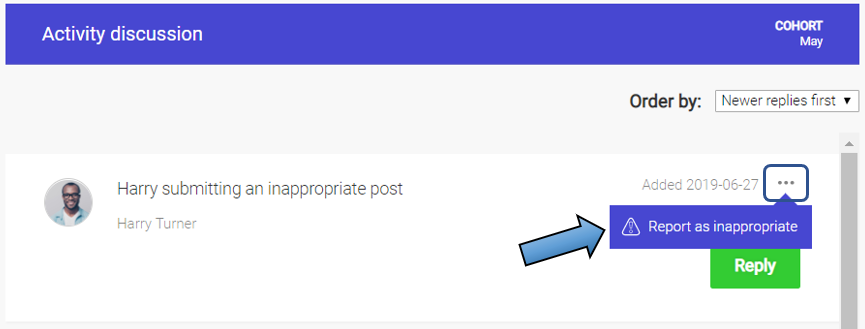
They can do this by clicking on the three horizontal dots in the top-right hand corner of the post, whether this be a form submission in the gallery or a comment in the discussion thread.
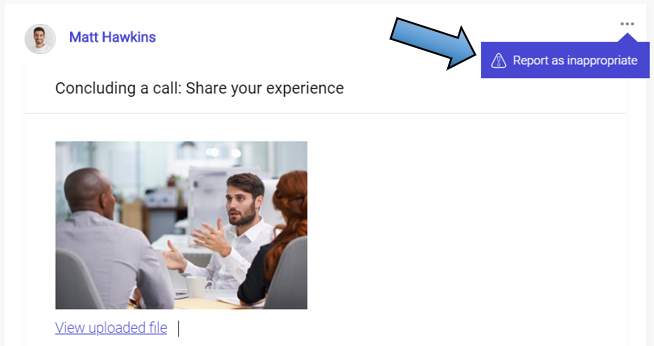
Clicking the three dots will bring up the option to ‘Report as inappropriate’.
Before the moderator is notified, the participant is asked to give a reason for why they are reporting it. This should help the moderator with their decision as to whether it should be hidden.
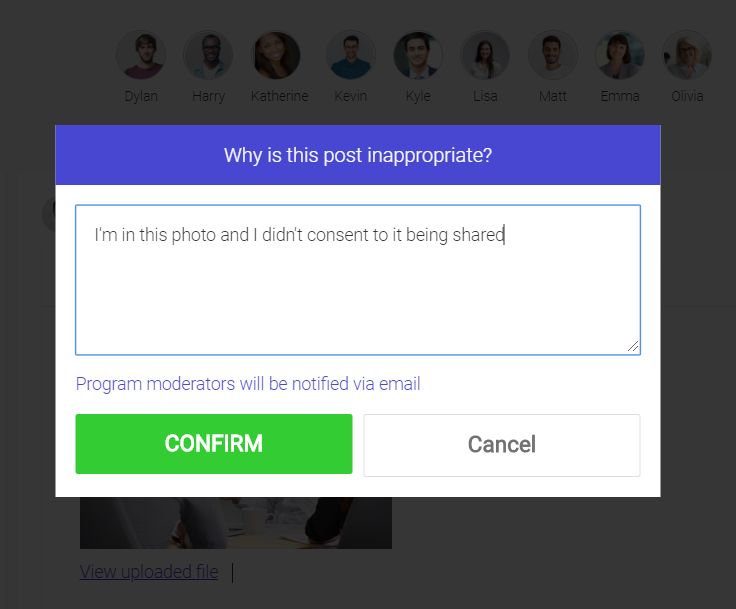
The moderator will be notified once the participant selects ‘Confirm’.
How are Moderators Notified that a Post has been Reported?
Once the participant has confirmed their report, anyone with the ‘Moderator’ administrator capability will receive an email to notify them something has been reported, along with the reason given and a link that will take them to the post.
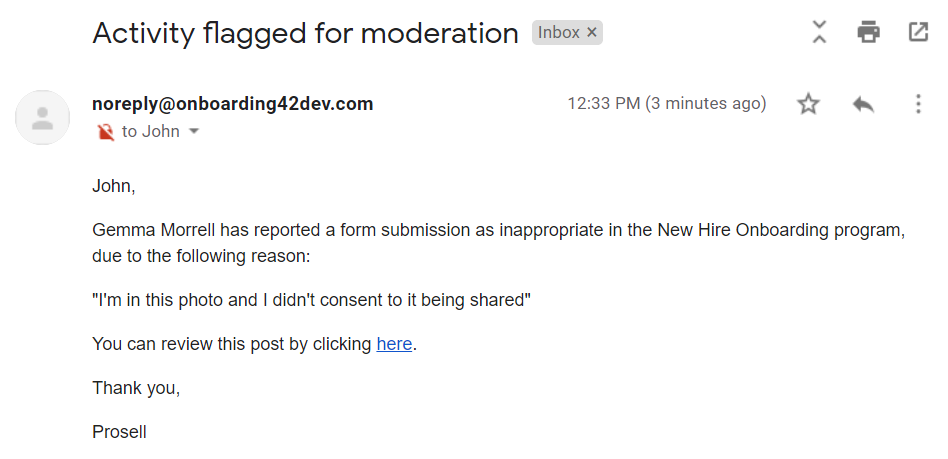
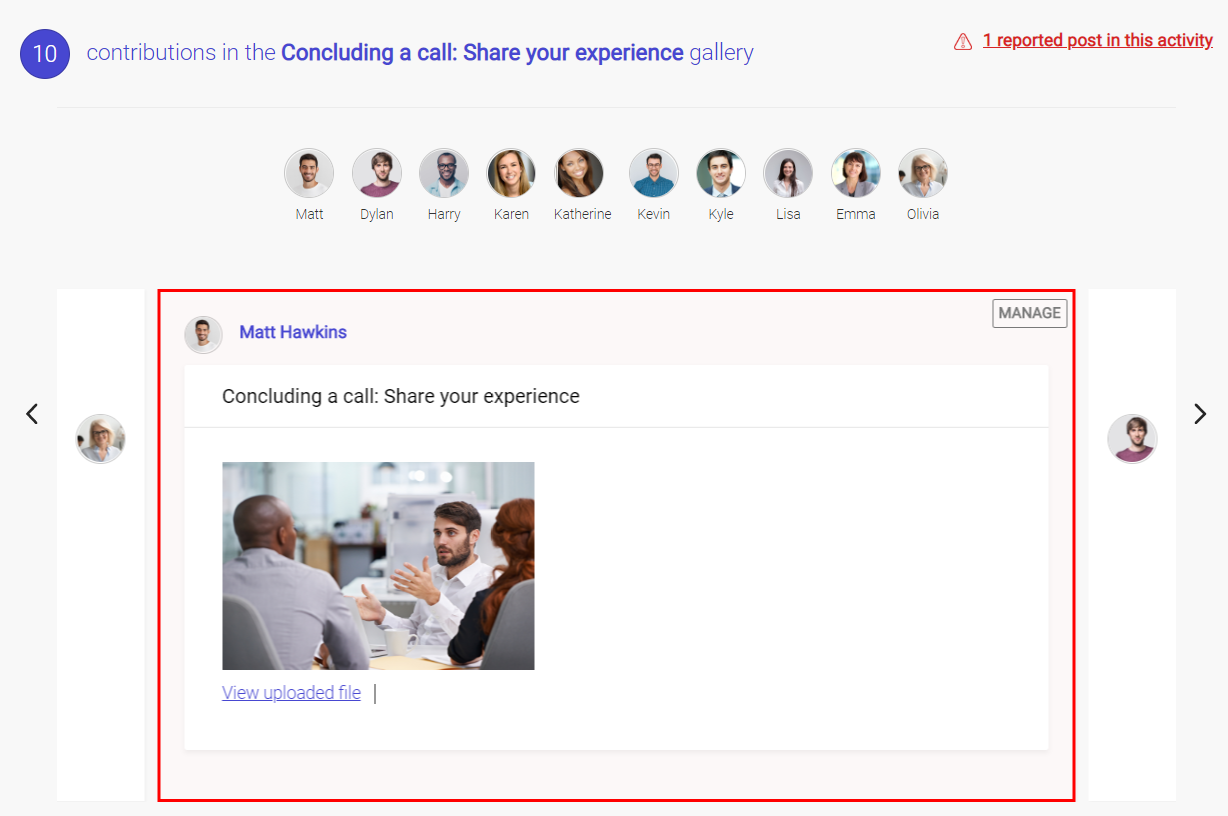
Clicking the link will take them to the relevant activity where the reported post will be highlighted with a red outline. It will only appear this way from the moderator’s view through the link – other participants of the activity won’t know that it has been reported.
How can Moderators Review and Hide Reported Posts?
As explained in the previous section, when the moderator clicks the link in the email, they are taken to the reported post and it will be highlighted.
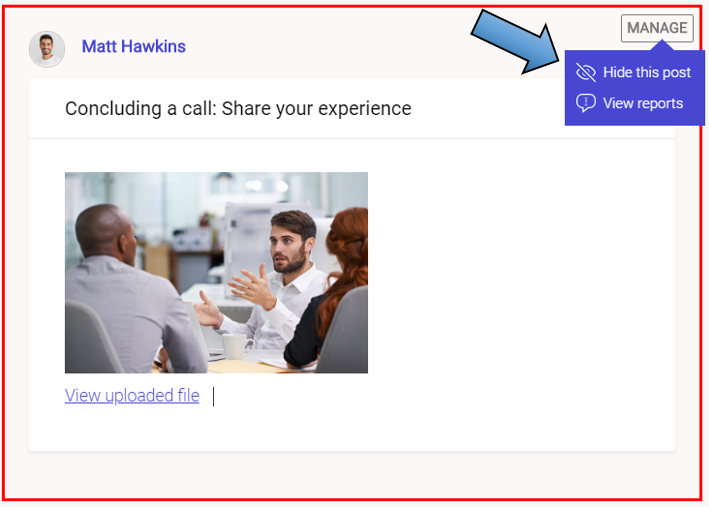
Clicking the ‘Manage’ button in the top-right hand corner of the post will give the moderator the option to hide the post or view all reports (if it has been reported by multiple participants).
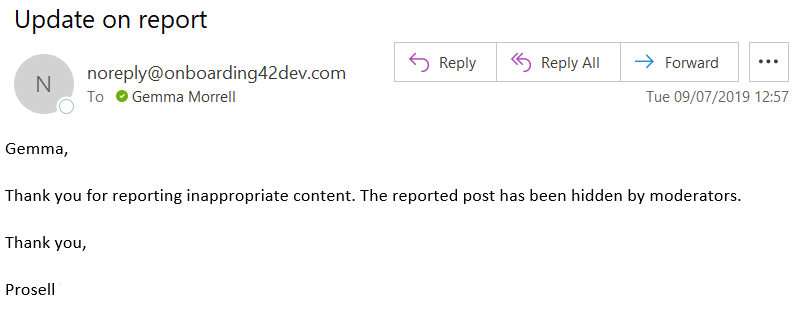
Once the moderator has hidden the post, the participant who reported it will receive an email to inform them it has been actioned.
If a submission within the gallery is hidden, those participants who access the social activity (who are not moderators) will no longer have visibility of it.
If a comment within the activity discussion is hidden, participants who access the social activity (who are not moderators) will instead be able to see a message informing them a post has been hidden. This is in case it’s part of a thread of comments responding to one another.
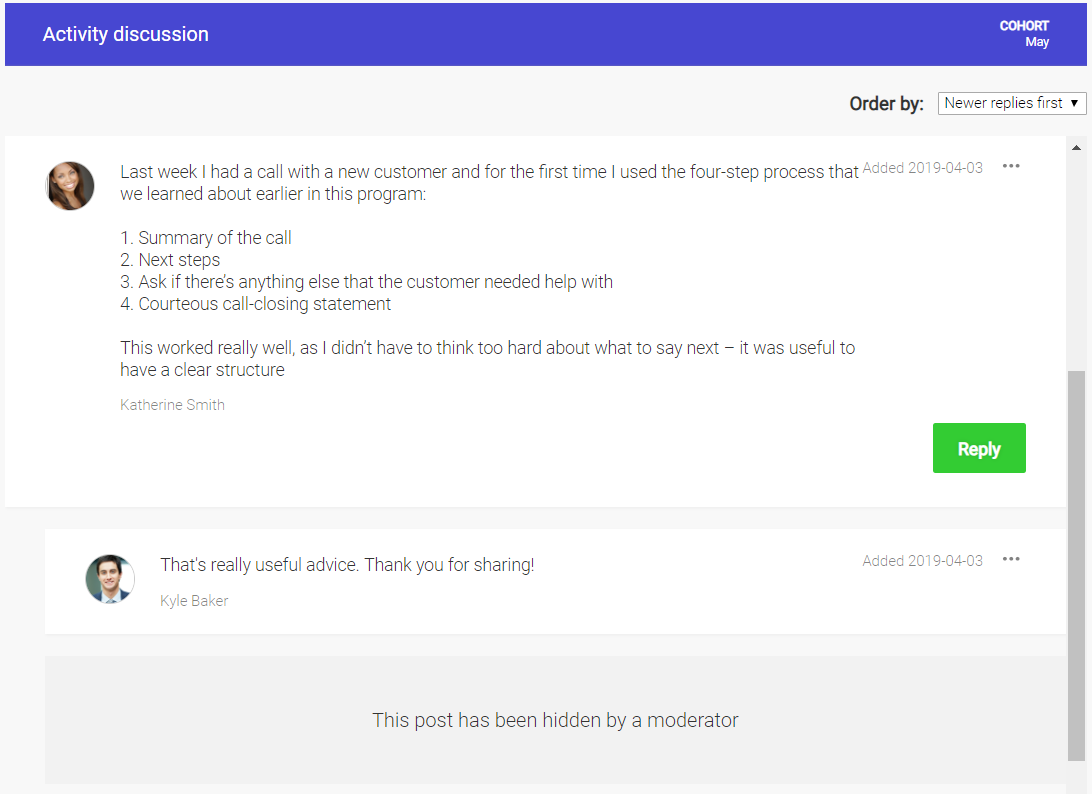
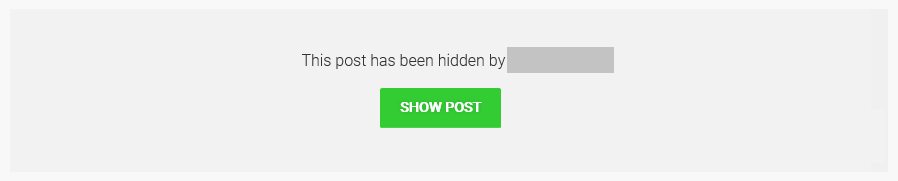
In the moderator’s view of the page, a hidden post will display a similar message except it will show the name of the moderator who hid the post and allow them to un-hide it using the ‘Show post’ button.
How do I select the moderators for my program?
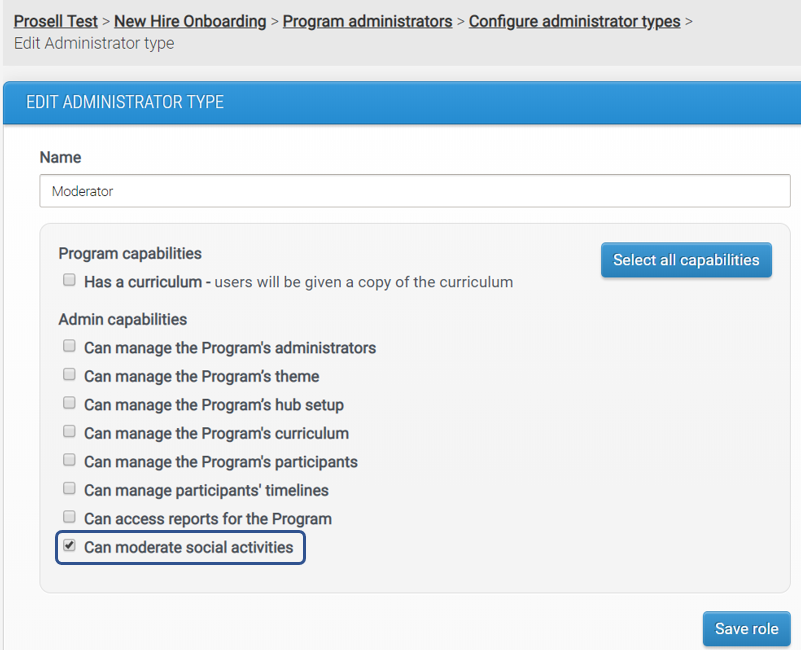
Moderation is an administrator capability, and therefore can be allocated to users by adding this to an existing administrator type or by creating a new one. This can be done through ‘Configure administrator types’.
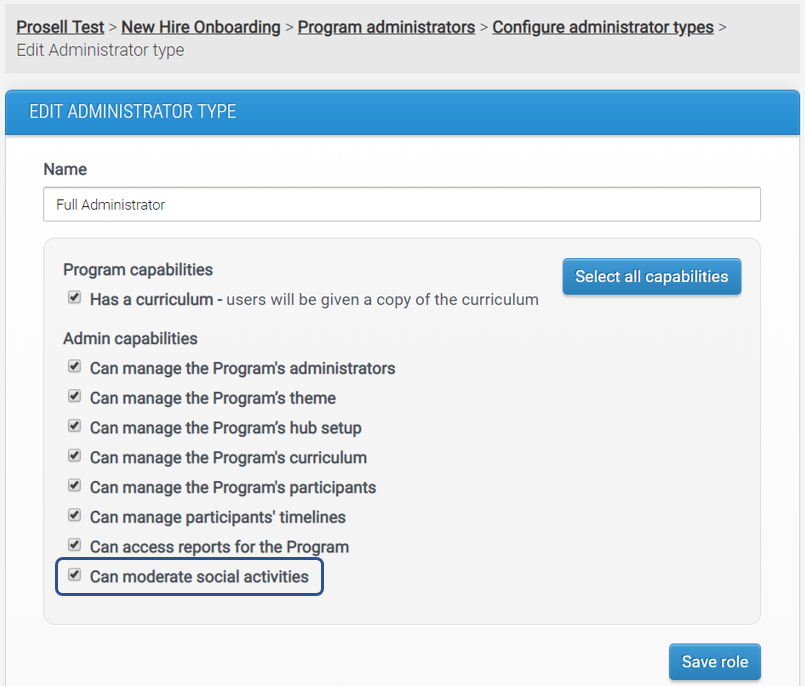
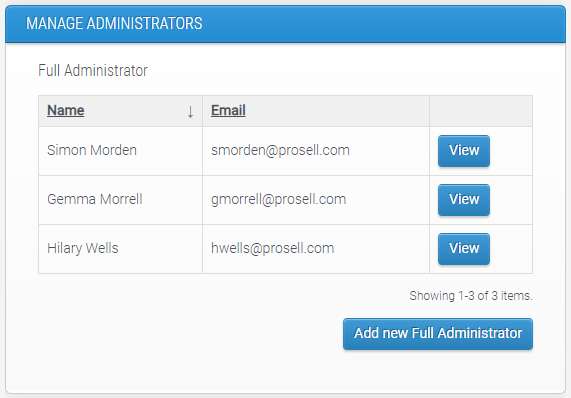
If it’s added to an existing type, all administrators within this type will then be a moderator and receive the emails about reported posts. In the example below where moderation was given to the “Full Administrator” type, it would be Simon, Gemma and Hilary who become the moderators for the program.
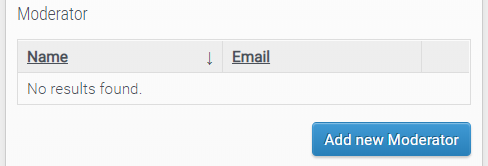
Alternatively, you may prefer to create a new administrator type with just the “Can moderate” capability and add users to it.
Comments
0 comments
Please sign in to leave a comment.