
The Activity Repository - What is it?
The Activity Repository is a library of "best practice" activities that have been shared by administrators in your organization and can be copied into your own programs. As an administrator of a program, you are also able to deposit any of your own activities that you think might be of use to others, or that you wish to store as a "template" to re-use later.
The benefit of this feature is that it enhances the content building experience. It can feel overwhelming at first when your program has been set up and you have a blank curriculum. By being able to go into the repository and browse activities that others have shared, you can use these as templates to get started and get inspiration from them. On the flip side, you might have invested time and effort into creating an activity that you feel others in your organization would benefit from.
How to Send Activities to the Repository
You can share your best activities with others by sending a copy of them to the repository.
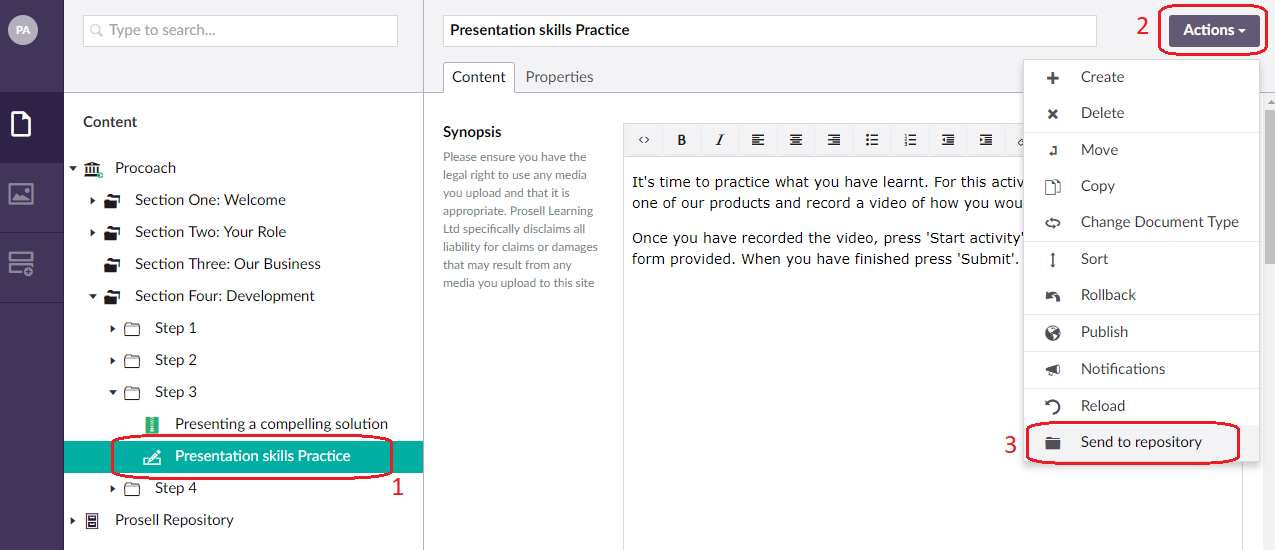
Do this by selecting the activity in your curriculum structure (1), clicking the ‘Actions’ dropdown (2) in the top-right corner, and then ‘Send to repository’ (3).
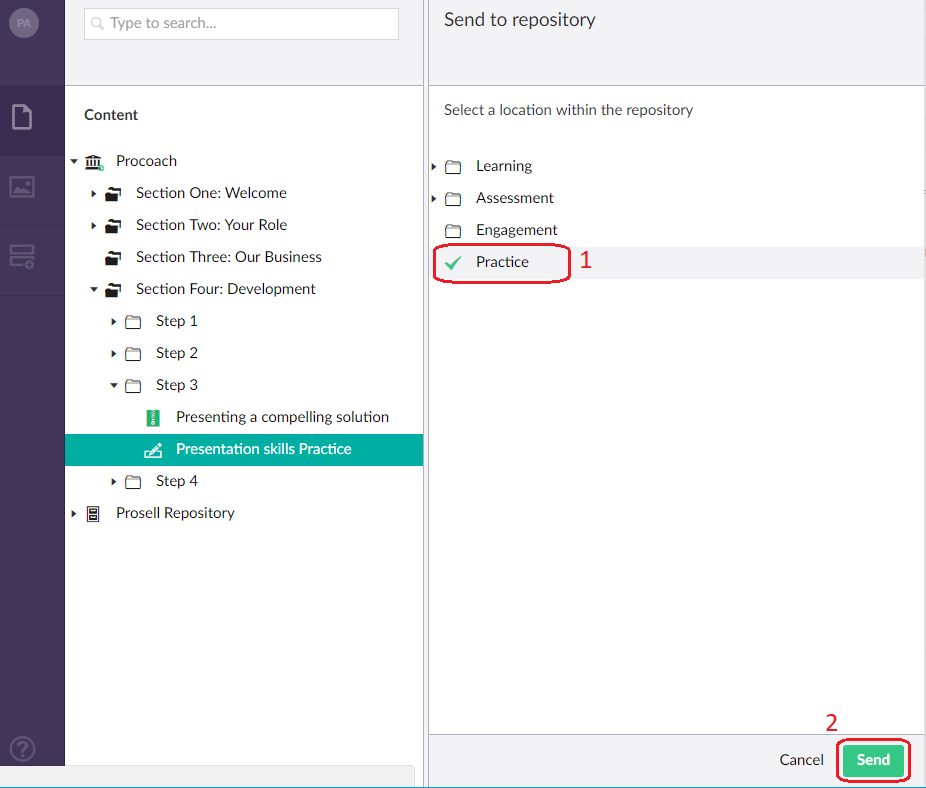
You will then be presented with a list of folders within the repository. Once you have chosen the category that your activity is best suited to, selected the folder (1), a green tick will appear, and you can then press ‘Send’ (2).
It is only a copy of the activity that is sent to the repository. Therefore, any edits you make to the activity after it has been copied will not be applied to the version in the repository or versions in other programs. Similarly, any edits made to the version in the repository or other programs will not be applied to your original version.
When an activity is copied into and out of the repository, most of the content field settings are taken across with it, such as the synopsis, thumbnail and related documents. However, the fields that are not are: Gateway, Critical Learning Activity, Approval and Icon.
Adding 'Notes' to an Activity
There is a 'Notes' tab on each activity just beneath the activity. Here, you can add comments that only administrators can see (not visible to front-end users).
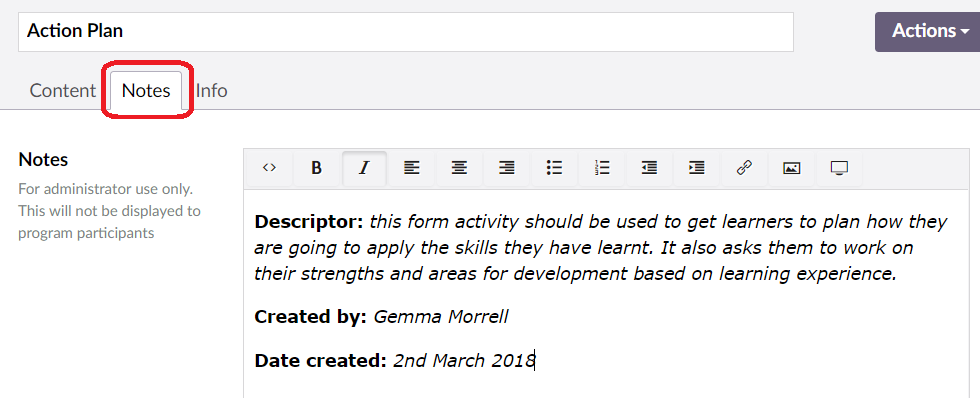
This is particularly useful for the activity repository, as adding a comment to your activity before sending to the repository can provide other administrators with more information about it. You can enter any text into this field, however we suggest that, as a minimum, you add a high-level descriptor about the activity, in addition to your name and the date of creation.
The reasons behind this are:
- Descriptor - assists those viewing your activity from within the repository to understand what the activity could be used for and decide whether it is suitable for their program
- Creator name - if there are multiple administrators in your organization, it would be helpful for those who are copying your activity into their program to know who the activity was created by. This means that they can contact you if they have any questions
- Date of creation - helps to check whether any information could be "out of date" (e.g. new products/pricing). This date could be the actual date of activity creation, or the date that the activity was sent to the repository
How To Copy Activities from the Repository
Locate the repository in the curriculum structure and click the small arrow to expand it to show the repository folders. You can then expand each of the folders to view the activities within them.
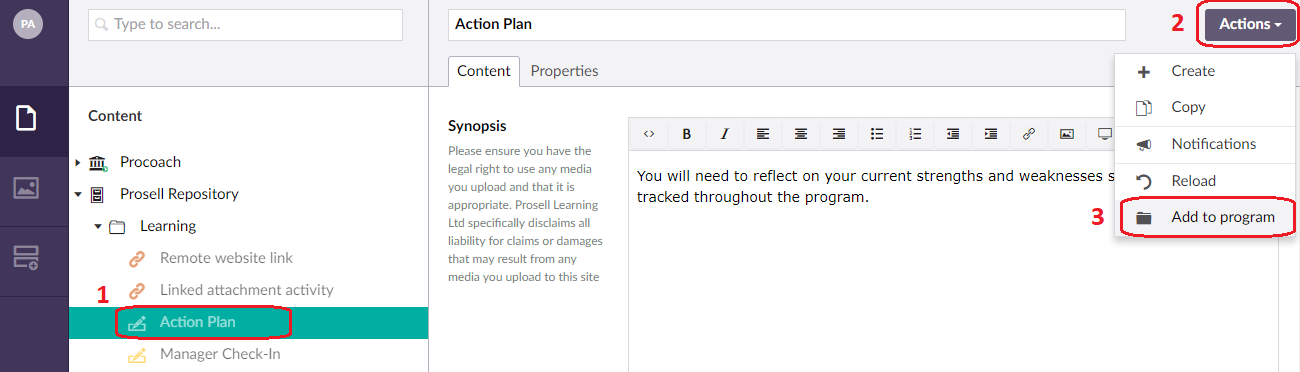
If you find an activity that you think would work well in your program, select it (1), go to the ‘Actions’ dropdown in the top-right corner (2) and then 'Add to program' (3).
You can then select where this activity should be positioned within your curriculum (1) and click 'Add' (2).
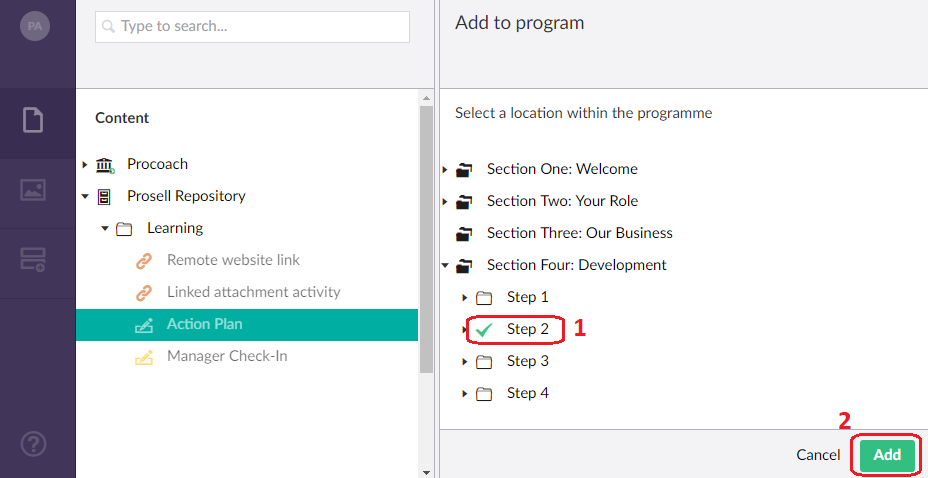
Please note that it must be positioned within a step, if you select a section then you will get an error message “The current node is now allowed under the chosen node because of its type”.

When you retrieve an activity from the repository and add it to your program (in a section and a step), you are taking a copy of that activity. Therefore, you can make changes to that activity for your own program and these changes will not be applied to the activity within the repository.
Super Administrator Access
Being a "Super Administrator" means you have access to all programs within your organization account and can create new programs too. With this comes great responsibility.
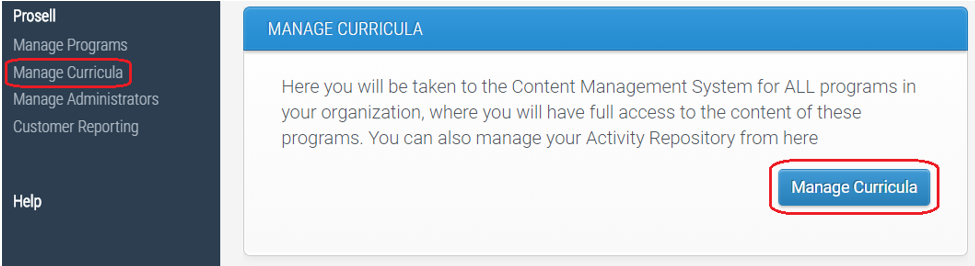
If you have this access, then once you have logged in to the admin dashboard, you will have an option in the left-hand navigation menu for ‘Manage Curricula’. Through here you have control over the curriculum of each program (sections, steps and activities), in addition to the repository (folders and activities).
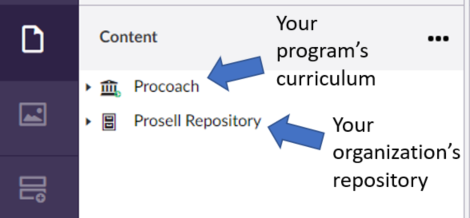
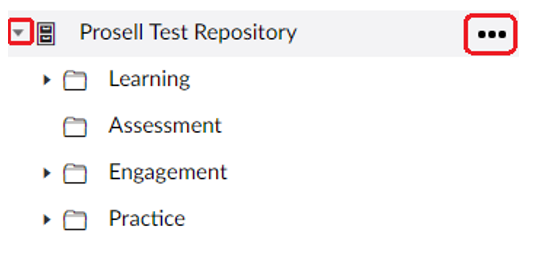
Your organization’s repository will be in the same list as the programs (its icon will differ to the others – see below).
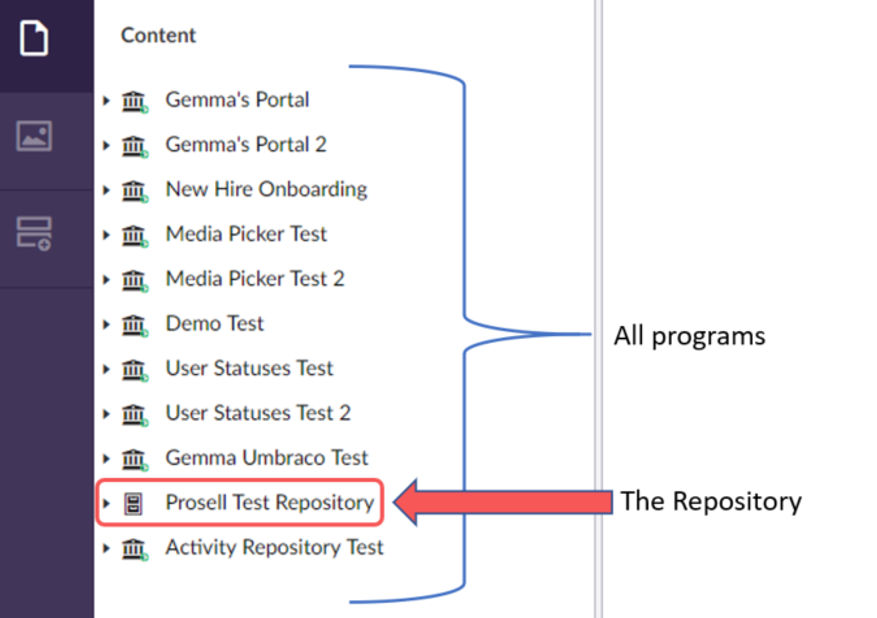
Expand the repository, or any of the programs, by clicking the arrow to the left of the name.
Create a new folder in the repository by clicking the three horizontal dots to its right.
Change the name of an existing folder by selecting it (1), editing the name at the top of the page (2), and then saving it (3).

You can also expand each folder (small arrow to the left) to view the activities within them and make amends as necessary.
Comments
0 comments
Please sign in to leave a comment.