
All users within the platform will have two statuses - whether they are 'active' and whether they are 'graduated'. This article explains what these statuses mean and how to change them.
Active/Inactive Status
One of the statuses a participant has is whether they are either ‘Active’ or ‘Inactive’, which is as simple as...
- Active = enrolled within a program and can therefore access it
- Inactive = was previously enrolled with a program but has since been removed (e.g. left the company)
So, this status can be changed for participants by enrolling them in a program (to make them 'Active') or removing their role (to make them 'Inactive').
Graduation Status
Those within the learner role, or any role that 'has a curriculum', will also have another status for whether they have graduated.
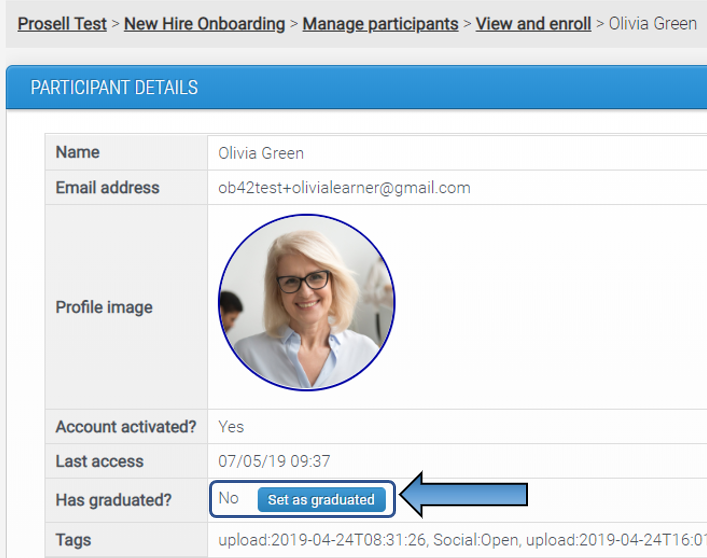
The graduation status of a participant can be checked and also changed through their participant details page...
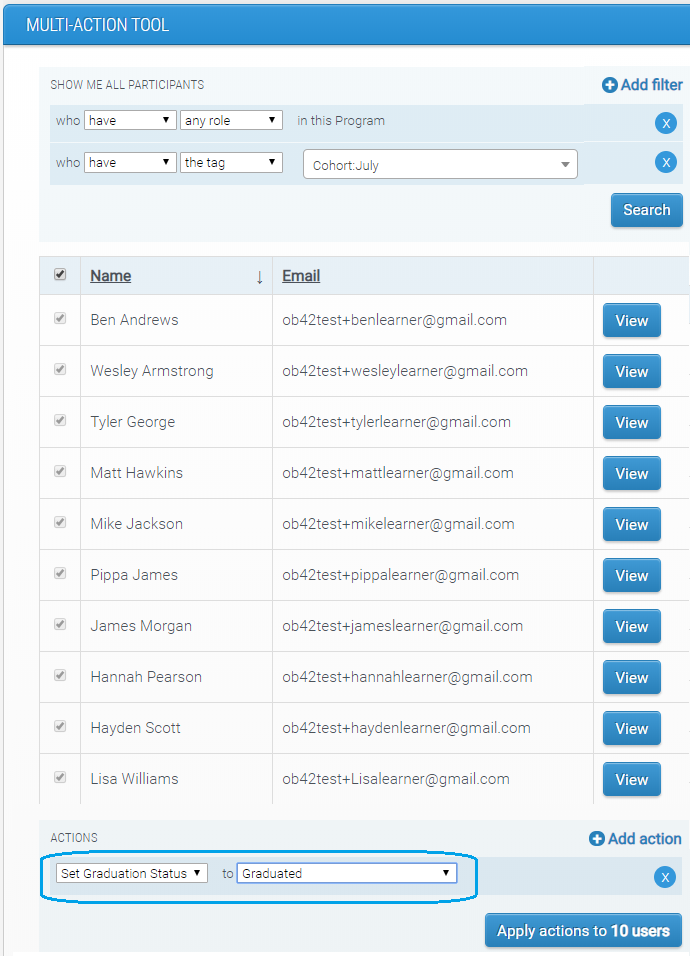
You can also apply a change to graduation statuses in bulk through the multi-action tool. It might be that there's a cohort that you know have all reached the end of their program and so you can search for them and set their graduation status as 'Graduated'.
As well as being able to change graduation statuses manually, you can define criteria for your program that must be met by learners for them to automatically be marked as graduated...
Setting Graduation Criteria
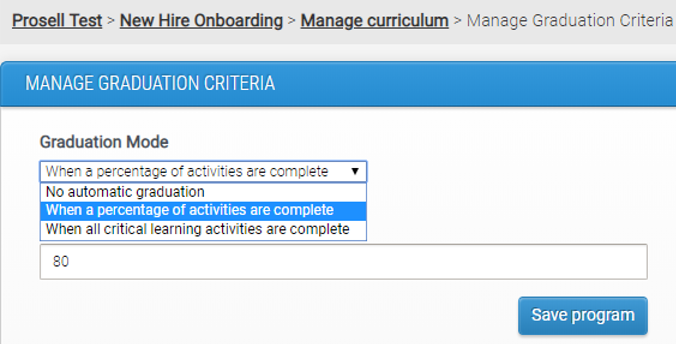
There are two options for the criteria. You can set the percentage of activities that need to be completed to be marked as graduated, or for all critical learning activities to be completed. Click here for more information on critical learning activities and how to set them.
Using User Statuses in Reports
Both active and graduation statuses can be viewed in the reports and you can filter by them to refine the data displayed. Graduation is also a filter in the front-end ‘Contacts’ page.
Comments
0 comments
Please sign in to leave a comment.