
FEATURE NOW LIVE. On Wednesday 7th August at 10:00 (BST) / 05:00 (ET) we deployed a new feature to the On.Board platform. This will allow you as administrators to remove one or more activities from learners' timelines without it affecting their progress.
What is a Timeline?
Those of you who have built and launched programs in On.Board will know that when you enroll learners, they get the version of the curriculum that is published at that time. Any changes that are made to the curriculum afterwards, whether this be sections, steps or activities, will not automatically be pushed to these existing learners who have already been enrolled.
Any new learners that are enrolled will see the latest version, however for existing learners there were three actions that could be applied to modify their timeline with the latest updates:
- Reset progress/refresh timeline (updates the curriculum of existing learners to the latest version BUT also resets their progress)
- Add to timeline (adds activities to the curriculum of existing learners without affecting their progress)
- Update activity details (updates SOME activity details in the curriculum of existing learners without affecting their progress)
There were still restrictions with these options in that there are certain changes that cannot be applied unless a learner is 'refreshed' (option #1 above), and this will also reset their progress. So, if a group of learners have already begun their program and completed some activities then you wouldn't be in a position to 'refresh' them.
Then, the limitation with the 'Update activity details' action (option #3 above) is that, although learner progress isn't affected, it only updates some parts of an activity (click here for more information on what can and cannot be updated using this method).
How does the new 'Remove from timeline' feature work?
The new timeline feature allows administrators to remove activities from learner timelines without affecting their progress.
This action is now available in the multi-action tool, in the same way as the other timeline features, where you can select and apply to learners in bulk.
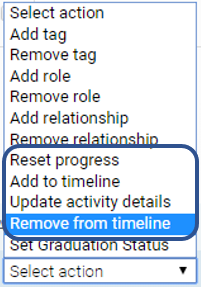
Once you've selected one or more learners and the 'Remove from timeline' action, a copy of their curriculum will appear below for you to select the activities you want to remove from their timeline.
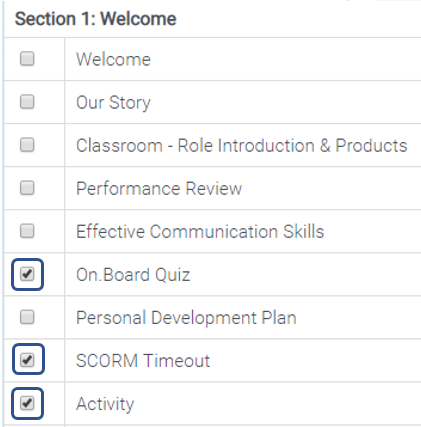
An example of when this would be useful is if an activity becomes outdated and no longer relevant. Or, if details needed to be changed, such as questions in a form, you could 'Remove from timeline' and then 'Add to timeline' once the relevant changes have been made. You would only need to remove and re-add an activity if the changes couldn't be applied using 'Update activity details'.
Please get in touch if you have any questions or feedback! - onboardhelpdesk@prosell.com
Comments
0 comments
Please sign in to leave a comment.