
You may be aware that once learners are enrolled and therefore given a curriculum (their timeline), any changes then made to the curriculum (sections, steps or activities) will not be automatically applied to these learners. To replace their timeline with the new version of the curriculum you would need to refresh their timeline, which would reset all progress made.
You are able, however, to add new activities to their timeline without affecting their progress.
How to remove activities to learners' timelines
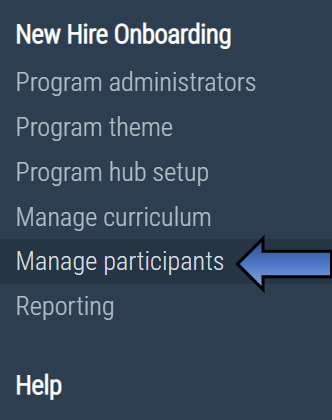
Access the multi-action tool through 'Manage participants' on the left-hand navigation menu.
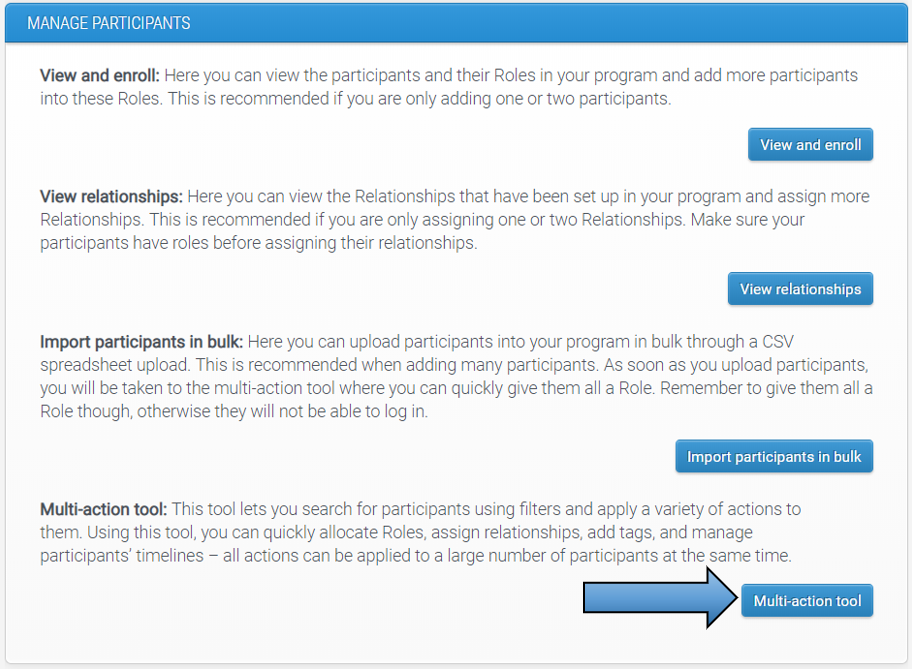
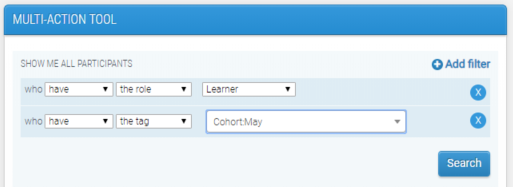
Use the filters to search for the participants that you want to remove the activity, or activities, from. A useful filter for this action would be 'show me all participants who have the role Learner', because timeline-related actions can only be applied to those with a curriculum. Remember, you can click 'Add filter' to narrow down the search even further (search for learners with a particular tag, for example).
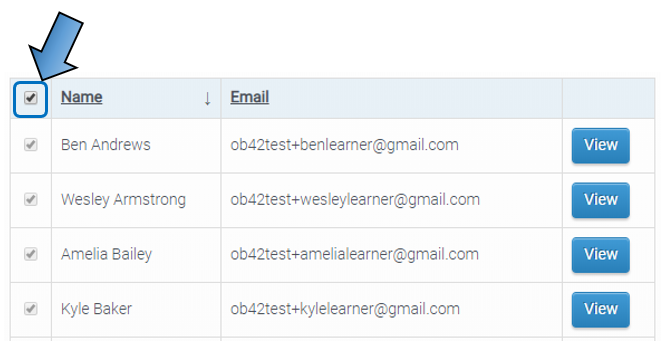
Click 'Search' and then select all that apply from the list. If you want to select all participants in the search results, which is useful in the example above where you are searching for all learners in a specific group, tick the checkbox beside the 'Name' column heading.
Use the 'Actions' dropdown box to select 'Remove from timeline'.
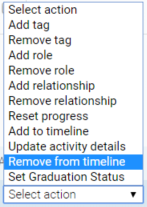
The activities that then appear for you to select will depend on the participants you have selected. So, if you select just one participant then it is their version of the curriculum that will be displayed, however if you select multiple participants who have different versions then all activities belonging to them both will appear.
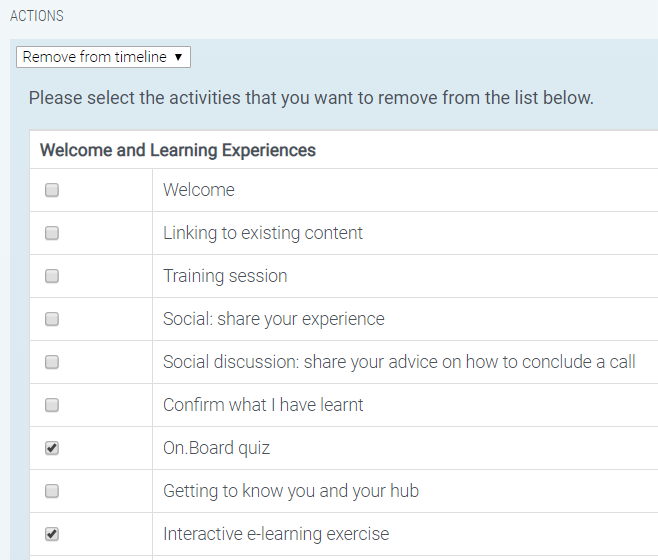
Select the activity, or activities, that you wish to remove from the selected participants timelines before clicking 'Apply'.
It might be the case that you are removing an activity because it needs to be changed in some way (a detail that cannot be applied through 'Update activity details'). So you would first remove it, then make the relevant changes in the curriculum builder, before adding the new version to their timelines.
Comments
0 comments
Please sign in to leave a comment.