
This article provides an overview of On.Board's new features "Graduation and User Statuses", and covers the following:
- Automatic Graduation
- Manual Graduation
- Changes to Dashboard Reports
- Gateways and Critical Learning Activities
- Changes to the Participant Experience
Automatic Graduation
As an administrator, you will be able to enable automatic graduation in your programs, so that when learners meet the criteria you have set, they will be automatically marked as 'Graduated'.

There are three options for the criteria:
- No automatic graduation (default option)
- When a percentage of activities are complete (you can define this number)
- When all critical learning activities are complete
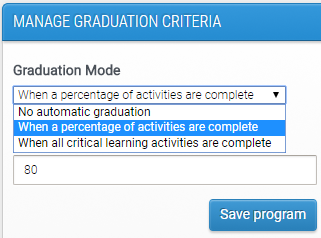
As an example, if you set the criteria to "80% of activities complete" and there are 10 activities in your program, the learner will be marked as 'Graduated' once they complete 8 activities.
Manual Graduation
The graduation status of one or more learners can be manually changed through the multi-action tool.
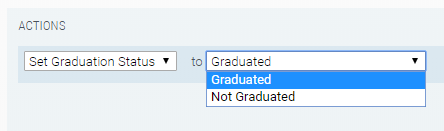
From a participant’s details page, you have visibility of their graduation status and can change it manually here also.

On this page, you can also see the date that they graduated and their tags.
Two new buttons have been added on this page to allow administrators to easily remove a participant from that specific program, or from all programs in the system (if they have left the company, for example). Doing this, and therefore removing their role, will change their user status from ‘Active’ to ‘Inactive’ in the program(s) they've been removed from.
Changes to the Dashboard Reports
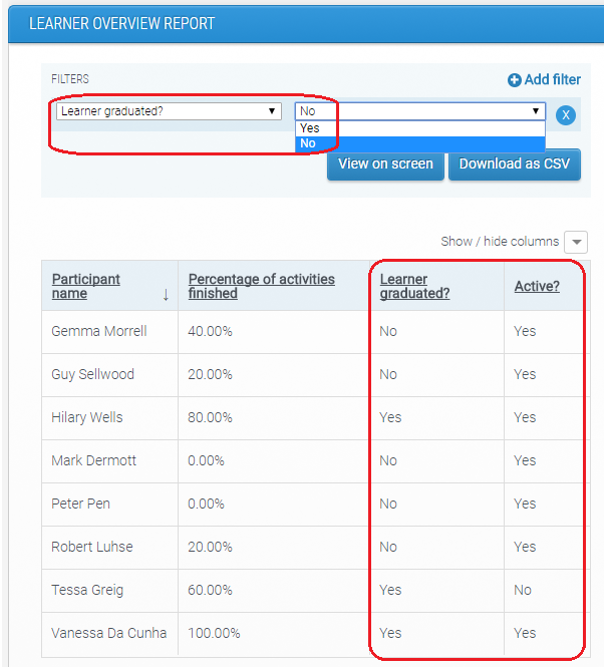
Extra columns have been added to the reports to give visibility of who has and hasn’t graduated, and who is active and inactive. You can use the filters at the top of the report page to narrow down the information displayed so that you only see the data that you’re interested in.
Gateways and Critical Learning Activities (CLAs)
When creating an activity, there is now a checkbox for ‘Gateway’ and ‘Critical Learning Activity’.
- Gateway (previously known as "milestone") - if ticked, learners will be required to complete this activity to unlock the next section.
- Critical Learning Activity – if ticked, it indicates that the activity is critical for learning, and is necessary for graduation if the graduation criteria for the program is set as ‘when all critical learning activities are complete’.
An activity can have both checkboxes ticked.
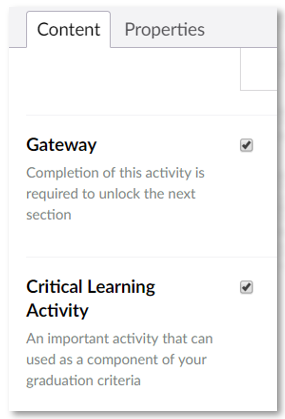
Separating these two functions provides more flexibility as there may be situations where you want an un-gated curriculum but still have critical activities that are required to graduate.
Do not worry about the implications this could have on your existing curricula, as they will not be affected. If you previously had ‘Milestone’ ticked on an activity, the new checkbox ‘Gateway’ will also be ticked to reflect the same settings as you had before.
Changes to the Participant Experience
If an activity is set as a 'Gateway' or a 'Critical Learning Activity', it will have an icon beside its name so that learners can identify them.
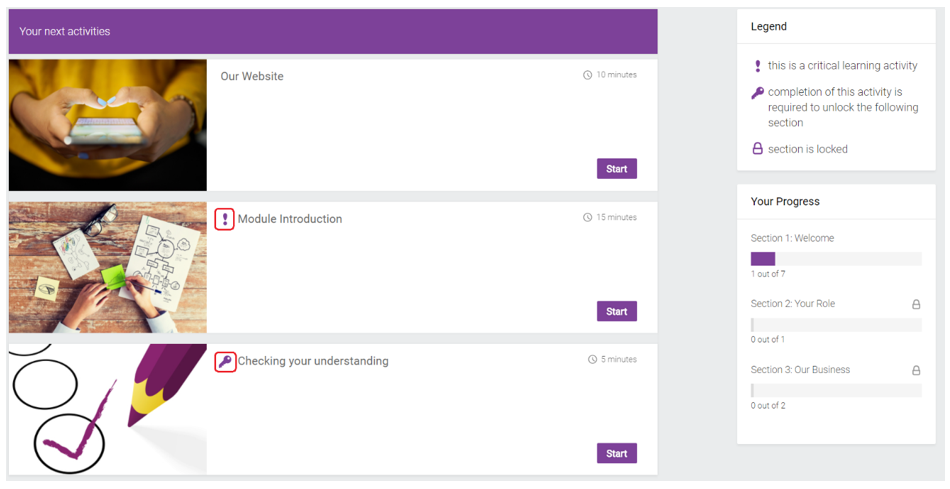
A legend will be displayed in the top-right corner of the Program page to inform users what these icons indicate.
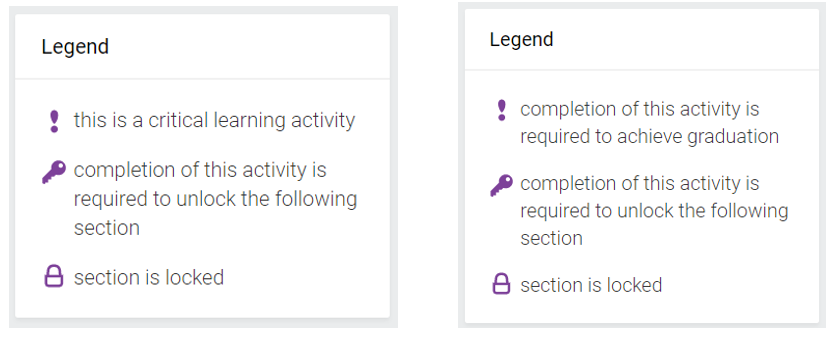
The text for the description of a critical learning activity will differ depending on what your program’s graduation criteria has been set to. If you have it set to ‘when all critical learning activities are complete’, then the text in the legend will reflect this.
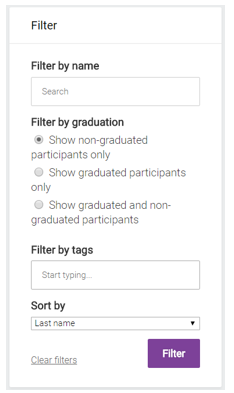
Filters have been added to the Contacts page, so you can...
- Filter by name
- Filter by graduation
- Only non-graduated
- Only graduated
- All participants
- Filter by tags
- Sort by last name or progress
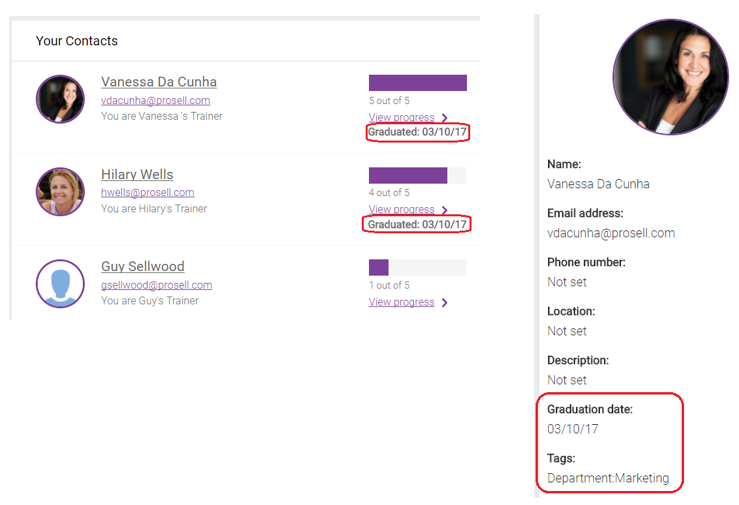
Graduation date will now be displayed on the contacts page and on a learner’s profile page.
The learner’s tags will also be visible on their profile page.
Comments
0 comments
Please sign in to leave a comment.