
Updates to On.Board are as follows:
- Ability to resend participant email invitations if account not activated
- Improving the workflow of the 'Two Part form'
- Quiz feedback no longer mandatory
- On.Board icon on smartphone shortcut
1. Resend Email Invitations
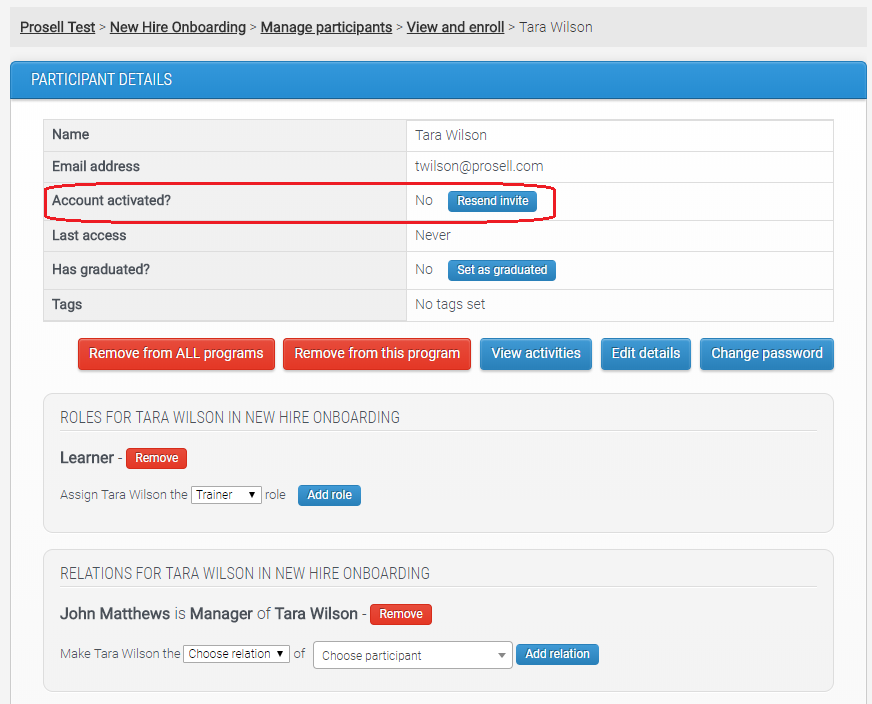
There is now an ‘Account activated?’ field on the ‘Participant details’ page in the dashboard.
To locate a participant’s details page, go to ‘Manage participants’ and then either ‘View and enroll’ or ‘Multi-action tool’. Click on the ‘View’ button beside the participant’s name.
An account is activated when the participant sets their password (through the link in the original email invite) and is subsequently logged in to the program.
Only if the account has NOT been activated, and it is a non-SSO user, will there be a ‘Resend invite’ button. Clicking this will resend the original email invite that contains the link to set their password. This is useful in situations where the participant cannot locate the original email, or if there was a mistake in the email address and so after correcting this you can resend the invite to the correct address.
2. Improving the 'Two Part Form'
This enhancement involved improving the two-part form functionality that already existed in the system. The key changes are highlighted in bold below:
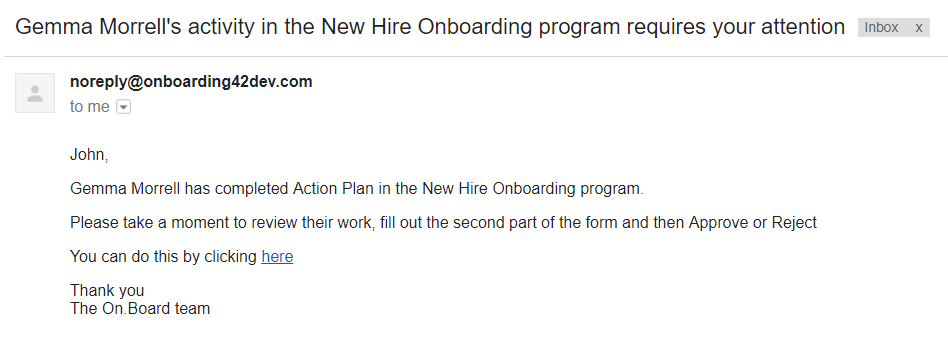
- The text of the email notification that an approver receives when a learner completes a two-part form has been modified to let them know there’s a second part that they need to fill out. “Please take a moment to review their work, fill out the second part of the form and then Approve or Reject”.
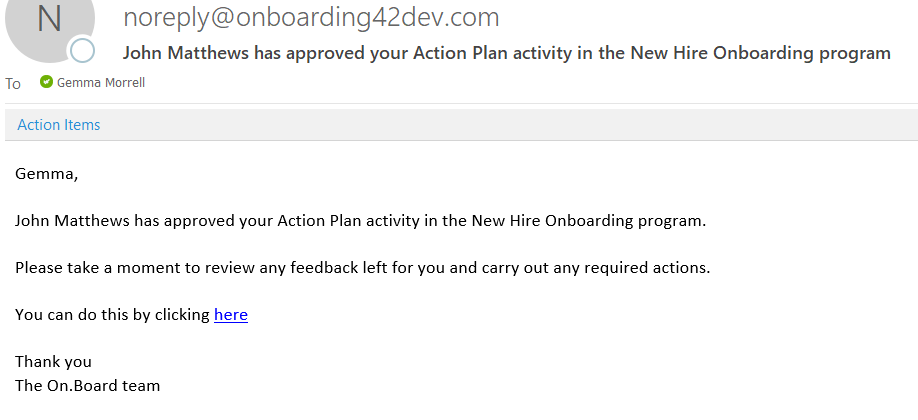
- Once the approver of the activity has completed the second part of the form, if they then approve the activity, the learner will receive an email notification to let them know and that they should check if any feedback has been left.
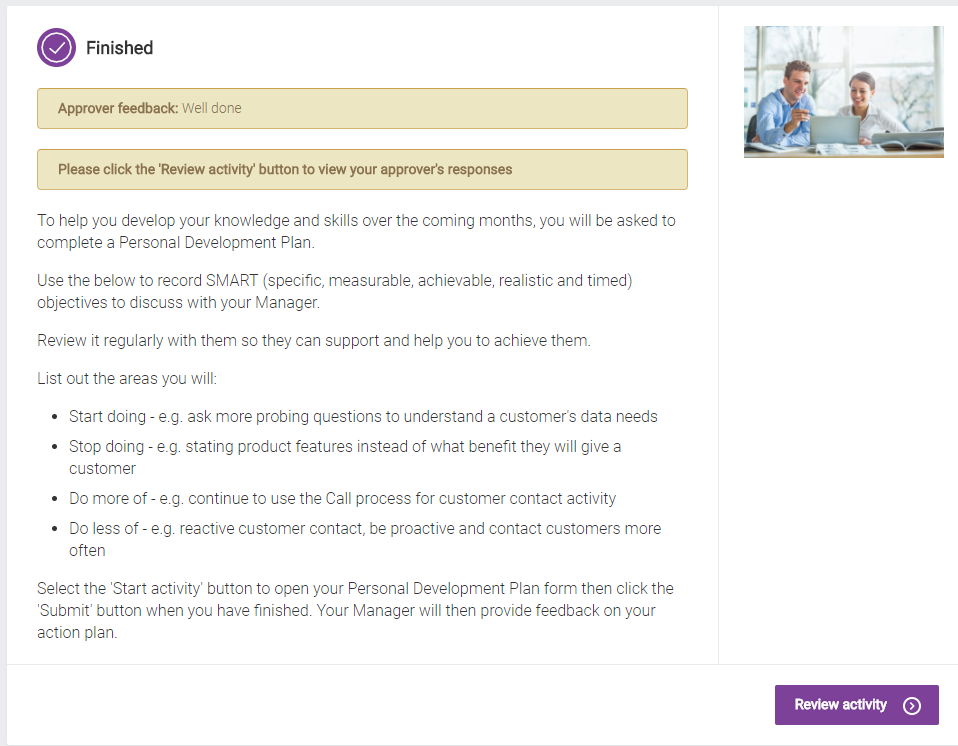
- The link in the email will take them to the activity overview page where there will be a message above the synopsis that says, “Please click the ‘Review activity’ button to view your approver’s responses”. The addition of this message helps to ensure that the learner does not miss the approver’s response.
- When an activity with a two-part form is rejected, the learner receives an email notification informing them of this. The link in the email takes them to the new copy of the activity, where they can see the approver feedback at the top of the synopsis and then the ‘Start activity’ button to re-take. By moving the approver’s responses to the top of the form, this gives the learner better visibility of the feedback so that they can take this on board before modifying their answers.
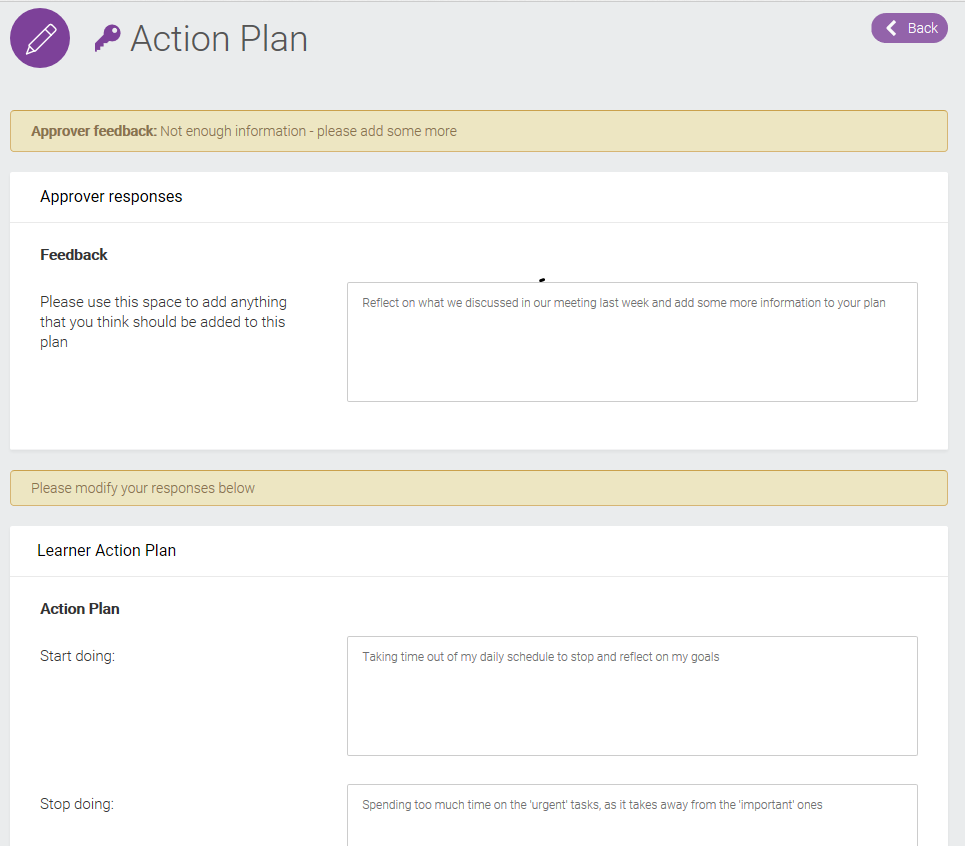
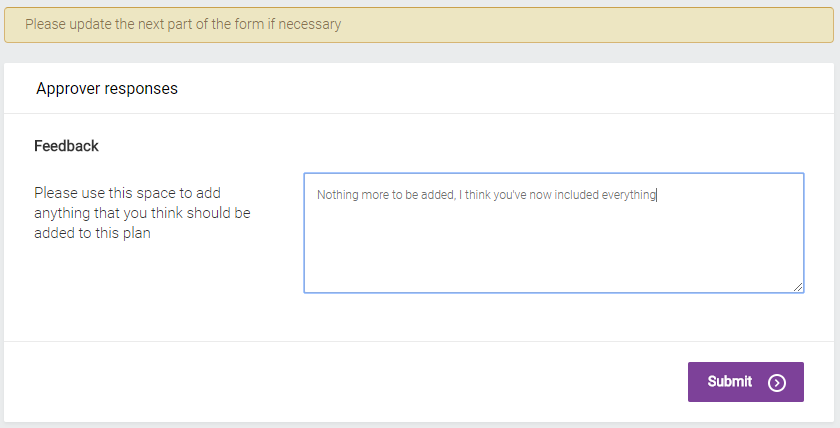
- After the learner has re-taken a rejected two-part form, the approver gets an email notification to review it. Once they’ve read over the learner’s new responses, they can then edit their responses on the approver part of the form before approving or rejecting it.
3. Quiz Feedback No Longer Mandatory
It is no longer mandatory for administrators to leave feedback on quiz questions.
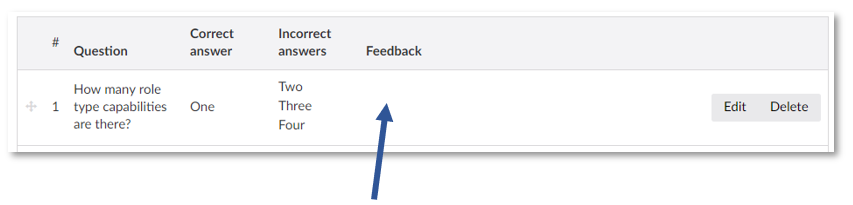
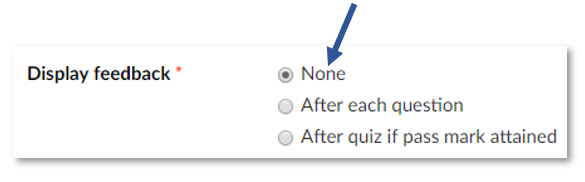
Therefore, you can leave this blank if you choose the ‘Display feedback’ setting ‘None’.
4. On.Board Icon on Smartphone Shortcut
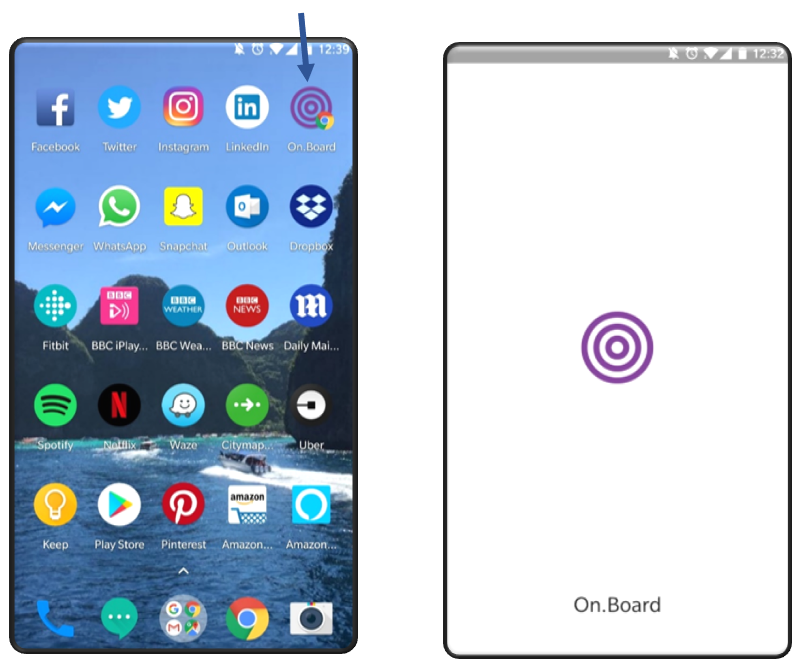
An On.Board icon has been added, meaning that when you create a shortcut on your mobile device it will display the On.Board logo. As with any shortcut, you can choose the title that is displayed here.
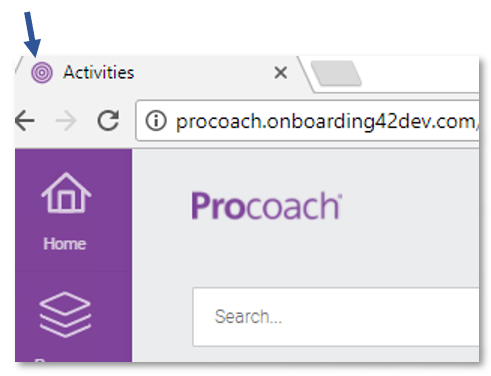
This icon will also display on the top of the web browser.
Comments
0 comments
Please sign in to leave a comment.